Viewing Asset Information

You can view information about all assets for the site and for individual assets.

Viewing Assets for the Site

On the Site window, Assets view you can see the physical hierarchy and any additional asset hierarchies, as well as assets by map location and a listing of assets. This view also contains circuits, specifications, sub types, notes, i-models, photos, operating parameters, degradation rates, barriers, activity reports, summaries, costs, asset lives, utilities, and more.
Select the following tabs to see detailed information about assets:
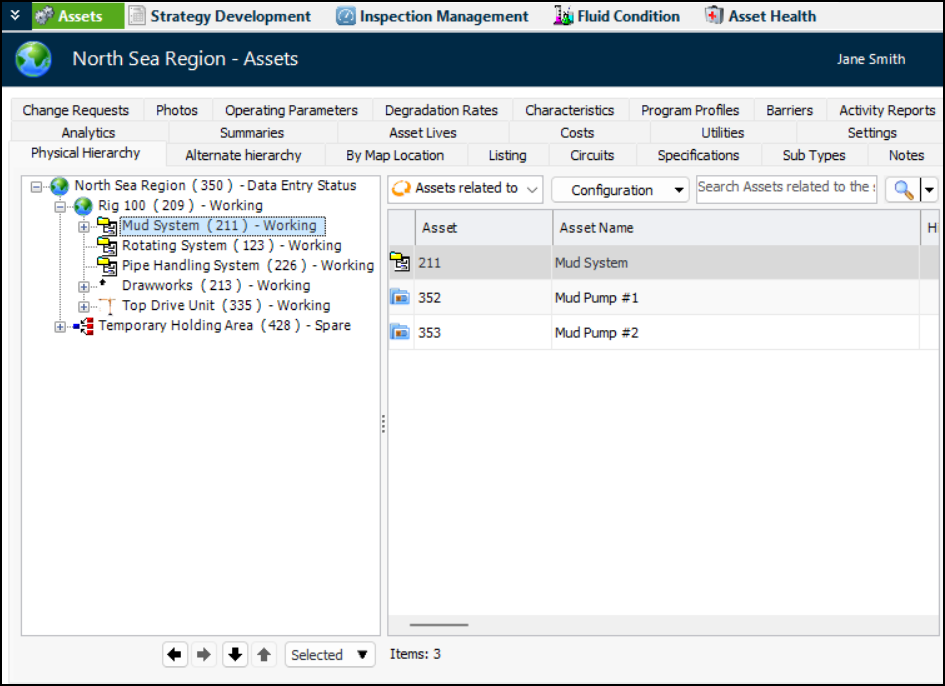
Physical Hierarchy – The tree structure provides a quick way to view parent assets and their children. Click to expand a group of assets. The asset’s number follows its name, and its status is shown in brackets beside the asset number. Similarly, if the asset is a component location, its installed component is shown beside its name.
Select an asset in the tree to view its descendants in the table on the right. This table also provides configurations for some asset types.
By Map Location – Assets for the site are displayed in a geographical map on the left side and a listing of the selected assets is displayed in a table on the right side.
Listing – The default configuration lists assets by number. You can also select configurations for installed and uninstalled components.
Circuits – Displays a list of circuit assets on the left. Select an asset to see information about its member assets in the right-hand tabs. The tabs range from the assets themselves to the failures assigned to the member assets.
Specifications – Each specification type is represented by a tab, for example, Oil and Gas and Electrical Substations. Select an asset type in the configuration list to view all of the assets that use that type, as well as the asset type’s attributes.
Sub Types – Select a subtype from the configuration list to view all of the assets that use it, as well as their attributes.
Notes – This configuration lists assets and the notes assigned to them.
Photos – All inspection photographs for the site are listed.
Operating Parameters – This configuration lists assets, their operating parameters, related information.
Degradation Rates – Assets are listed with their rate types, units of measure, and more.
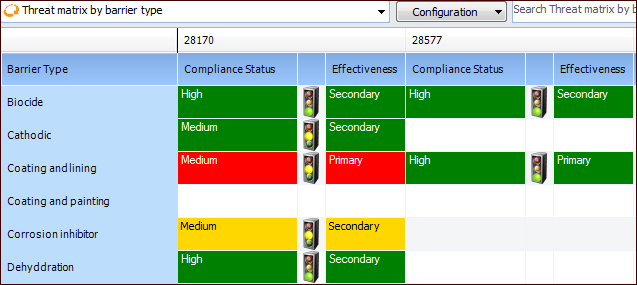
Barriers – Charts show the assets’ barrier compliance statuses and barrier type summaries. Assets are listed in the table along with their barriers. Several other configurations are available, including Threat matrix by barrier type. For example:
Activity Reports – Asset activity reports are listed. You can choose from different configurations such as all reports, open reports, published reports, completed reports, and reports by status.
Analytics – Shows alarm statistics. You can select configurations for alarm acknowledgment statistics, fixed during inspection statistics, and asset count by hierarchy location.
Summaries – Summary tabs are shown for strategy development analysis, reliability programs, work management, failure mode estimate, status, hierarchy location, and consequence priority.
Costs – Select an asset in the tree to view its life-to-date costs in the table on the right. This table provides additional configurations for viewing costs.
Asset Lives – Assets are shown in a table, along with their life values. You can also view the Life-to-date Values table.
Utilities – This tab shows information about asset transfers and hierarchy corrections.
Settings – This tab shows information about asset and subtype settings.
 

Viewing an Asset’s Information

Open an Asset window to:

To Open an Asset

1.
2.
Physical Hierarchy: This tab contains a tree that shows assets’ relationships to each other in a hierarchical format. Select an asset to view information about it in the right-hand tab. For example:
Tip: If it is available, you can select the View as Map icon to view the assets by physical location. For more information about viewing assets in this manner, see Defining View as Map Appearance Properties.
Other Hierarchies: If your site uses other hierarchies, you can search for the asset on the tabs that show them.
Listing: This tab shows a list of assets in a table format. You can filter and sort the list to find the asset you want.
By Map Location: This tab displays the assets by their physical location, in the form of a map. For more information about viewing assets in this manner, see Defining View as Map Appearance Properties.
Tip: Each tab contains configurations that allow you to view the assets in different ways. For example, you can view an asset’s descendants, installed components, or assets with failure modes.
3.
Note: On the Physical Hierarchy tab, if you double-click a component that is installed in a component location, APM opens the component asset.