Object Model Diagram Overview

The APM object model defines:
 
Object model diagrams allow you to explore the APM systems and classes and provide a graphical representation of their relationships to each other. If you will be customizing the system or creating reports, table configurations, or performance indicators, you can use model diagrams to learn about the classes and relationships that you are working with. The diagrams can also be copied into other applications or printed for a hard copy reference.
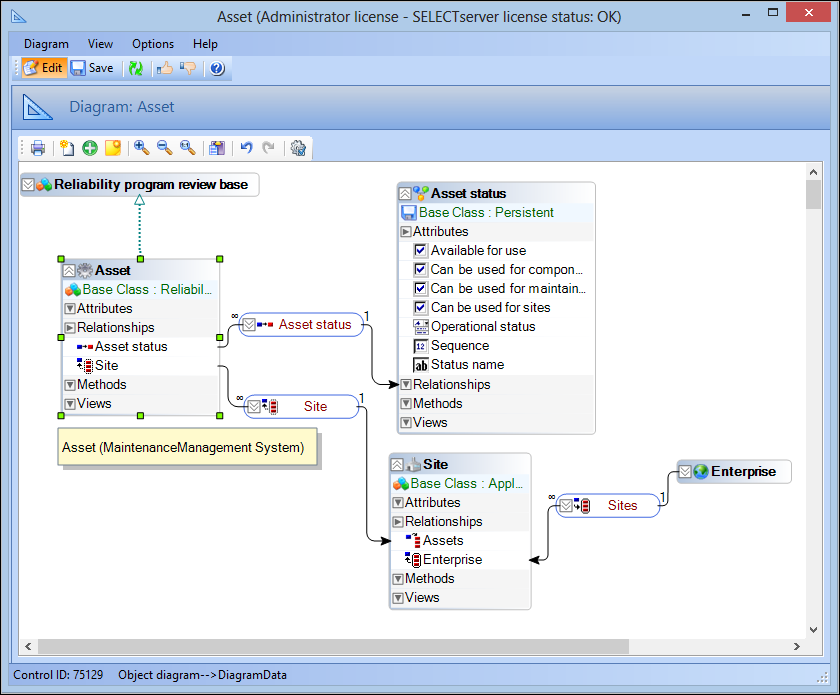
Object model diagrams can be as simple or complex as needed. Below is a simple diagram depicting the Asset class and its relationship to Asset Status and Site, as well as its base class:
This topic outlines the tool bar and legend of the object model diagrammer.

Tool Bar

The Object Model Diagram includes an easy reference tool bar with the following options:
 

Legend

Each type of object and relationship is identified differently in an object model diagram. Objects in the object model diagram can be quickly identified knowing what different colors, icons, and graphics represent.
The following is a legend for object model diagram objects:

Classes

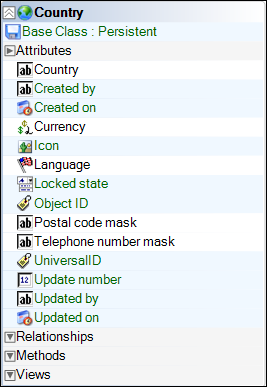
Object model diagrams differentiate APM base classes and user-defined custom classes by using a different header color. APM base classes have blue headers, while custom classes have an orange header. For example:
 
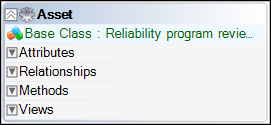
A class can be expanded to display its base class, attributes, relationships, methods, and views components. For example:
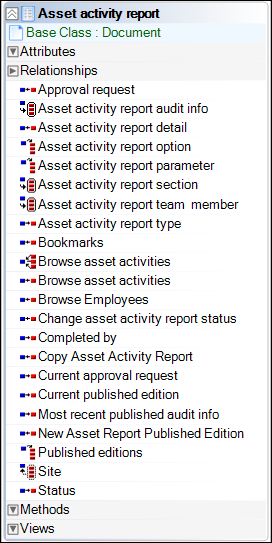
Similarly, details of attributes, relationships, methods, and views of a class are displayed by expanding each component header. Below is an example of the asset activity report class with its Relationships component expanded:
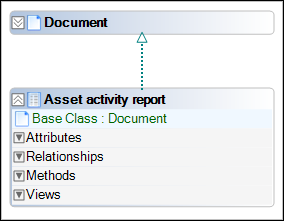
Connections between a class and its base class are denoted via a green, dotted arrow. For example:

Inherited Members

Attributes, relationships, methods, and views inherited from the base class, are identified in green. For example:

Relationships

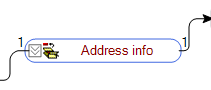
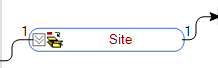
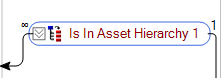
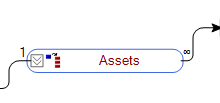
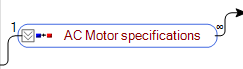
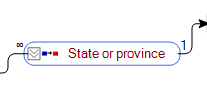
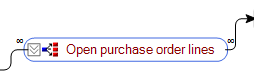
In object model diagrams, an APM relationship is represented by an oblong shaped box with red text, outlined in blue. Custom relationships are outlined in orange. For example:
 
When “Show Relationship” is selected, a line joins the two related classes. The arrow denotes the direction of the relationship.
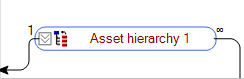
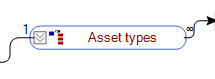
In addition to the line itself, the relationship also indicates if the relationship is one-one or many-many. Each type of relationship is identified by a specific icon. For more information about types of relationships, see Relationship Types. When a relationship is displayed in an object model diagram, either a “1” or a “∞” appears at each end of the relationship, to denote a single or multiple relationship respectively.
The following chart depicts how some of the more common types of relationship are displayed in an object model diagram:
 

Notes

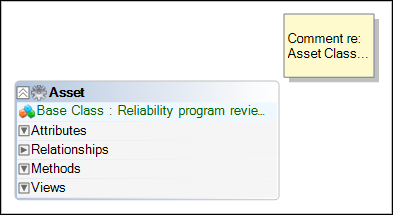
Notes can be added to an object model diagram to add supporting comments or information, and appear as a yellow box that can be resized as needed. For example:
Note: Notes are not directly connected to objects on the diagram, therefore it is recommended that the note be positioned near the object that it references.