Customization Overview

Customization allows you to tailor the APM software to your organization’s business processes. Your customizations can include:
User Interface (UI) Customization: creating custom versions of APM’s windows and dialogs, creating new windows, dialogs, and panels, or creating table configurations with the administrator privilege.
Object Model Customization: creating new classes, attributes, and relationships that add functions to the system.
Custom Reports: creating custom versions of APM reports or creating new reports.
Application Settings Customization: adding units of measure and currencies, and editing the way the system displays data or accepts data input.
Custom Methods: creating custom code that adds functions to the system.
Custom Interfaces: creating interfaces that allow data transfer between APM and other software systems.
Security Profiles: although not a true customization, security profiles are often used in conjunction with customizations to achieve special settings for different types of users.
This guide covers UI and object model customizations. For information on other types of customizations, see Reports, and Security. For information on custom methods and custom interfaces, talk to your APM technical consultant.

Contents

Warnings and Considerations
Customizing APM
Working With the Object Model
Files
Deploying Customizations
Troubleshooting

Warnings and Considerations

Before deciding to customize APM, consider the following cautions:
The recommended cycle is:

Customizing APM

Customers can customize many areas of the APM software, including views, fields, and subtypes. The object model used to create APM provides a visual representation of the data that forms the software, making it easy to understand and customize. Although you cannot directly access or modify the elements that make up APM, you can create a system with additional data and overrides to make APM function in the most efficient manner for your business. To understand the implications of any changes that you make to the object model, you should have a general understanding of how the object model works and what files are created when you customize.
The object model customization principles presented in this topic apply to customizing the user interface, to creating object extensions, and to working with subtypes. Subtypes require additional changes to the object model, so be sure to review the “Subtypes” conceptual topic as well.
Creating custom reports does not require changes to the object model.
In order to perform any customizations, you must be logged on as an APM administrator. See Logging on as an Administrator.
Note: When adding object extensions (classes, attributes, and so on), you must create your customizations as an English language user. If you do not create your customizations in English, you might have problems using the custom fields in APM reports. Once your customizations are complete, you can then translate them into other languages.
Before creating any customizations, review Planning Your Customization Requirements.

Working With the Object Model

APM is composed of several systems, such as Foundation, MaintenanceManagement, and ObjectQuest. When creating customizations, you work with the CustomerData system. This system contains the additional data and overrides that you want to appear when you use APM. If you have never customized views, attributes, or subtypes, the CustomerData system is empty.
To customize an element of the software, you need to create a copy of an existing APM base class. This customized version of the class, called the “prime class”, is then saved in the CustomerData system. The prime class is additive, so whatever you enter in this class is added to all of the data copied from the base class. You cannot delete elements from the base class. If you do not wish to use a particular attribute or relationship, you can simply remove it from the user interface.
All classes and attributes represent tables and columns in the database. When you add attributes or add or modify views for the class, your custom data appears in the prime class, and columns are added to the tables in the database. The attributes, relationships, and fields included in the base APM class do not appear in the prime class, and you cannot remove their tables or columns from the database. There are several implications of adding tables and columns to the database:
Note: However, you do not have to lock the system if you are planning to work with custom views only. For example, if you are adding or modifying a custom view, adding an attribute to the UI, adding a custom message or validation rule, you do not have to lock the system first.

Object Modeling Concepts

An object is an individual unit of data storage; it is the basic building block of the APM system. In APM, each object is an instance of a particular class and inherits all of the properties of that class. For example, any one asset is an instance of the Asset class.
The object model is the collection of related classes that make up the APM system. This collection defines the types of business objects in the system (such as assets and work orders), the properties that each object has, and how the objects are related to each other.
The APM object model defines:
The object model defines the APM application using:
The APM object model is the foundation of all aspects of the application. Many implementation activities are directly tied to the object model. Having a basic understanding of the object model will help you to understand other activities, such as:

Classes

Classes are the main building-blocks of the object model. A class is like a template for system objects that all have the same basic characteristics. The design of each class and how the classes relate to each other provide the basic structure of the application. All objects in APM are based on classes. Objects that behave the same way belong to the same class. For example, each asset in the system is based on the Asset class.
For example, one of the main classes in APM is the Asset class. An APM user might create an asset called “Truck”. APM creates the Truck object based on the Asset class. The Truck object contains all of the data that APM has about the truck, as well as all of the methods that APM users can perform on or with the Truck. Another way of saying this is that the Truck object is an instance of the Asset class.
Classes themselves are made up of other smaller components such as:

Attributes

An attribute is a piece of information that resides in a class. Attributes can also be referred to as properties or data members of the class. Using attributes, you can collect a variety of information about an object.
Some examples of class attributes are:
For example, here are some of the attributes for the Asset class:
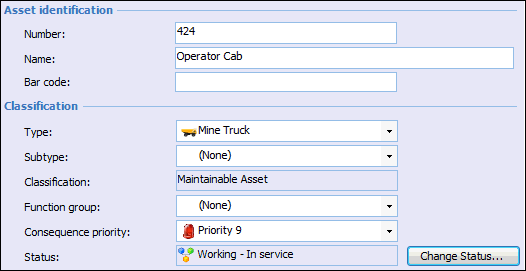
Many of the attributes for a class are shown as fields in the user interface. For example, on an asset’s Properties view, General tab, you will see the Asset number and Classification fields.
APM picks the most appropriate control to represent the attribute based on the type of data it represents. For example, an attribute with the Date data type is shown as a specialized Date control in the user interface.
For a list of data types and controls, see Data Types.

Methods

A method is any action that you can perform against an instance (object) of a particular class. For example, Change Status is a method that can be performed on asset objects.
Other methods for the Asset class include:
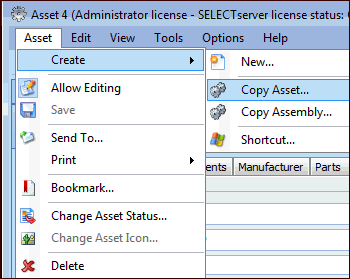
In the user interface, methods appear as menu items, toolbar buttons, and push buttons. For example:
For a list of common methods, see Methods.

Relationships

A relationship defines the way one class is linked to another class in the object model. When objects are created from classes, they relate to each other based on the relationships set up between the classes in the object model. For example, the Asset class has an “owns many” relationship to the Functional Failure class. This means that when asset objects are created, they can own one or more functional failure objects.
Relationships are also represented in the user interface. APM picks the most appropriate control to represent the relationship based on its relationship type. For example, an “owns many” relationship is shown as an MCLB (table) control.
For a list of relationship types, see Relationship Types.

Views

A view is a screen or set of screens in the user interface. Each class usually has one or more views. View objects include class views (for example, the site’s Assets view) and dialogs (for example, the Work Management Settings dialog).
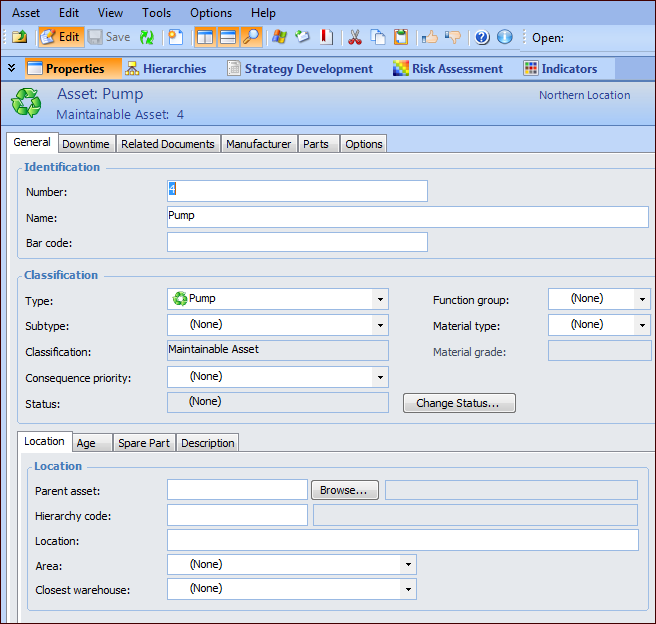
The following is an example of an asset’s Properties view.
 
The views for an object are created and maintained using the User Interface view of the class.

Panels

A panel is a container for attributes, methods, or fields that is reusable. Examples are the Asset Properties, Failures list, and Standard Job list panels. When a panel is customized, the customizations appear everywhere that the panel is used.
TOP

Files

There are two types of files that hold information about elements you have customized: .pkg and .cache files.

.Pkg Files

When APM tries to open a class, it first checks the .pkg files to find out if that class has overrides. An override can be any change to object extensions or to the user interface. The .pkg files and the database together contain the schema for APM. Information about subtypes is not included here. The .pkg file lists the original system and class and the object ID of the override elements so the software knows where to find the overrides.
When you first install APM, a file called Ivara.pkg is included in the Bentley\AssetWise Performance Management\Cache\Package directory. Once you make changes to the object model, an additional file called Customer.pkg appears in the same directory. The appropriate .pkg files must be present for your custom object extensions and view changes to appear when you use APM.

.Cache Files

There are two types of .cache files: system and class. These files include all of the information about the changes that you have made to APM. These files are necessary for your changes to appear when you run the software. All necessary .cache files are generated automatically when you unlock the system after you have finished customizing the software.
First, each system has a file called [system name].cache located in the Bentley\AssetWise Performance Management\Cache\[system name] directory. For example, the Maintenance Management system has a file called MaintenanceManagement.cache that is located in the Bentley\AssetWise Performance Management\Cache\MaintenanceManagement directory. When you customize APM, a system cache file is added to the CustomerData system. This system file contains information about the various elements included in that system, except for elements of the user interface. For example, attributes, relationships, banners, and methods created in the system are not included, but views are.
Second, each customized class has a file called [system name].[class name].cache in the Bentley\AssetWise Performance Management\Cache\[system name] directory. This class file contains all the changes you have made to the user interface. For example, if you use an administrator license to modify the Work Order Properties view on the Work Order class, a file called CustomerData.WorkOrder.cache appears in the Bentley\AssetWise Performance Management\Cache\CustomerData directory.
You might notice that for each .cache file there is also a file of the same name with a .dict file format. These additional files are dictionary files that simply provide quicker access to the .cache files.
TOP

Deploying Customizations

When you are ready to distribute customizations to client computers, use the Smart Client Packager program to create a software installer and deploy it to users.
For larger projects, for example, when you need to copy customizations, security profiles, custom event assemblies, additional files, as well as packager projects, you can use the APM Environment Migration wizard.
For more information, see “Packaging the Client Software” in APM Installation Guide or APM Upgrade Guide. For information about the Environment Migration Wizard, see APM Environment Migration Guide.

Customizations and Upgrades

Customizations need to be reviewed and updated after every upgrade of APM. Deleted, modified, and new classes and views can have significant impact on customized UI, object model, methods, interfaces, reports, and security profiles. For detailed information, see “Upgrading Customizations and Security Profiles” in APM Upgrade Guide.

Troubleshooting

APM can run efficiently with or without custom cache files. Because of the application server architecture, the benefits of cache files diminish over time. The longer the application server runs, the more data is available in memory, making cache files unnecessary.
However, custom cache files can improve initial performance if you have a significant number of customizations. In this case, you might wish to generate and run with custom cache files. You must generate custom cache files manually, and you are responsible for removing or regenerating them in the future.
Note: If you generate custom cache files, be sure to remove them when you upgrade the database. The APM Upgrade Wizard includes an optional step for deleting custom cache files when you are upgrading an instance. You can then regenerate custom cache files if needed.
Before regenerating custom cache files, delete the cache files for the CustomerData system. Then access the Customization Center in APM and generate cache files. This function creates all of the cache files you need (including the .dict files). Because it is creating so many files, it might take a few minutes to complete.
For more information, see Customization FAQ.
TOP