**Setting up Warehouses

A warehouse is a location that stores and tracks warehouse items. Usually, there is one APM warehouse for each controlled inventory location in your enterprise.
APM uses warehouses to track inventory and inventory transactions. A large site might have multiple locations where inventory is stored. Each location can have different material or different demands for the same material. It is not uncommon for a main warehouse to be the main supplier to satellite warehouses. For these reasons, you can set up multiple warehouses, transfer material between warehouses, and maintain detailed transaction records.
There are no limits to the number of warehouses that you can create, and in complex sites, there may be a large number. As a general rule, if a storage location is uncontrolled, you should not set it up as an APM warehouse because it would be almost impossible to maintain an accurate transaction history.
Warehouses enable you to see the stocked items, issue items, receive items, check replenishment status, count inventory items, and view warehouse transactions.

Inventory Groups

A warehouse inventory group specifies a group of items contained within a particular warehouse. Each warehouse can have one or more warehouse inventory groups. It is the warehouse inventory group that most users work with on a day-to-day basis.
The name of the warehouse inventory group is made up of a combination of the warehouse name and the name of the linked inventory group. The inventory group allows you to indicate that the warehouse items are either owned by your organization or are consignment inventory. Each supplier with whom you have a consignment agreement has its own inventory group.
Each warehouse must link to a default inventory group. The system uses the default inventory group during the creation of the initial balances for new warehouse items. In most cases, your regular inventory group will be the default group.
For consignment warehouses, you may choose a consignment inventory group. If a warehouse has a consignment inventory group as the default group, consignment groups for other suppliers cannot be added to that warehouse. However, a warehouse with a regular inventory group can also have multiple consignment groups for multiple consignment suppliers.
The APM Install database includes one warehouse called the “Main Warehouse”. You can edit the properties for this warehouse, and you can also create new warehouses. This topic explains how to create a new warehouse.
Note: Before you create a warehouse you must have created at least one inventory group. See **Setting up Inventory Groups.

To Set up Warehouses

1.
On the site’s Resource Management view, select the Settings tab. Select the Inventory Settings node in the tree.
Tip: You can also select the site’s Administration menu, Resource Management Settings, and then Resources. The Resource Management Settings dialog appears.
2.
Select the Warehouses tab. This tab shows a list of warehouses for the site.
3.
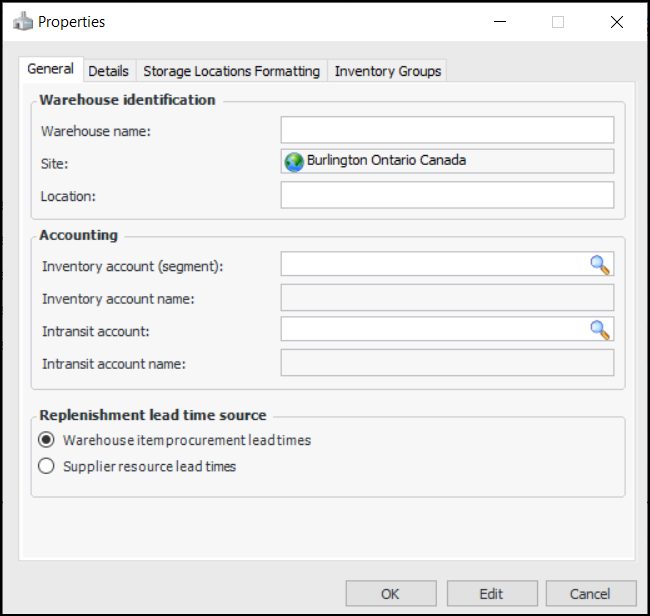
Click New. The Properties dialog appears:
4.
Warehouse item procurement lead times: The system will use the procurement lead time entered on each warehouse item.
Supplier resource lead times: The system will use the ‘order-to-receipt’ time entered on the supplier resource.
5.
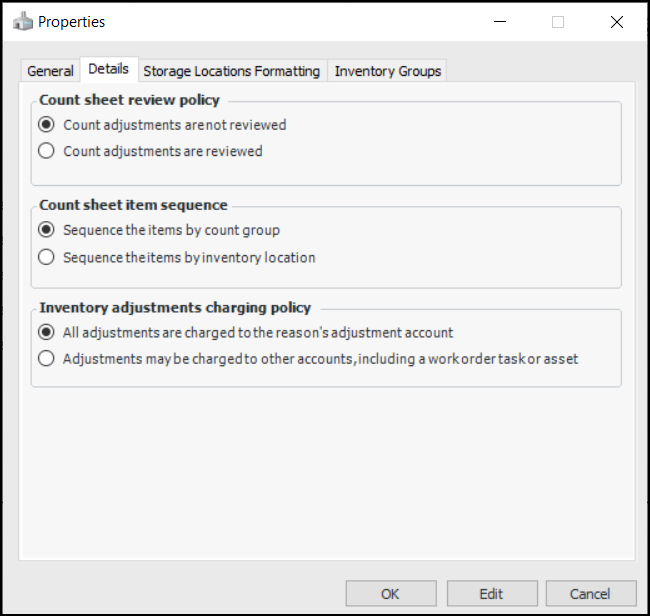
Select the Details tab.
6.
Count adjustments are not reviewed: The adjustments are created and posted when the counts are processed.
Count adjustments are reviewed: The adjustment transactions are created in a non-posted state. The adjustments must be reviewed and posted before the inventory balances are updated.
Sequence the items by count group and pick sequence: Count groups are processed by sequence number. Items in the group are ordered by their pick sequence numbers.
Sequence the items by inventory location: Items are ordered according to their primary storage locations.
All adjustments are charged to the reason's adjustment account: All adjustments are charged to the GL account specified on the adjustment reason.
Adjustments may be charged to other accounts, including a work order task or asset: The adjustment may be charged to a work order task, asset, or GL account. For example, if you review count adjustment transactions before posting, setting this option allows users to change the charging information on these transactions.
7.
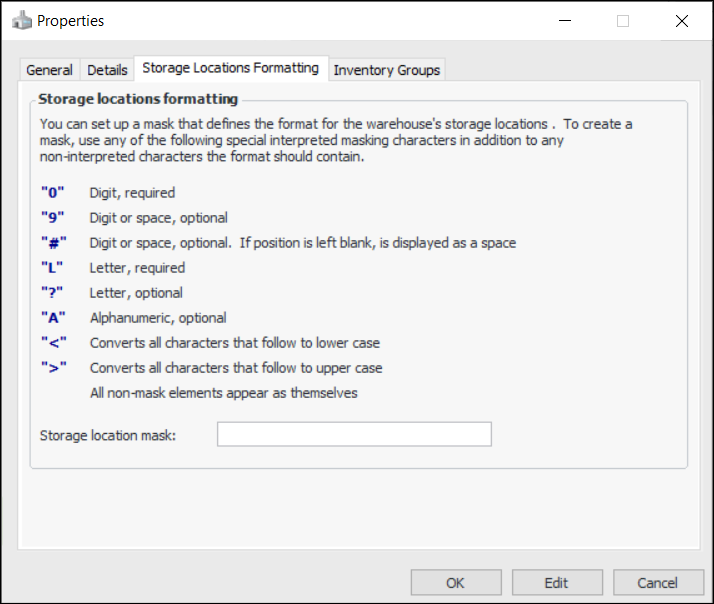
Select the Storage Locations Formatting tab.
8.
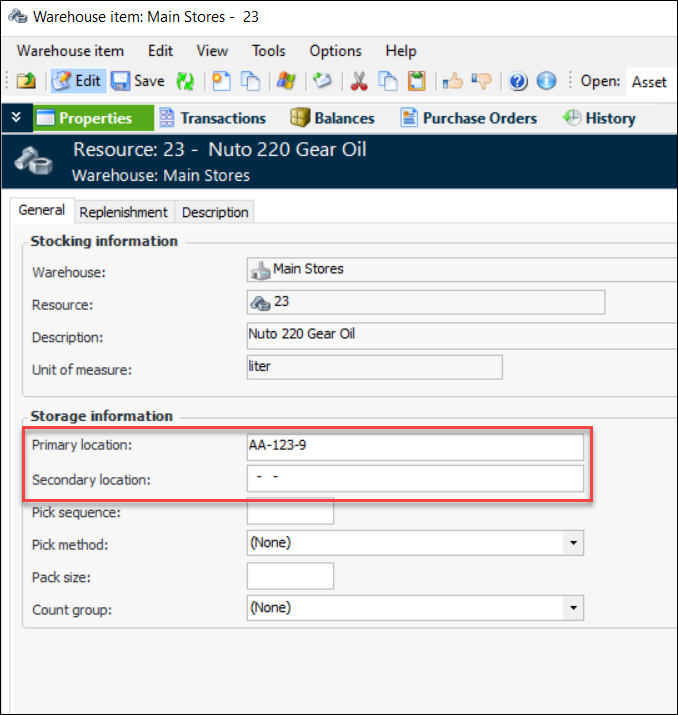
>LL-000-A
would accept the following primary location on a new warehouse item:
The mask also applies to the secondary location.
The mask is also used to format storage locations on warehouse items in table configurations, reports, and count sheets.
9.
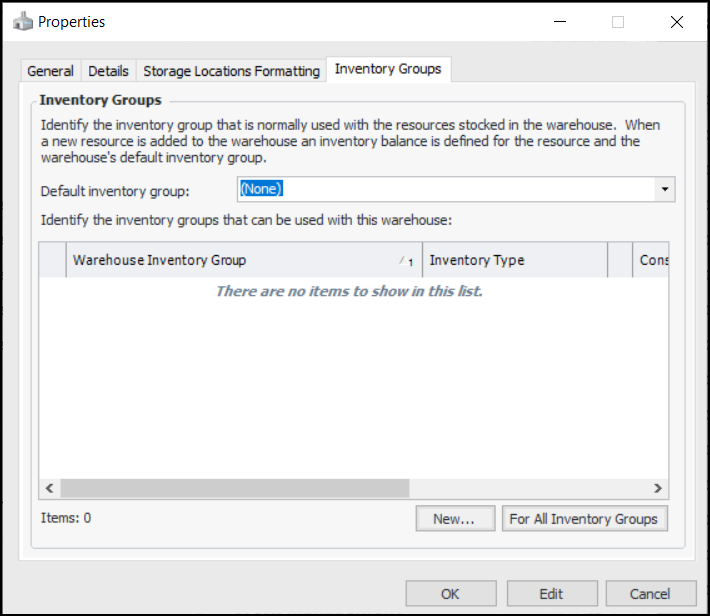
Select the Inventory Groups tab.
10.
Select an inventory group from the Default Inventory Group list. Unless the warehouse is for consignment inventory, select the inventory group for your regular inventory.
11.
To add another inventory group to the warehouse, click New. The Warehouse Inventory Group dialog appears. Select the inventory group that you want to link to the warehouse, and then click OK.
Note: If the default inventory group is a consignment group, you can only add regular inventory groups to the warehouse. Other consignment inventory groups cannot be added.
12.
When you are finished, click OK to close the warehouse’s Properties dialog. APM creates a new warehouse and adds it to the list.
13.
Repeat steps 3 to 12 for each warehouse that you want to create.
14.
Select the Default warehouse for the site. This warehouse will appear by default when you create a resource demand, and can be changed when necessary.