
|
Setting up Replenishment Hold Reasons
To Set up Replenishment Hold Reasons
1. On the site’s Resource Management view, select the Settings tab. Select the Inventory Settings node in the tree.Tip: You can also select the site’s Administration menu, Resource Management Settings, and then Resources. The Resource Management Settings dialog appears.
2. Select the Replenishment Holds tab. This tab shows a list of the current hold reasons.
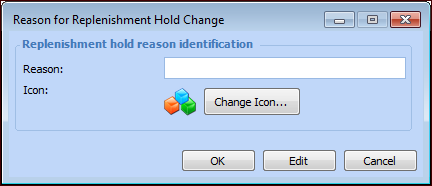
3. Click New. The Reason for Replenishment Hold Change dialog appears.
5. Click OK to save and close the dialog.
6.