**Setting up Material Adjustment Reasons

You can enter typical material adjustment reasons used at your site. Then, when you post material adjustment transactions, you can simply select the appropriate reason. Common reasons include cycle count and shrinkage.
You must designate the adjustment of a consigned item as being either the customer’s or supplier’s responsibility. Adjustments that are the customer’s responsibility are treated the same as an issue or return to consignment; the customer is responsible for the value of the adjusted quantity, and the transaction is marked for invoicing. Adjustments that are the supplier’s responsibility are not marked for invoicing, have no accounting information, and are calculated at the current consignment price. The selected reason for the adjustment identifies who is responsible for the adjustment.
If your organization is using APM to track consignment inventory, you might need to define at least one adjustment reason with the option Supplier is responsible for adjustments. You will need to use this reason if you are using the adjustment method to replenish consignment inventory.
Note that adjustment reasons can support site-specific settings, so the consignment responsibility can differ depending on the transaction site.
You can create site-specific settings for adjustment reasons. The settings include the GL account and consignment responsibility. When you select a reason on an inventory adjustment, APM checks whether the reason supports site-specific settings. If the reason supports site settings:
This topic explains how to create a material adjustment reason.
For more information on consignment inventory adjustments, see Replenishing Consignment Inventory Using Inventory Adjustments.

To Create a Material Adjustment Reason
1.
On the site’s Resource Transactions view, select the Settings tab. Select the Resource Transactions Settings node in the tree.
Tip: You can also select the site’s Administration menu, Resource Management Settings, and then Resource Transactions. The Resource Transactions Settings dialog appears.
2.
Select the Adjustment Reasons tab. This tab lists the reasons that have been defined for the enterprise.
3.
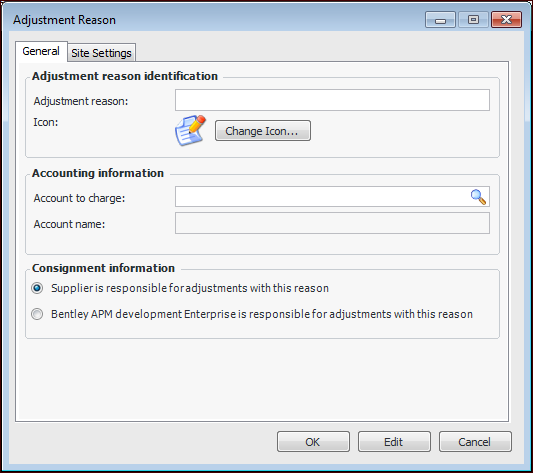
Click New. The Adjustment Reason dialog appears.
4.
5.
Note: If the adjustment reason supports site settings, this account is added to the inventory adjustment when APM cannot find an appropriate setting.
6.
If you are creating this reason to use for consignment inventory adjustments, select Supplier is responsible for adjustments with this reason.
If the reason is for adjustments of regular inventory, select [Your organization] is responsible for adjustments with this reason.
Note: If the adjustment reason supports site settings, this information is added to the inventory adjustment when APM cannot find an appropriate setting.
7.
8.
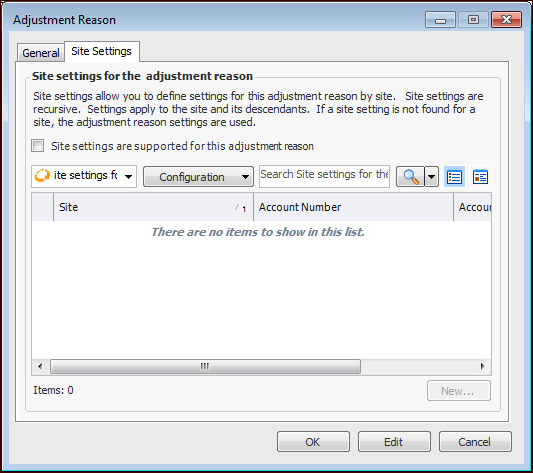
Click Site settings are support for this adjustment reason.
Note: You might have to click Edit twice to save the reason and enable the New button.
9.
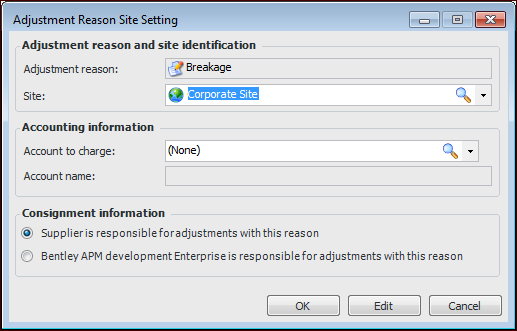
For each of the site settings you wish to create, click New. The Adjustment Reason Site Setting dialog appears:
10.
11.
12.
If you are creating this reason to use for consignment inventory adjustments, select Supplier is responsible for adjustments with this reason.
If the reason is for adjustments of regular inventory, select [Your organization] is responsible for adjustments with this reason.
13.
Click OK to save and close the site setting.
14.
Click OK to save and close the Adjustment Reason dialog.