
|
**Setting up Inventory Groups
To Create an Inventory Group
1. On the site’s Resource Management view, select the Settings tab. Select the Inventory Settings node in the tree.Tip: You can also select the site’s Administration menu, Resource Management Settings, and then Resources. The Resource Management Settings dialog appears.
2. Select the Inventory Groups tab. This tab shows a list of the inventory groups in the system.
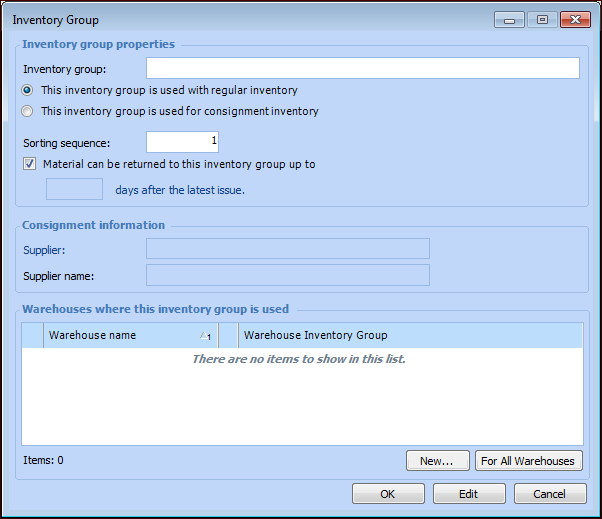
3. Click New. The Inventory Group dialog appears.
5. If the inventory group is for consignment inventory, you must select a supplier. Click Browse, select the appropriate supplier, and click OK.
6.
7. If your warehouses are already set up, you can choose which ones this inventory group should be linked to. To select a warehouse click New. The Warehouse Inventory Group dialog appears. Select the appropriate Warehouse and click OK.To link this inventory group to all of the warehouses in your system, click For All Warehouses.
8. When you are finished entering information, click OK. APM creates a new inventory group and adds it to the list.
9.