Setting up Work Order Hold Reasons

When a user creates a work order hold, they must select a hold reason. The hold reason identifies the types of actions that are restricted by the hold:
There are two levels of restrictions:
This topic explains how to create new hold reasons.

To Create Hold Reasons

1.
From the Site window, select the Work Management view and the Settings tab. Select the Work Orders tab and the Work management settings node in the tree.
Tip: You can also select the Administration menu and then Work Management Settings. The Work Management Settings dialog appears.
2.
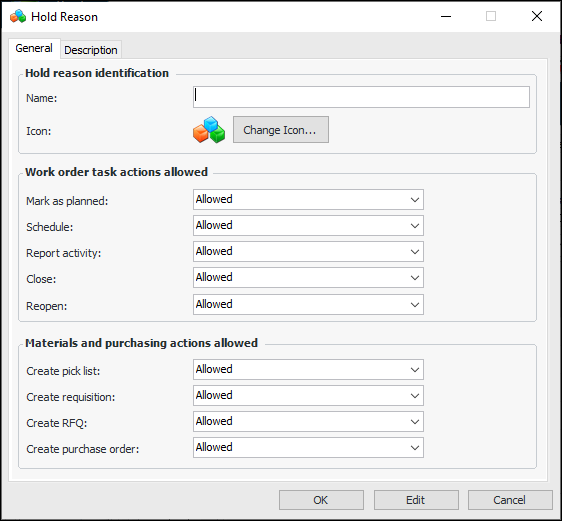
Select the Holding tab and click New. The Hold Reason dialog appears:
3.
Swap Now (Component Swapping Info dialog)
Complete Repair (Component Swapping Info dialog)
Enter Timecard (on a task requirement)
Issue Material (on a task requirement)
Issue Tool (on a task requirement)
Report Tool Usage (on a task requirement)
4.
Select the Description tab to enter a longer description of this hold reason.
5.
Click OK to save the reason.