Setting Work Order Close Options

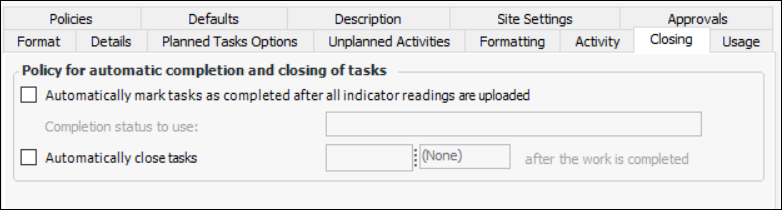
In a work type’s properties, you can select to have completed work order tasks closed automatically by the Close Completed Tasks scheduled action, and you can specify the amount of time after they have been completed that they will be closed.
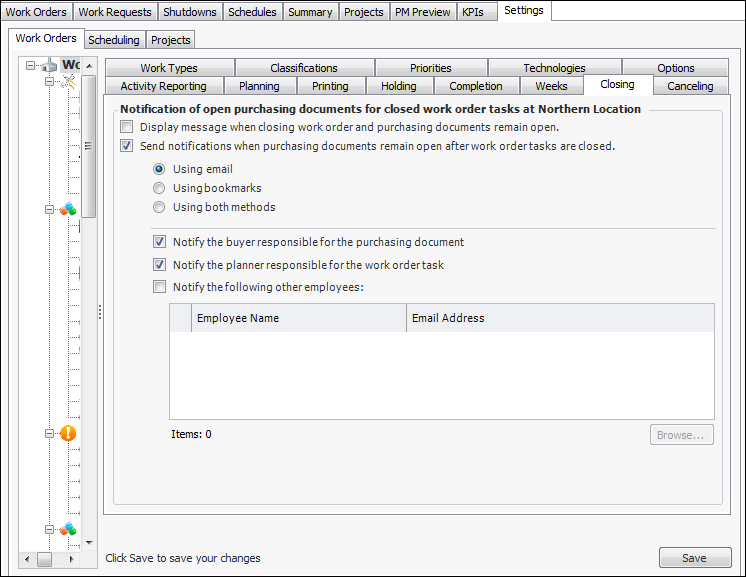
You can also select whether or not the system should check for and warn users about open purchasing documents related to the work order during the work order task close process. See To Notify Employees of Open Purchasing Documents.

To Set Work Order Close Options on a Work Type

1.
From the Site window, select the Work Management view and the Settings tab. Select the Work Orders tab and the Work management settings node in the tree.
Tip: You can also select the Administration menu and then Work Management Settings. The Work Management Settings dialog appears.
2.
Select the Work Types tab. Double-click the work type to open it.
3.
In the Work Type Properties dialog, select the General tab and then the Closing tab.
4.
5.
Click OK to save your selections and close the Work Type Properties dialog.

To Notify Employees of Open Purchasing Documents
1.
From the Site window, select the Work Management view and the Settings tab. Select the Work Orders tab and the Work management settings node in the tree.
Tip: You can also select the Administration menu and then Work Management Settings. The Work Management Settings dialog appears.
2.
Select the Closing tab.
3.
Click Edit to modify the site settings. The Edit button is replaced by the Save button.
4.
Click Browse to select the employees who should be notified.
5.
Click Save.