Setting up Work Statuses

The work statuses on interop work orders and requests for work can be used to control checksheet generation on work orders and to update checksheet statuses. The work status indicates whether the document is open, closed, or canceled.
Note: One of the work status features is available for technology preview. You must first enable feature 127 to use the functionality in APM. In the Enterprise window, select the Features view and the Enabled Features tab. Click Browse, select “Update checksheet status when work status is updated” and click OK. If APM is running as a smart client, click Refresh Enabled Features on the server. Then restart the client to use the functionality.

To Set up Work Statuses

1.
From the Site window, select the Work Management view and the Settings tab. Select the Work Management tab and the Interoperability work management settings node in the tree.
Tip: You can also select the Administration menu and then Work Management Settings. The Work Management Settings dialog appears.
2.
Select the Work Statuses tab.
3.
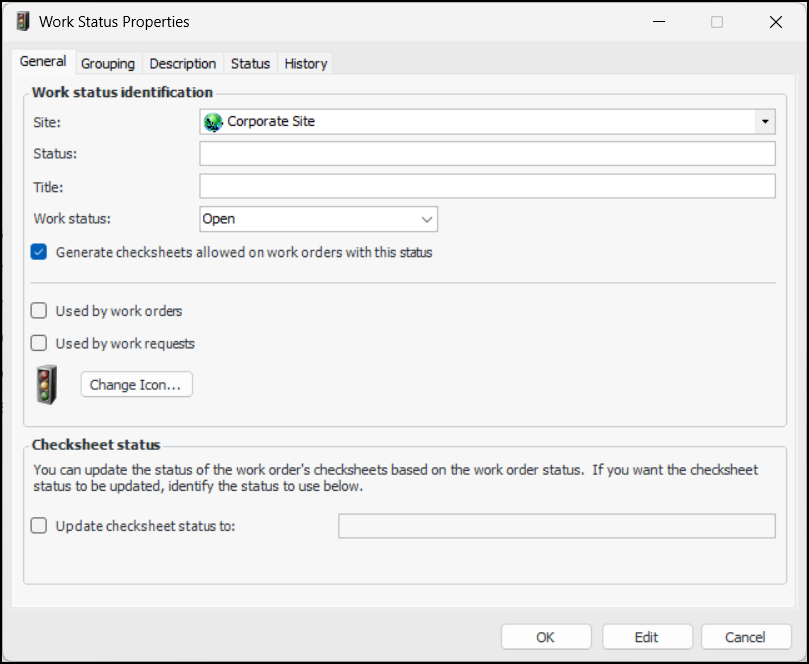
Click New to open the Work Status Properties dialog:
4.
5.
6.
In the Status box, enter a descriptive name for the status.
7.
8.
Note: On work orders or requests for work with this status, the work status is displayed as “title - name - status”. For example, “Work complete - TECO - Closed”.
9.
If work orders with this status can have checksheets generated for them, select Generate checksheets allowed on work orders with this status.
10.
11.
To select a different graphic for the status, click Change Icon, select a different image, and click OK.
12.
13.
If your organization has defined object groups, select the Grouping tab and select the appropriate values.
14.
Select the Description tab to provide more information.
15.
When you are finished, click OK. The dialog closes and the work status is added to the tab.