|
Setting up Work Document Change Request Statuses
Tip: To view work document change requests and their statuses, select the Site window, Work Management view, and the Change Requests tab.To Set up an Asset Change Request Status
1. From the Site window, select the Work Management view and the Settings tab. Select the Work Management tab and the Interoperability work management settings node in the tree.Tip: You can also select the Administration menu and then Work Management Settings. The Work Management Settings dialog appears.
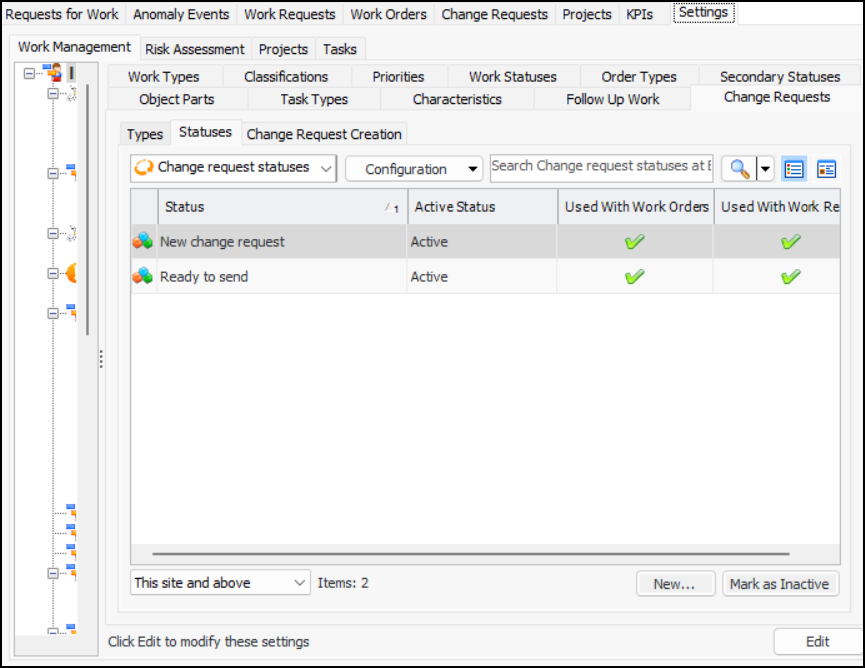
2. Select the Change Requests tab and then the Statuses tab. This tab displays the work document change request statuses for the site. For example:Tip: While statuses are being developed, you can mark them as inactive to prevent them from being selected. When you are ready to enable the status, select it in the table and click Mark as Active.
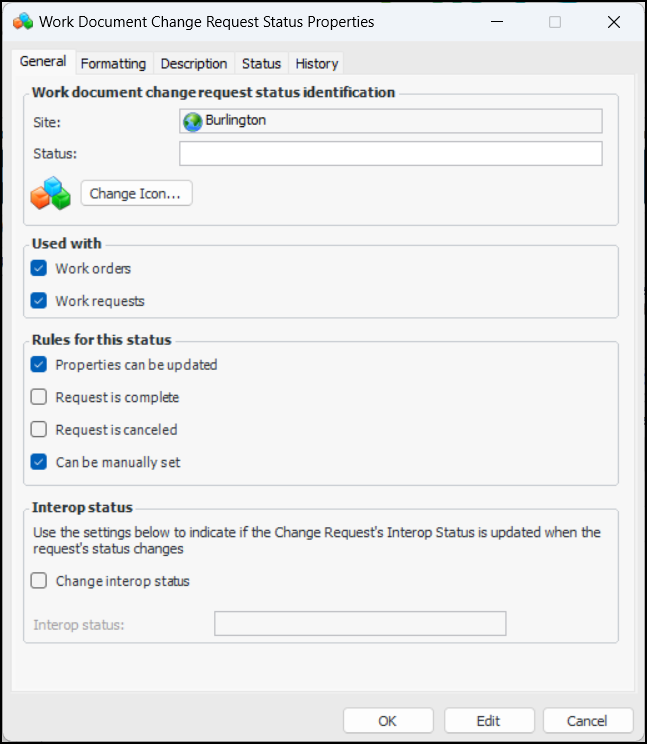
3. Click New. The Work Document Change Request Status Properties dialog appears:
5. In the Rules for this status area, adjust the following settings:
6. In the Interop status area, you can specify that the request’s interop status changes when this request status is applied. Click Change interop status and select the interop status.
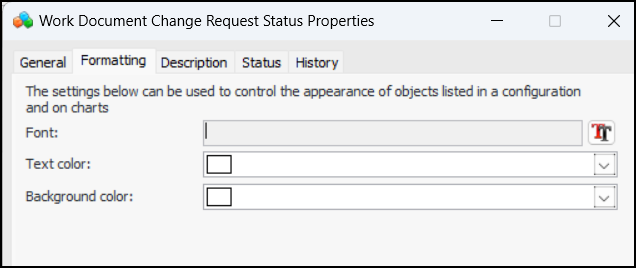
7. Select the Formatting tab.
9. Select the Description tab to add more information.The Status tab displays the active status and history.The History tab displays information about when the status was created and updated.
10. Click OK to save the type and close the dialog.To Update the Site Interoperability Profile
1. In the Enterprise window, select the Integrations view, the AssetWise Interoperability tab, and then the Interoperability Profiles tab.
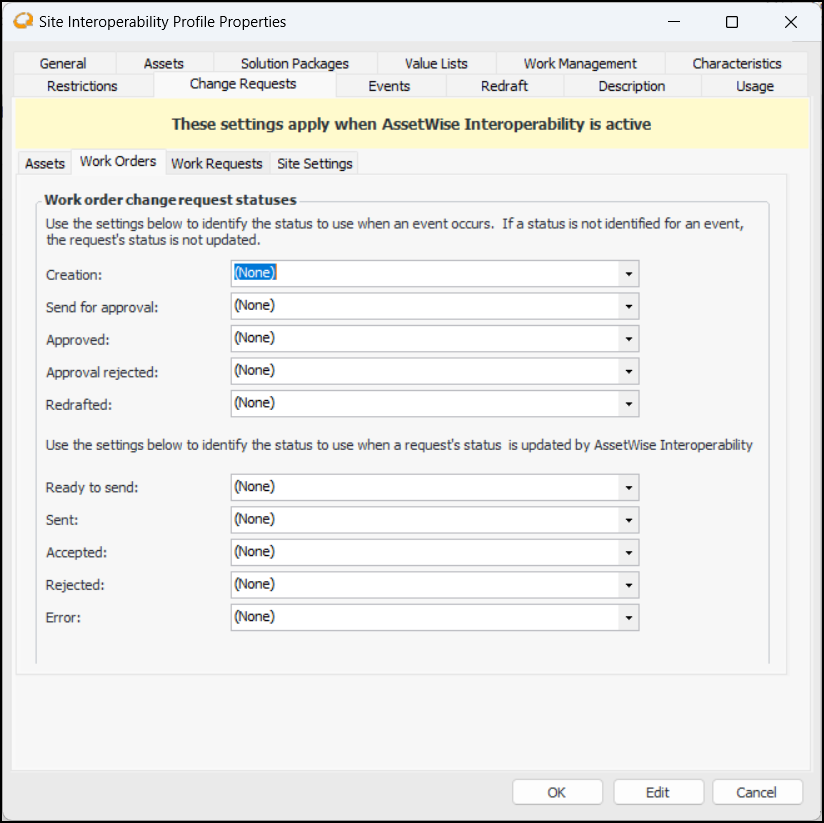
3. Select the Change Requests tab. In turn, select the Work Orders and Work Requests tabs. For example:
6. Click OK to save your changes and close the window.