
Setting up Work Completion Statuses

You can define the work completion statuses that will be used on your site. Users will select this status when reporting work activity or closing work order tasks. You should select one status to represent when work orders and work order tasks are completed (such as “100% Complete”). For each of the remaining completion statuses, you can define the percent complete that it represents. It is not mandatory to define the percent complete.
APM comes with two completion statuses already defined: complete and incomplete. You can edit the existing statuses, or add new ones that are relevant to your organization. This topic explains how to create new work completion statuses and how to select default statuses.

To Set up Work Completion Statuses

1.
From the Site window, select the Work Management view and the Settings tab. Select the Work Orders tab and the Work management settings node in the tree.
Tip: You can also select the Administration menu and then Work Management Settings. The Work Management Settings dialog appears.
2.
Select the Completion tab. This tab shows a list of the current work completion statuses.
3.
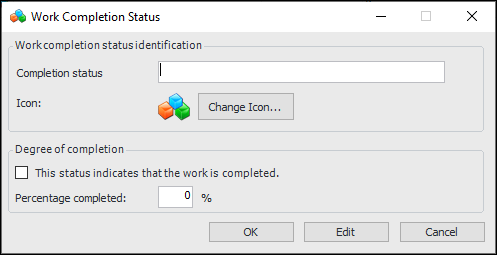
Click New. The Work Completion Status dialog appears.
4.
5.
This information may be used when scheduling work order tasks.
6.
Click OK to save the status.
7.
Repeat steps 3 to 6 to enter all of your work completion statuses.

To Set Default Completion Statuses for the Site
1.
On the Completion Statuses tab, click Edit. The button label changes to Save.
2.
3.