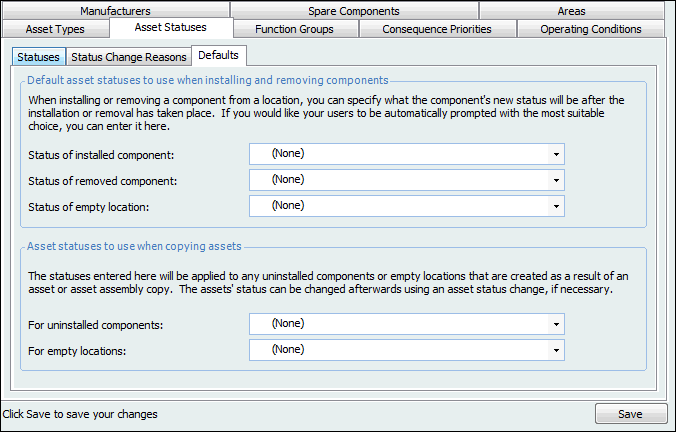
Selecting Default Statuses for Components and Locations

If your site uses component assets in your asset hierarchy, you must select default asset statuses for the system to use when installing or removing components. Users will be prompted with these defaults when they install or remove components; however, they can select a different status if necessary. These settings are also essential if your organization is using serialized inventory to track component assets.
You can also set the status that is used for locations that become empty when a component is removed. If an assembly with sub-components and locations is uninstalled (removed), all empty locations will get the default “empty” status, regardless of whether or not a sub-component had been installed or not.
You might from time to time need to create copies of component assets or of assemblies. When copying uninstalled components or empty component locations, the system needs to assign an appropriate asset status to the new assets. You can select the default statuses for the system to use when creating copies of assets. Users can select a different status if necessary after the assets have been created.
Note: For serialized inventory setup, you must select statuses that are matched to serialized inventory statuses.

To Set up Status Defaults

1.
From the Site window, select the Assets view, Settings tab. Select the Assets tab and the Asset management settings node in the tree.
Tip: You can also select the Administration menu, Asset Management Settings, and then Asset Management. The Asset Management Settings dialog appears.
2.
Select the Statuses tab and then the Defaults tab.
3.
Click Edit to modify the site settings. The Edit button is replaced by the Save button.
4.
5.