Setting up Solution Package Types

In APM, you can define solution package types and assign their levels, providing names of your choosing as well as sequence numbers.
The SyncSolutionPackage XML message sent to APM from the CMMS includes the preplanned work’s level. In APM, the level is matched to the solution package type’s level (1 to 4). The solution package type identifies the type of new object, for example, maintenance plan. The site interoperability profile determines the behavior.

To Set up Solution Package Types

1.
From the Site window, select the Reliability Program view and the Settings tab. Select the Reliability Program tab and the Reliability program settings node in the tree.
Tip: You can also select the Administration menu and Reliability Program Settings. The Reliability Program Settings dialog appears.
2.
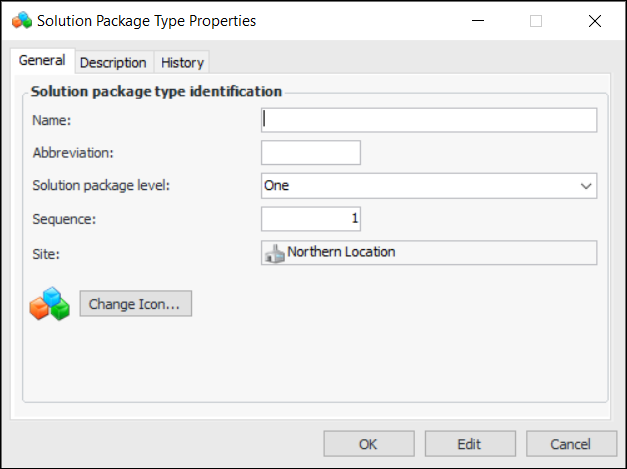
Select the Solution Package Types tab and click New. The Solution Package Type Properties dialog appears:
3.
4.
5.
6.
To change the icon that will appear on all solution packages of this type, click Change Icon, select a different graphic, and click OK.
7.
Select the Description tab to enter more information about the type.
The History tab provides information about the creation and updates of the solution package type.
8.
Click OK to close the dialog. The solution package type is added to the Solution Package Types tab.
Tip: When you are setting up solution package types, you can mark a type as inactive until it is ready to be used. Select the type in the table and click Mark as Inactive. The Mark as Inactive window appears, where you can enter a comment. When you click OK, a confirmation message appears. Click OK. The type’s Active Status in the table is shown as “Inactive”. When you are ready, click Mark as Active to make the type available.