Setting up Scheduling Priorities

You can define your site’s priorities for scheduling work. You can use the scheduling priorities to filter and sort lists of tasks that are ready to be scheduled. Typically, you will enter the priorities that are already used at your site.

Mapping APM Scheduling Priorities to Microsoft® Office Project Priorities

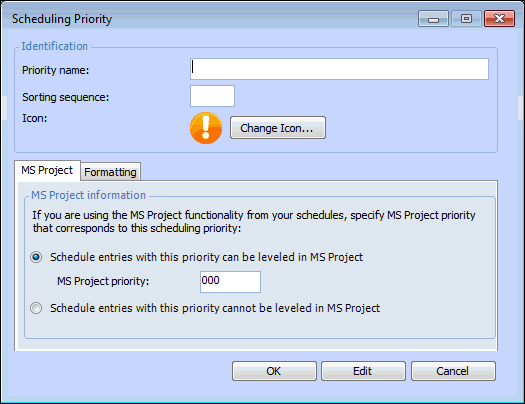
In APM, you can match each of your scheduling priorities to an equivalent Microsoft Project priority. You should do this if you will be exporting APM schedules to work with in Microsoft Project.
Microsoft Project uses numbers to prioritize its tasks. A task can be assigned a priority from 0 to 999. The lower the number, the lower the priority. A priority of 1000 is a special value in Microsoft Project that indicates that the task will not be leveled. In APM you can specify that a specific scheduling priority means that schedule entries cannot be leveled.
For example, if in APM you have a simple list of three scheduling priority values of high, medium, and low, you could enter these matching Microsoft Project priority values
APM comes with some scheduling priorities already defined. You can edit the existing priorities, or add new ones that are relevant to your organization. This topic explains how to create new scheduling priorities.

To Set up Scheduling Priorities

1.
From the Site window, select the Administration menu and then Work Management Settings. The Work Management Settings dialog appears. Select the Schedules tab.
Tip: You can also select the Work Management view on the site window. Select the Settings tab and then the Scheduling tab. Click the Scheduling settings node in the tree.
2.
Select the Scheduling Priorities tab.
3.
Click New. The Scheduling Priority dialog appears.
4.
5.
Select the Formatting tab to apply a font, text color, or back color if you wish to distinguish this priority from others when it appears in table rows.
Note: To have the formatting appear in a table’s rows, open the table configuration, select the Appearance tab, then the Grid tab and Row Formatting tab. Select the join path to the priority’s FontAndColorControl attribute.
6.
When you are finished, click OK to save the priority.
7.
Repeat steps 3 to 6 to enter all of your scheduling priorities.