Setting up Scheduling Periods

You can use scheduling periods to classify and sort schedules by the period of time they cover. The scheduling periods should match the length of time that the schedules cover, such as weekly, daily, and shift.
For example, a scheduler might want to get a list of the weekly schedules they are responsible for, excluding all daily and shift schedules. Sorting a list of schedules by the schedule period is the easiest way to accomplish this.

To Set up Scheduling Periods

1.
From the Site window, select the Administration menu and then Work Management Settings. The Work Management Settings dialog appears. Select the Schedules tab.
Tip: You can also select the Work Management view on the site window. Select the Settings tab and then the Scheduling tab. Click the Scheduling settings node in the tree.
2.
Select the Scheduling Periods tab. This tab shows a list of the existing schedule periods.
3.
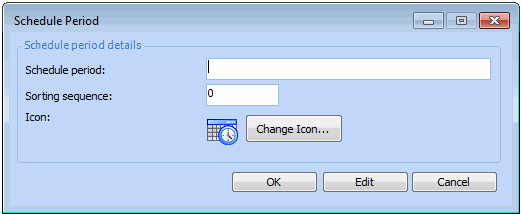
Click New. The Schedule Period dialog appears.
4.
Enter the Schedule period name, Sorting sequence, and select an icon.
5.
Click OK to save the schedule period and close the dialog.
6.
Repeat steps 3 to 5 to enter all of your scheduling periods.