|
Setting up Safety Types
This topic explains how to set up safety types. See Safety Statuses and Types for examples of events and their statuses. For information about setting up statuses, see Setting up Safety Statuses.To Set up a Safety Type
1. On the site’s Safety Management view, select the Settings tab, and the Safety Management Settings node in the tree.Tip: You can also select the site’s Administration menu and then Safety Management. The Safety Management Settings dialog appears.
2. Select the Types tab. This tab shows the safety types defined for the current site and above.
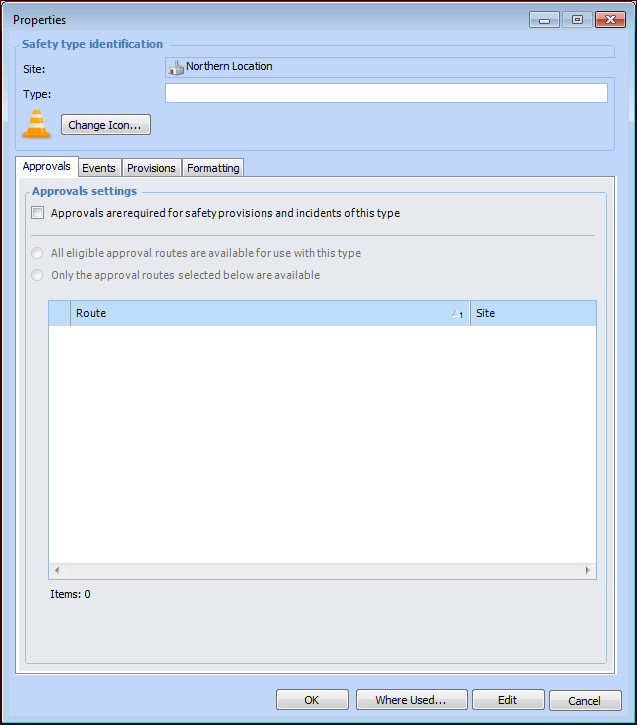
3. Click New. The Properties window appears.
5. If objects with this type are to be sent for approval, click Approvals are required.
6. To specify the approval routes available for objects of this type, click Only the approval routes selected below are available. The table lists routes that approve safety objects. Select one or more routes.
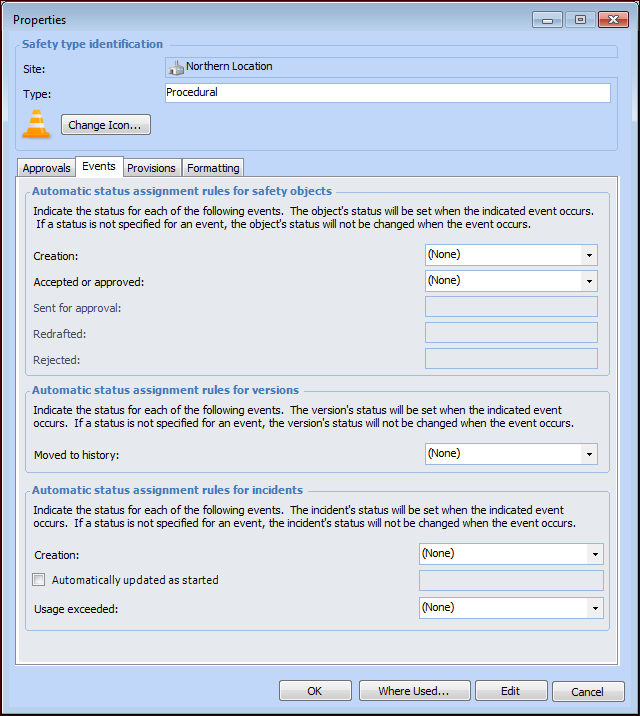
7. Select the Events tab. Here is an example when approvals have been enabled:
Allows override incidents to be updated as started by the Update Open Override Incidents command, executed manually (site’s Tools menu, Safety Management) or using a scheduled action. The selected status, for example “Incident in progress”, is applied to the incident when the update occurs. The Mark incident as started option should be enabled on the safety status.
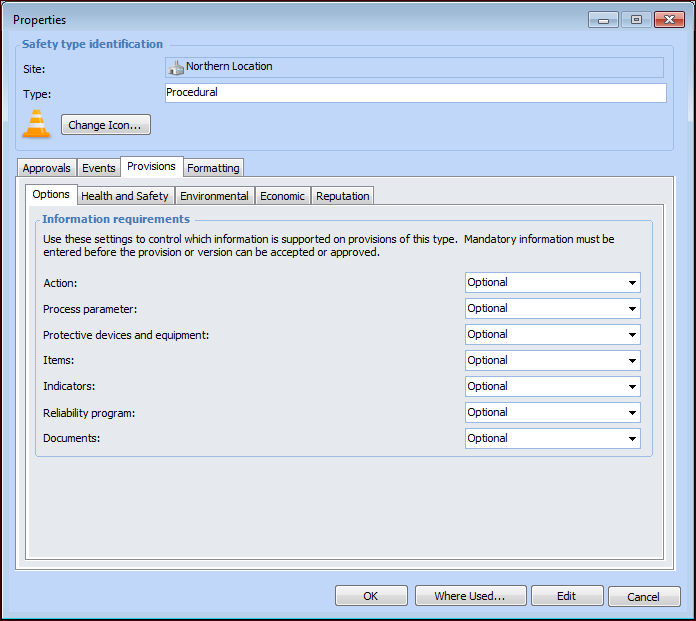
11. If the type is used with safety provisions, select the Provisions tab.
12. Depending on the settings on the Options tab, a type of information can be mandatory, optional, or unavailable. Mandatory information must be included in the provision before it can be approved or marked as accepted. If a type of information is unavailable, its tab does not appear in the Safety Provision Version window. Select the appropriate options:
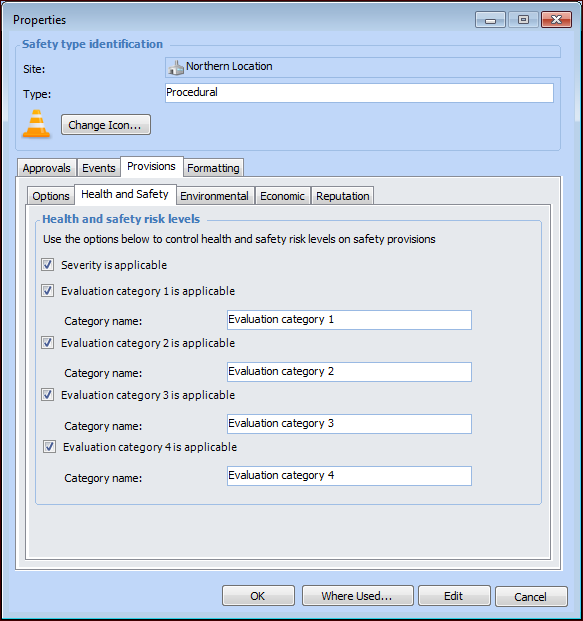
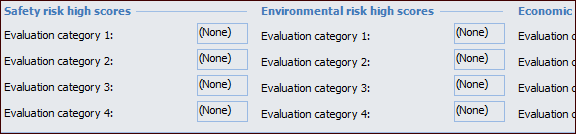
13. Select the Health and Safety tab.The options on this tab and the Environmental, Economic, and Reputation tabs control the appearance of the Usage view in the Safety Provision Version window. This view lists the failure modes that use the provision version. It also shows the highest scores for each category and for each consequence severity (for example, Safety) in the failure modes’ criticality analyses. By default, the summary looks something like this:
• You can prevent the consequence severity from appearing in the summary by clearing Severity is applicable.
•
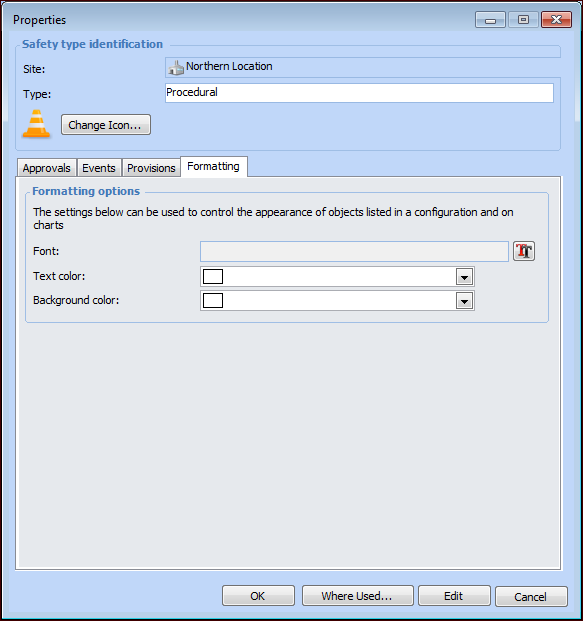
14. Select the Formatting tab if you wish to distinguish the type from others when it appears in tables and charts.
16. When you are finished defining the type, click OK. The type is added to the Safety Types table.