Setting up Safety Categories

You can define safety categories and use them to display safety provisions and override incidents in groups that are relevant for your site. You can filter and sort lists of provisions by category in table configurations. You can also view similar override incidents in a table; that is, incidents linked to provisions with the same category.
When you select a safety classification for a safety provision, the list is filtered to include only those classifications that are valid for the provision’s category.
This topic explains how to set up safety categories. For information about setting up classifications, see Setting up Safety Classifications.

To Set up a Safety Categories

1.
On the site’s Safety Management view, select the Settings tab, and the Safety Management Settings node in the tree.
Tip: You can also select the site’s Administration menu and then Safety Management. The Safety Management Settings dialog appears.
2.
Select the Categories tab. This tab shows the categories defined for the site.
3.
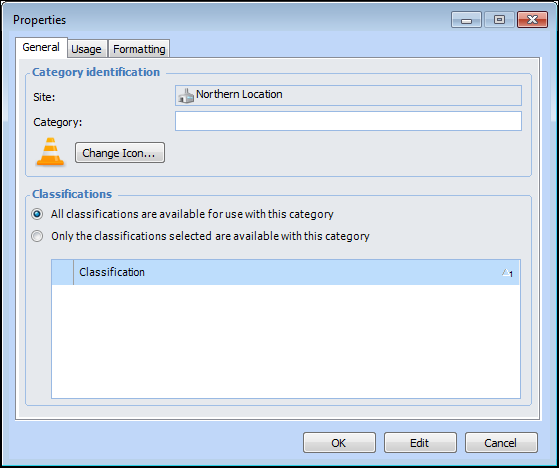
Click New. The Properties window appears.
4.
5.
If the category does not apply to all classifications, click Only the classifications selected are available with this category. The table displays the classifications defined for the site. Select the classifications.
6.
Select the Usage tab. By default, safety provisions and override incidents are selected. Adjust the settings as needed.
7.
Click the Formatting tab. The options you select determine the category’s appearance in tables and charts. You can select font for text, text color, and background color.
8.
Click OK. The category is added to the table on the Categories tab.