Setting up HAZOP Checklist Items

A HAZOP checklist item represents an abnormal operating condition, such as high flow, low level, or incorrect valve positioning. Checklist items are listed in SIF and HAZOP analyses, where failure modes can be created to assess causes, effects, consequence severity, risk levels, and more.
By default, all checklist items are shown in SIF and HAZOP analyses and templates, where the analysis team can mark them “Included” if they apply to the failure mode or “Excluded” if they are not relevant. On the checklist definition, you can control whether the item is shown as included or excluded by default. You can also prevent it from being shown in analyses, templates, or both.
This topic explains how to set up a HAZOP checklist item.

To Set up a HAZOP Checklist Item

1.
On the site’s Safety Management view, select the Settings tab, and the Safety Management Settings node in the tree.
Tip: You can also select the site’s Administration menu and then Safety Management. The Safety Management Settings dialog appears.
Note: You can also set up HAZOP checklist items in strategy development settings.
2.
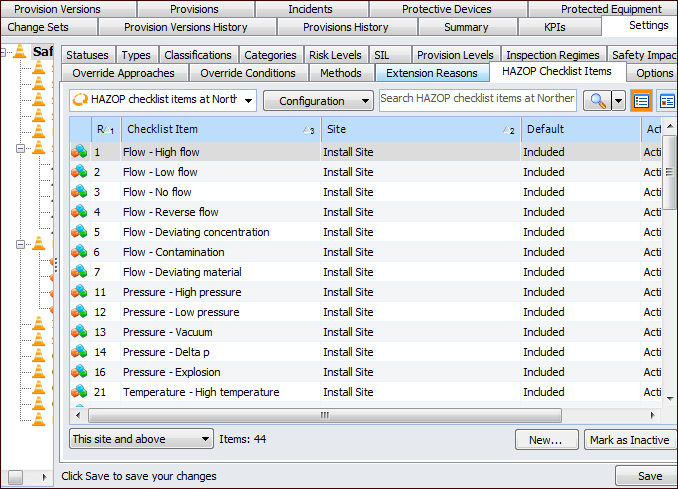
Select the HAZOP Checklist Items tab. This tab shows the items defined for the site. For example:
3.
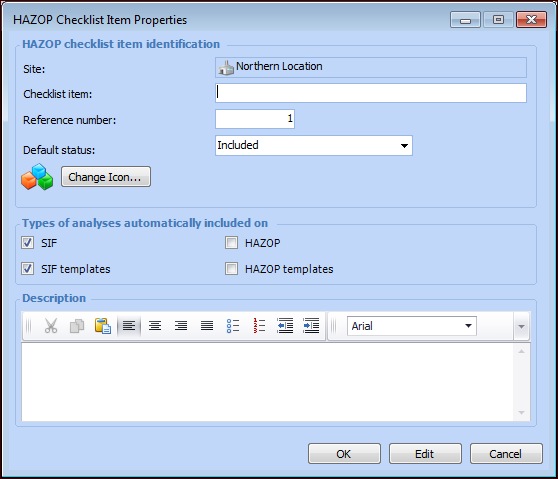
Click New. The HAZOP Checklist Item Properties window appears.
4.
5.
6.
7.
To represent the item with a different icon in tables, click Change Icon, select another image, and click OK.
8.
9.
10.
Click OK. The item is added to the HAZOP Checklist Items tab.