|
Setting up Document Types
You can define your site’s standard document types. For example, your site might use Material Safety Data Sheet (MSDS) or Safety Instructions. You can use document types to group and sort documents in lists and to enter settings for MSDSs.Note: There are also settings on resource category that control whether or not MSDSs must be entered on resources in that category, and whether or not resources without any MSDS attached may be ordered or issued. See **Setting up Resource Categories.To Set up Document Types
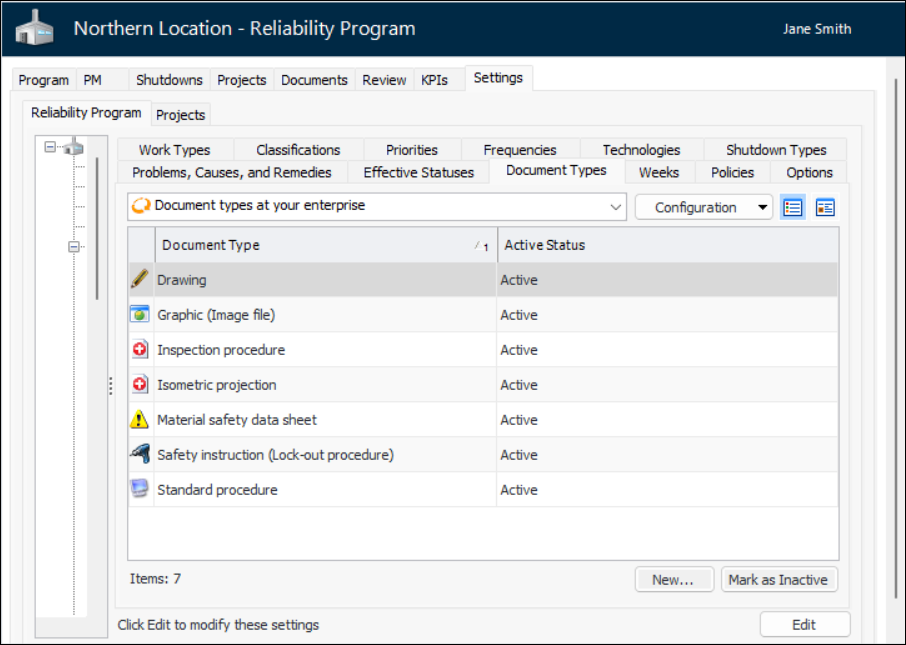
1. From the Site window, select the Reliability Program view and the Settings tab. Select the Reliability Program tab and the Reliability program settings node in the tree.Tip: You can also select the Administration menu and Reliability Program Settings. The Reliability Program Settings dialog appears.
2. Select the Document Types tab. This tab shows a list of the existing document types. For example:
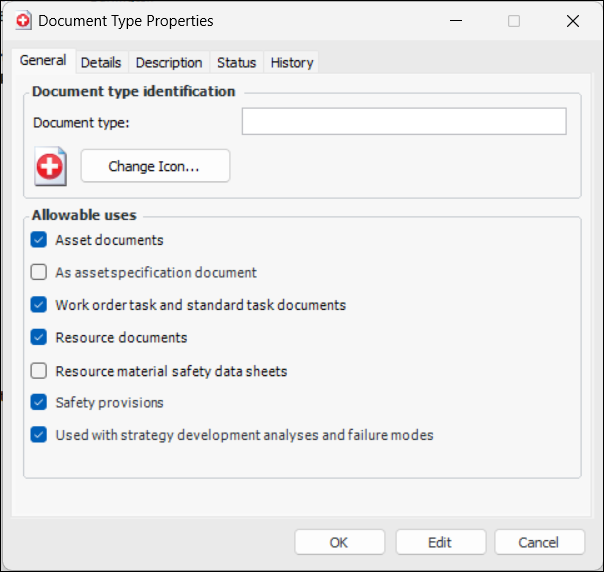
3. For each document type you wish to add, click New. The Document Type dialog appears.
4. Enter the following settings on the General tab:
The name of the type of documents. For example, your site might use Material Safety Data Sheets (MSDS) or Safety Instructions. Document type names can be up to 50 characters long.
5. If the document type will be used for material safety data sheets (MSDS) or resources select the Details tab. Select the appropriate policies for this document type:
• Expiration date is required on all procedures: an expiration date must be entered as part of the information entered for each document version. If an expiration date is not entered, an error message will be issued. The user will not be able to save the version until an expiration date is entered
• Expiration date is not required, always warn the user: the user is not required to enter an expiration date on the document version. If an expiration date is not entered, a warning message will be issued. The user may disregard the warning and save the version without entering an expiration date
• Expiration date is not required, do not warn the user: the user is not required to enter an expiration date on the document version. If an expiration date is not entered, a warning message is not issued
• Do not allow the resource to be ordered: the resource cannot be ordered:
• Allow the resource to be ordered, always warn the user: the resource can be ordered, but a warning message will be issued. The user can disregard the warning and create the PO line. The PO can be issued to the supplier
• Allow the resource to be ordered, do not warn the user: the resource can be ordered. A warning message is not issued.
• Do not allow the resource to be issued: the resource cannot be issued
• Allow the resource to be issued, always warn the user: the resource can be issued, but a warning message is displayed. The user may disregard the warning and issue the resource
• Allow the resource to be issued, do not warn the user: the resource can be issued. A warning message is not displayed
6. Select the Description tab to add more information about the document type.
7. Click OK.