Creating Manufacturer Records

A manufacturer is an organization that produces the assets or materials you have purchased.
You can record and track manufacturers in APM using manufacturer records. The manufacturer record includes the name and contact information for the manufacturer. You can also record any warranties offered by the manufacturer. You can link a manufacturer record to assets, suppliers, or resources in the resource catalog.
Defining your manufacturers is a setup function. You will create the initial list of manufacturers as part of your APM setup tasks. You can add new manufacturers to the list as required.
Manufacturer rules are also used in construction management to control the properties that appear in construction forms for specific assets (circuit breakers, operators, and three-phase transformers). For more information, see Setting up Manufacturer Rules for Construction Forms.

To Create a Manufacturer Record

1.
From the Site window, select the Assets view, Settings tab. Select the Assets tab and the Asset management settings node in the tree.
Tip: You can also select the Administration menu, Asset Management Settings, and then Asset Management. The Asset Management Settings dialog appears.
2.
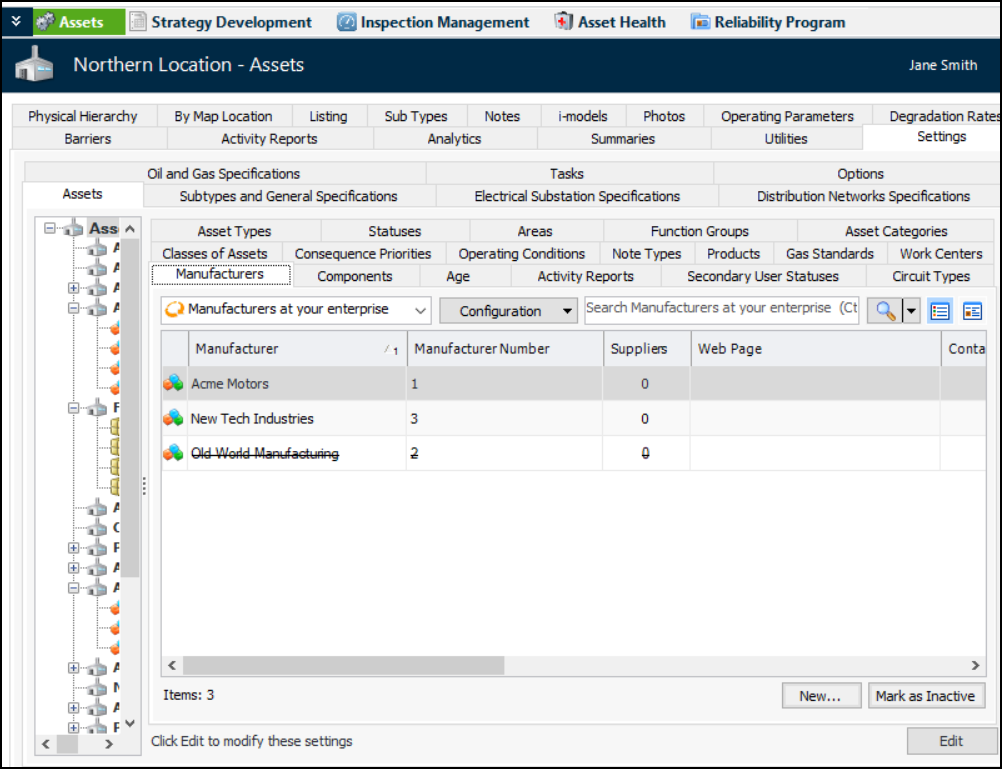
Select the Manufacturers tab. This tab shows the list of manufacturer records for the enterprise:
You can mark a manufacturer as inactive to prevent it from being selected on assets. The record is shown as scored-through and its active status is set to “Inactive”. To reactivate it, select the record in the table and click Mark as Active.
3.
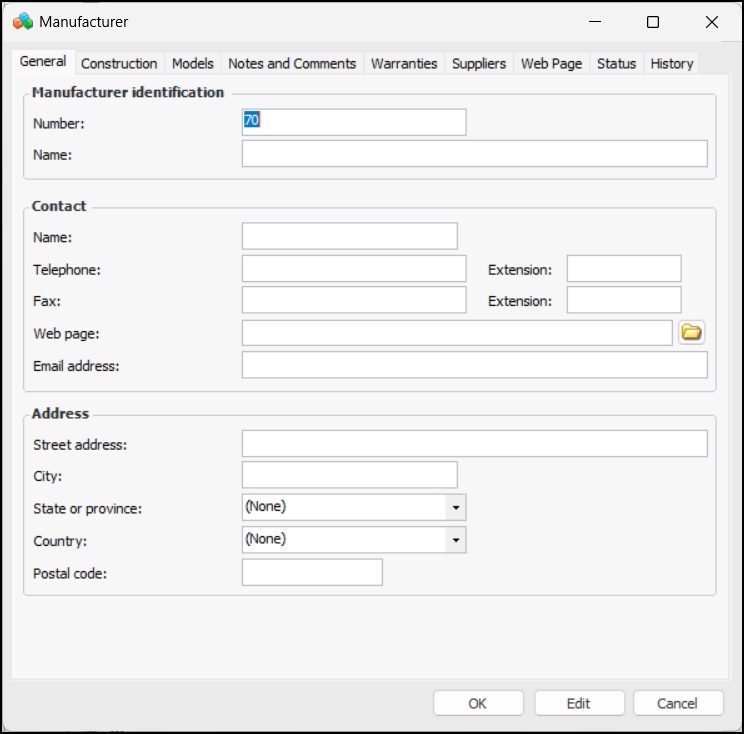
Click New. The Manufacturer dialog appears:
4.
In the Manufacturer Identification area, enter the manufacturer’s name.
5.
In the Contact area, enter the name, telephone number, and fax number for your contact at this manufacturer.
6.
https://www.mypage.com.
Tip: You can select the Web Page tab to view the target URL if you are connected to the Internet.
7.
8.
In the Address area, enter the mailing address of the manufacturer, including street address, city, state or province, country and postal code.
9.
Select the Models tab to add individual product models, including year and country of manufacture, expected life, and replacement cost.
10.
You can enter comments on the Notes and Comments tab.
11.
On the Warranties tab you can enter any relevant warranties provided by the manufacturer. For detailed instructions, see Adding a Manufacturer’s Warranty.
12.
Select the Suppliers tab. On this tab you can link this manufacturer to the suppliers from whom you purchase items from this manufacturer. To link a supplier, click the Browse button. Select the supplier and click OK.
13.
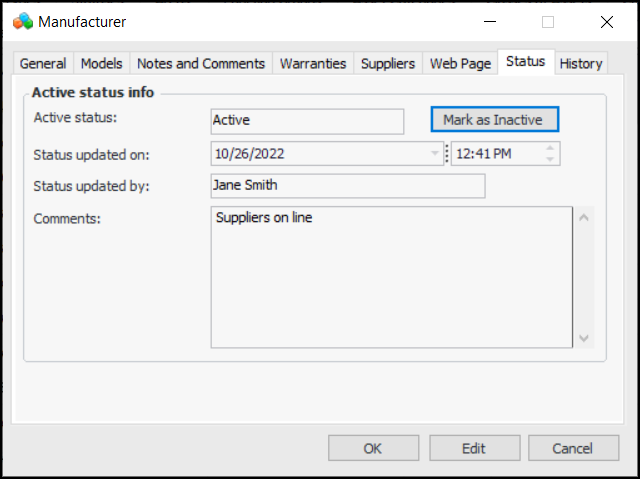
You can select the Status tab to change the active status of the record and see information about the most recent change in status.
The History tab displays information about the record’s creation and most recent update.