|
Setting up User-Defined Fields for Employees and Maintenance Groups
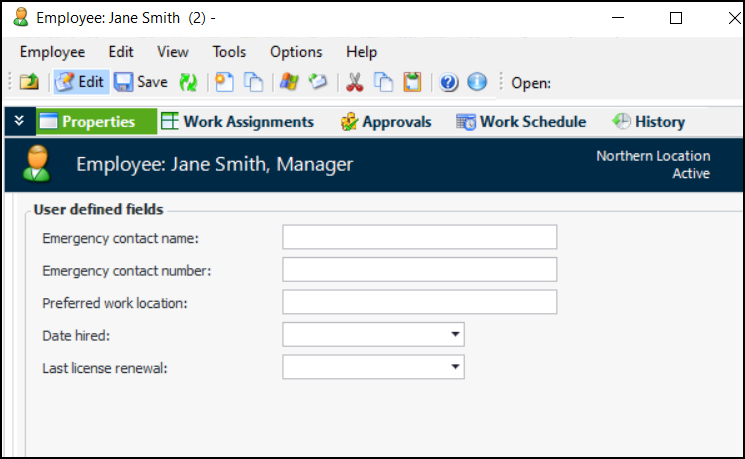
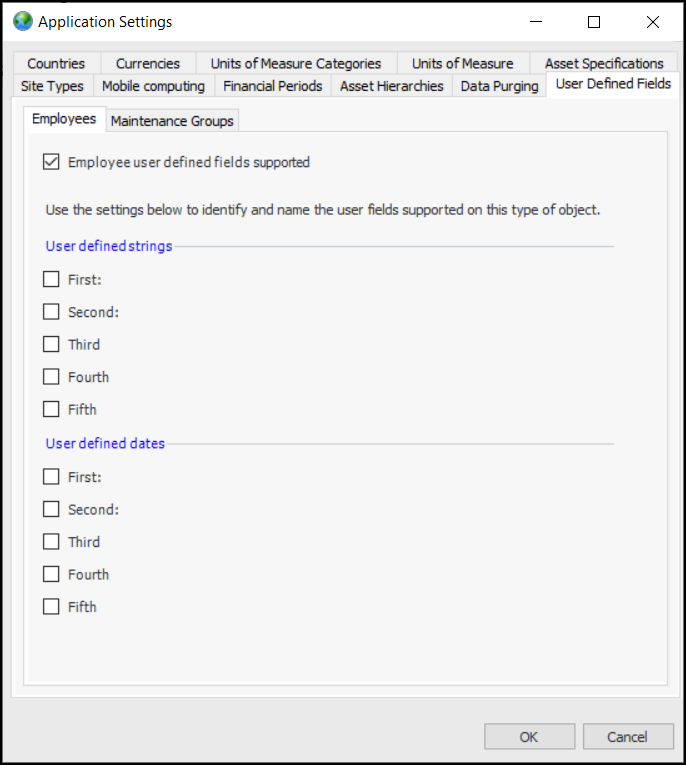
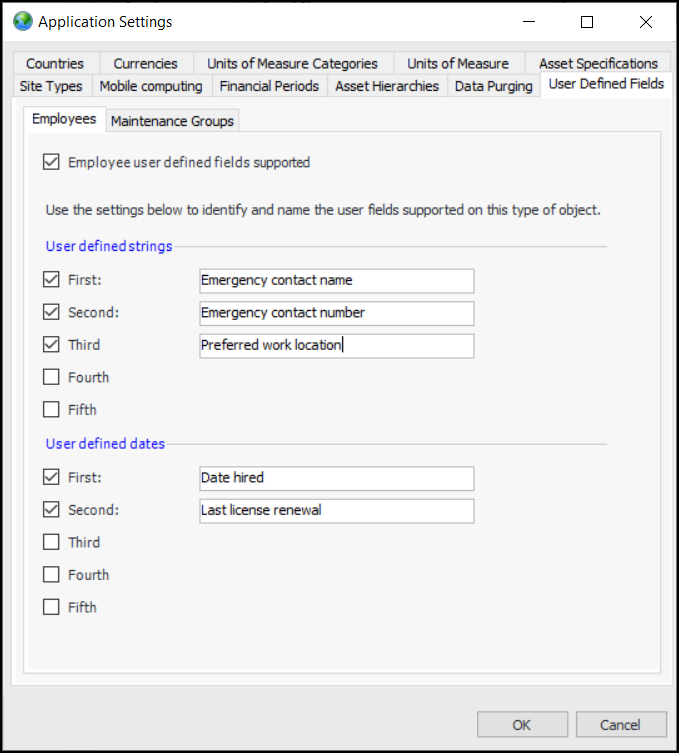
For example, in the Application Settings window, select the User Defined Fields and Employees tabs. After enabling support for user-defined fields, select the fields and dates and provide their labels:In a Site window, select the Personnel view and open an Employee window. In the Properties view, select the User Defined Fields tab. For example:To Set up User-Defined Fields for Employees
1. On the Enterprise window, select the Administration menu and then Application Settings. The Application Settings window appears.
2.
3. Select Employee user defined fields supported. The tab is populated like this:
4. When you select First, Second, and so on, empty text boxes appear. Enter labels for the fields, which will appear in Employee windows, in the User Defined Fields tabs.
5. Click OK to save the fields and close the window.To Set up User-Defined Fields for Maintenance Groups
1. On the Enterprise window, select the Administration menu and then Application Settings. The Application Settings window appears.
2.
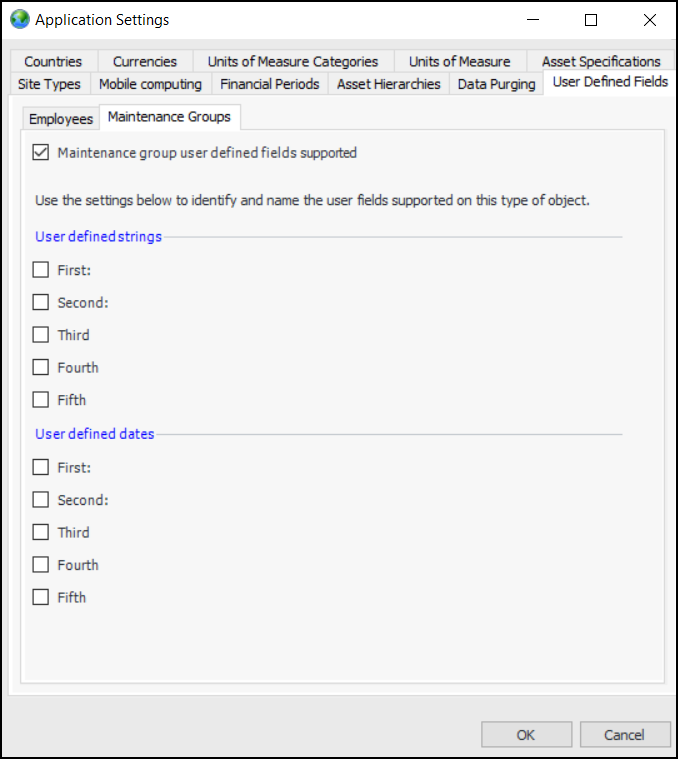
3. Select Maintenance group user defined fields supported. The tab is populated like this:
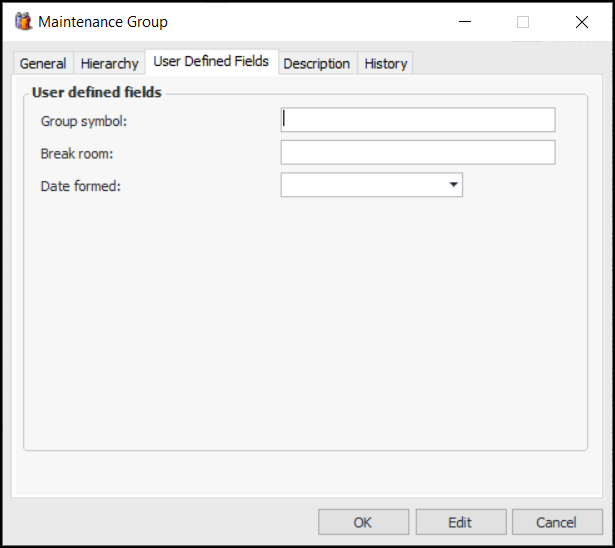
4. When you select First, Second, and so on, empty text boxes appear. Enter labels for the fields, which will appear in Maintenance Group windows, in the User Defined Fields tabs.
5. Click OK to save the fields and close the window.