Setting up Follow-up Work Creation Settings

When the status of an interop work request or interop work order changes in the CMMS, the change is communicated to APM with an interop message. The status is then updated on the APM interop work document. The status change can trigger logic to determine if a follow-up request for work is needed.
For example, in an SAP environment, when a maintenance order status is changed to TECO (technically complete), a request for work can be generated in APM to perform a follow-up inspection. In the case of a notification, when the status changes to NOCO (notification complete), the status change in APM can trigger a follow-up inspection.
The active follow-up work creation settings for the site define the parameters that trigger the creation of a follow-up request for work and the values for the document.
Note: Follow-up requests for work are generally available product features. You must first enable feature 68 to use the functionality in APM. In the Enterprise window, select the Features view and the Enabled Features tab. Click Browse, select “Support for follow up requests for work” and click OK. If APM is running as a smart client, click Refresh Enabled Features on the server. Then restart the client to use the functionality.

To Create Follow-up Work Creation Settings
1.
From the Site window, select the Work Management view and the Settings tab. Select the Work Management tab and the Interoperability work management settings node in the tree.
Tip: You can also select the Administration menu and then Work Management Settings. The Work Management Settings dialog appears.
2.
Select the Follow Up Work tab.
3.
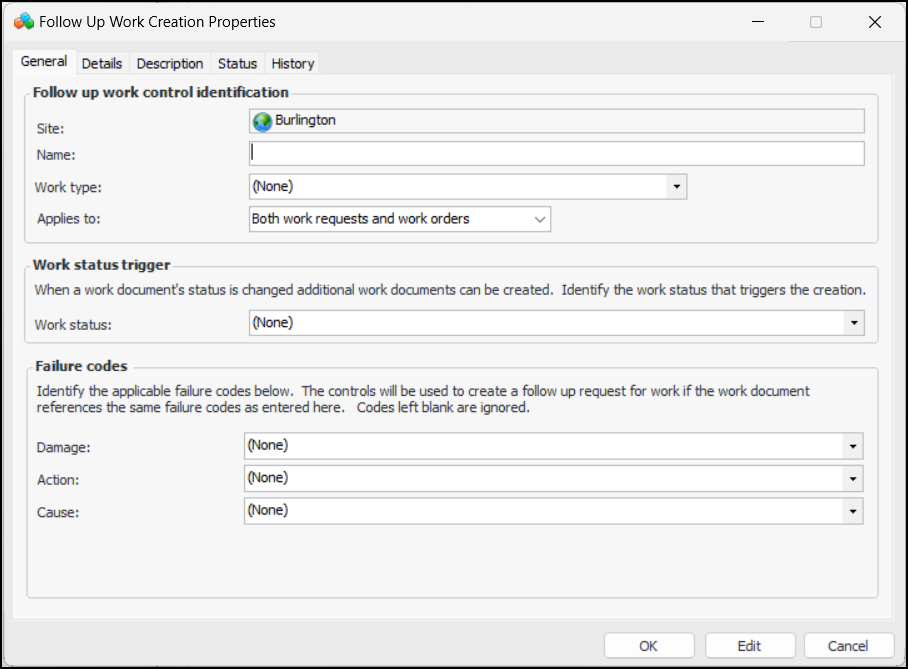
Click New. The Follow Up Work Creation Properties window appears:
In this example, failure coding has been specified for three levels: Damage, Action, and Cause. The failure code type and levels are defined in the site interoperability profile.
4.
On the General tab, provide the following information:
5.
In the Failure codes area, select up to five failure codes or the object part, damage code, and activity code. The site interoperability profile sets the type of failure coding and the number and names of objects.
If the work document uses the same failure codes as entered here, the generated request for work will also have these values.
6.
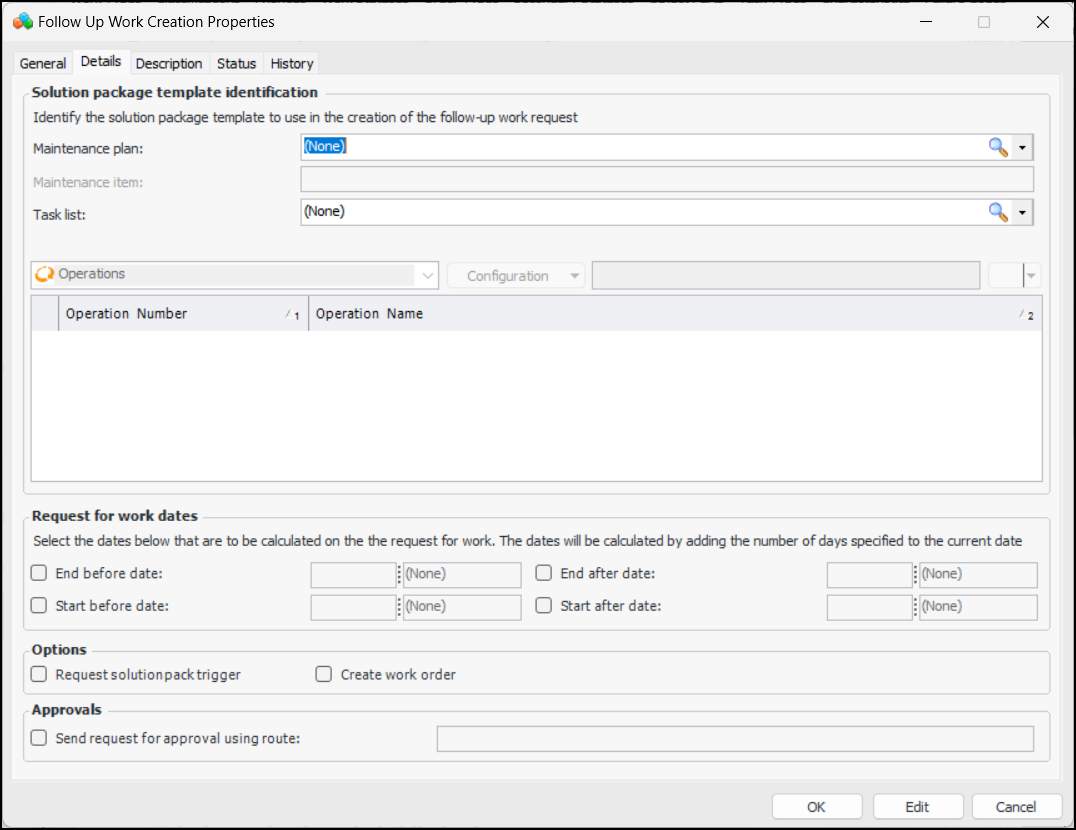
Select the Details tab:
7.
In the Solution package template identification area, the number of solution package levels, labels, hierarchy of levels, and steps reflect the definitions in the site interoperability profile. Select the appropriate values to identify the solution package templatebe used when the follow-up request for work is created.
8.
In the Request for work dates area, select the dates to be calculated on the request for work. The dates are calculated by adding the number of days specified to the current date.
9.
Select Request solution package trigger to have the same option selected in the request for work.
10.
Select Create work order to have an interop work order created in APM when the request is created. If this option is not selected, an interop work request is created.
11.
If your organization uses the APM approval process, select Send request for approval using route and select the approval route.
12.
Select the Description tab to provide more information.
13.
Click OK. The settings definition is added to the Follow Up Work tab.