|
|


Setting up Failure Codes
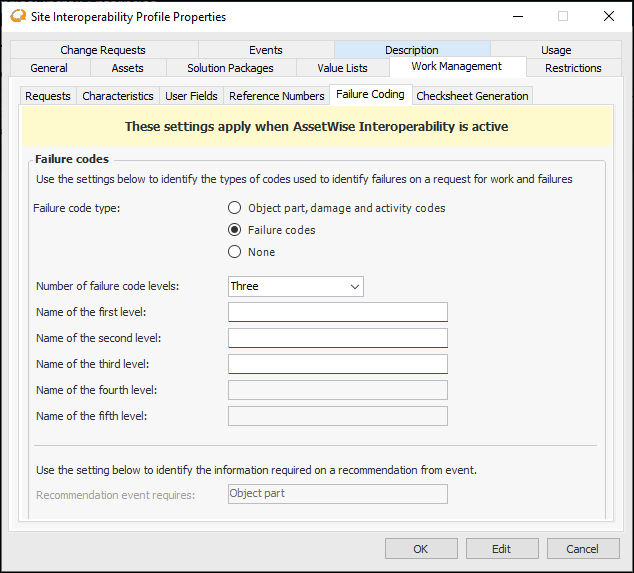
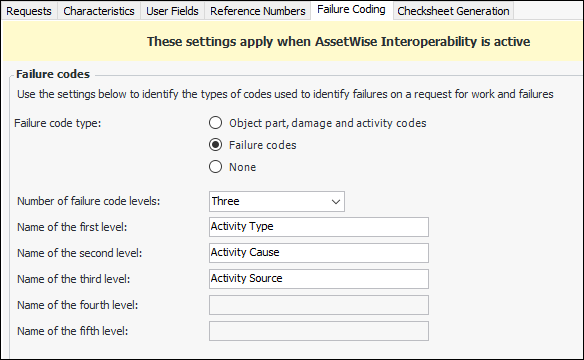
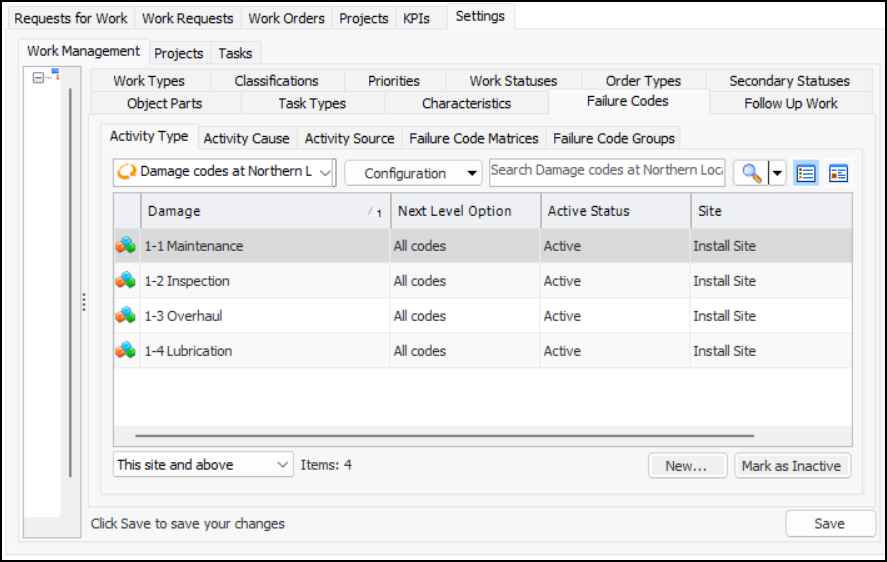
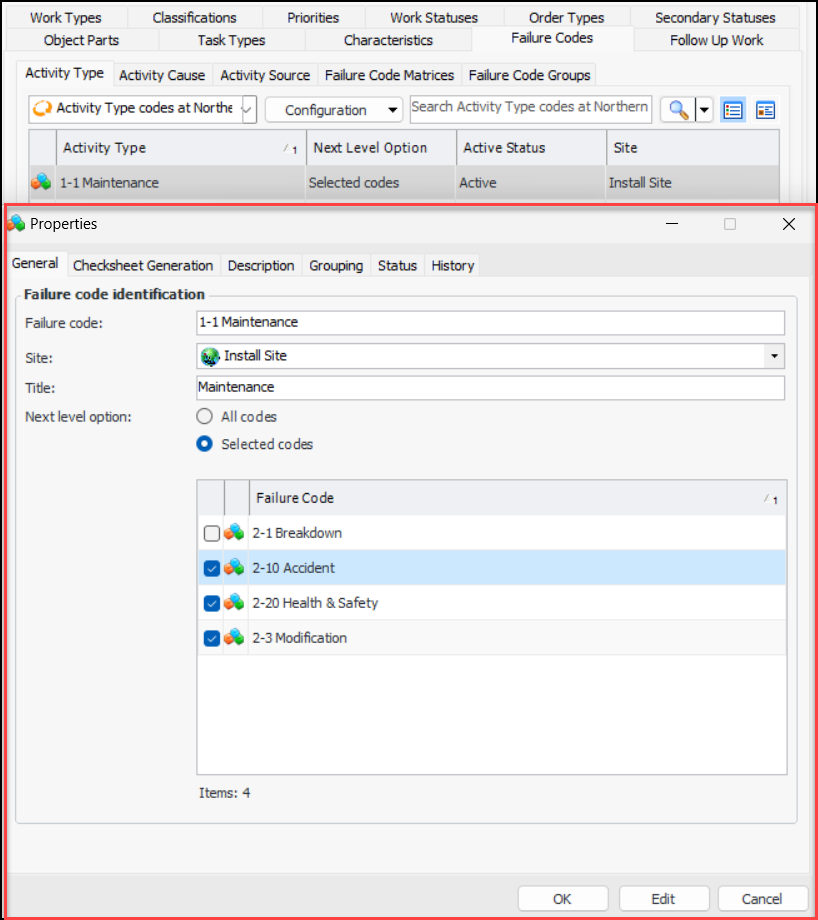
Failure codes provide a more flexible alternative to the object parts, damage codes, and activity codes referenced on recommendations from events. Failure codes and levels are independent of each other, unlike object parts, damage codes, and activity codes, which form logical hierarchies of ownership. The Failure code type setting in the site interoperability profile determines if failure codes, object parts (and so on), or neither are available on a site.Note: To use failure codes in APM, you must first enable feature 46. In the Enterprise window, select the Features view and the Enabled Features tab. Click Browse, select “Failure codes support with AssetWise Interoperability”, and click OK. If APM is running as a smart client, click Refresh Enabled Features. Then restart the client to use the functionality.This topic explains setup tasks in APM. For information about the required setup tasks in AWEIS, see “Setting up APM Failure Codes” in AssetWise Interoperability Setup Guide.Setting up APM to use Failure Codes
Viewing Failure Codes and Events
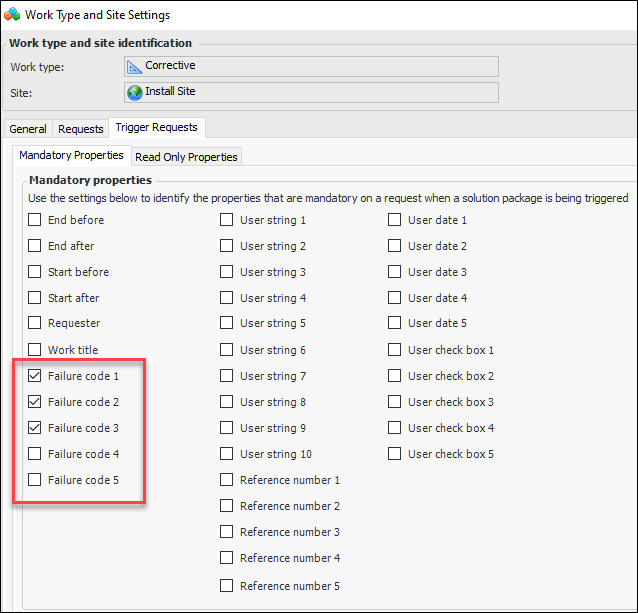
Requests for Work
Interop Work Requests and Interop Work Orders
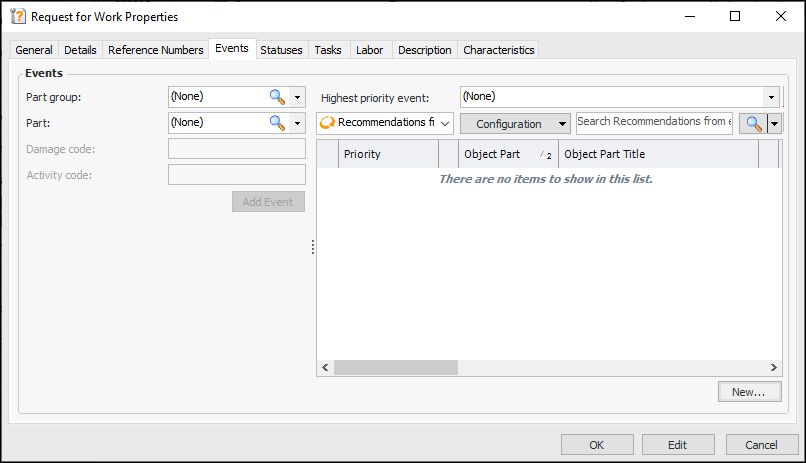
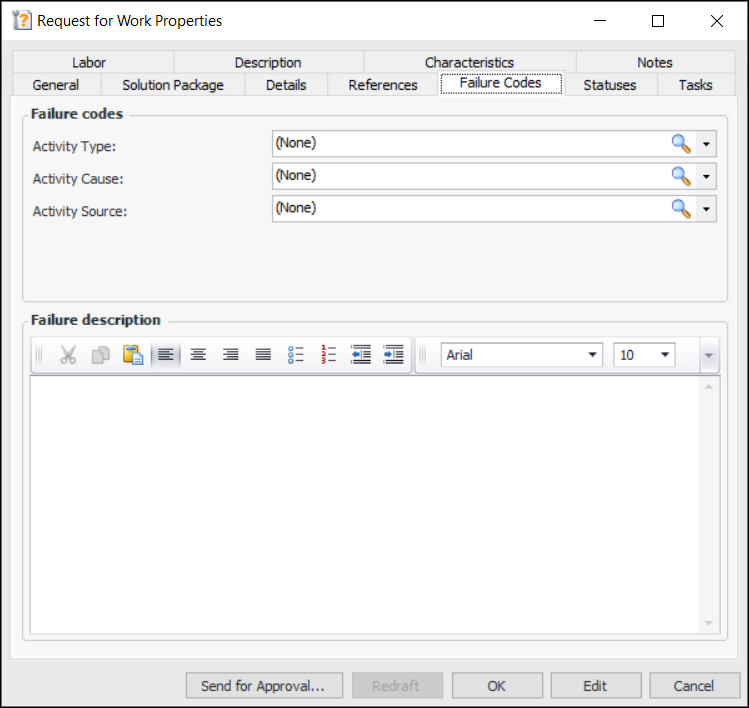
The Interop Work Request and Interop Work Order windows, Properties view, contain tabs labeled either Event or Failure Codes, depending on the Failure code type setting in the site’s interoperability profile.Maintenance Action Plans
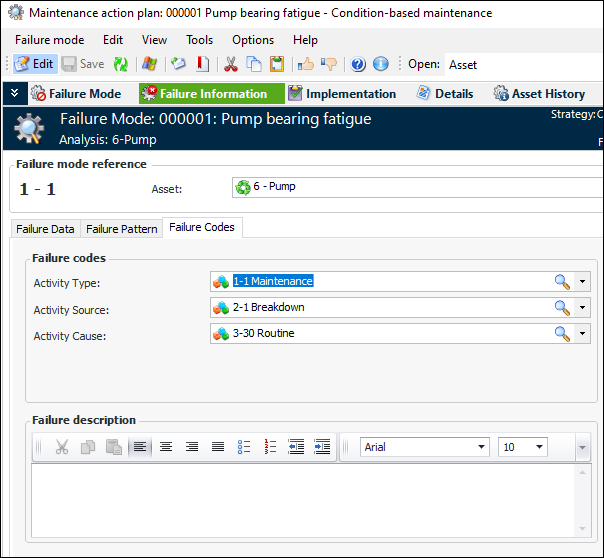
When you are developing failure modes on a strategy development analysis (MTA2, RCM2, or RBI), you can add failure data and patterns in the Maintenance Action Plan window, Failure Information view. The third tab in this view is labeled either Events or Failure Codes, depending on the Failure code type setting in the site’s interoperability profile.On the Failure Codes tab, you can select codes and add a failure description. For example:Failure Records
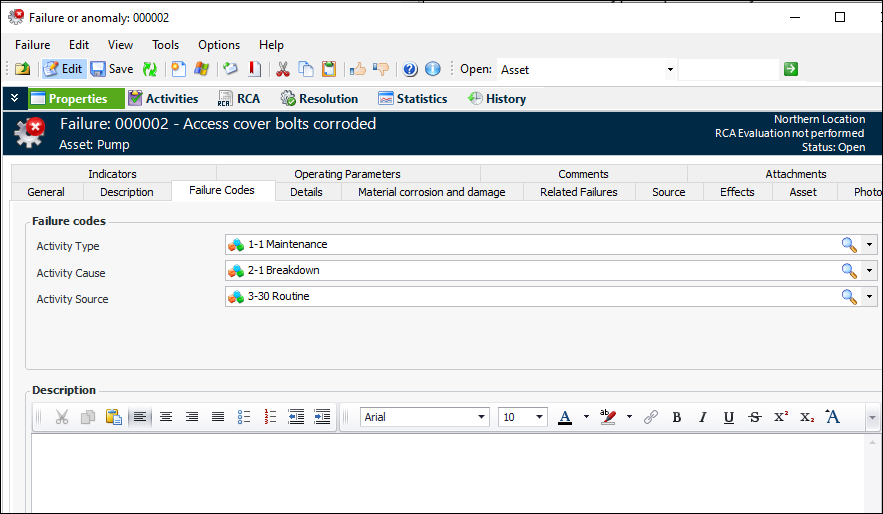
In the Failure or Anomaly window, the Properties view contains a tab labeled either Events or Failure Codes, depending on the Failure code type setting in the site’s interoperability profile.When you reference a failure mode on the General tab, the failure mode’s failure codes and description are copied to the Failure Codes tab. You can also select codes and add a failure description. For example:Solution Packages
Solution packages support failure codes, if specified by the Failure code type setting in the site’s interoperability profile. You can select failure codes and provide a default description on solution package templates. When a solution package is referenced in a request for work or other work document, the failure codes are copied from the solution package. Note that if the work document already has one or more failure codes, those codes are not replaced by values from the solution package.