Setting up Object Parts, Groups, and Related Codes

When creating a request for work, you can add one or more events that identify the problem the requested work is meant to correct. A recommended event consists of up to four catalog codes:
There is a hierarchical relationship between these objects. Damage codes are limited based on the specified object part. Activity codes are limited based on the damage code.
When interop work requests arrive via AWEIS from the CMMS, APM is populated with their object parts, damage codes, and activity codes. In APM, you can modify and create these objects.
Note: The site interoperability profile determines whether recommendations from events (and object parts) or failure codes are used in requests for work. For more information, see Setting up Site Interoperability Profiles for AWEIS.
This topic explains how to create object part groups, parts, damage codes, and activity codes.

To Create Object Part Components
1.
From the Site window, select the Work Management view and the Settings tab. Select the Work Management tab and the Interoperability work management settings node in the tree.
Tip: You can also select the Administration menu and then Work Management Settings. The Work Management Settings dialog appears.
2.
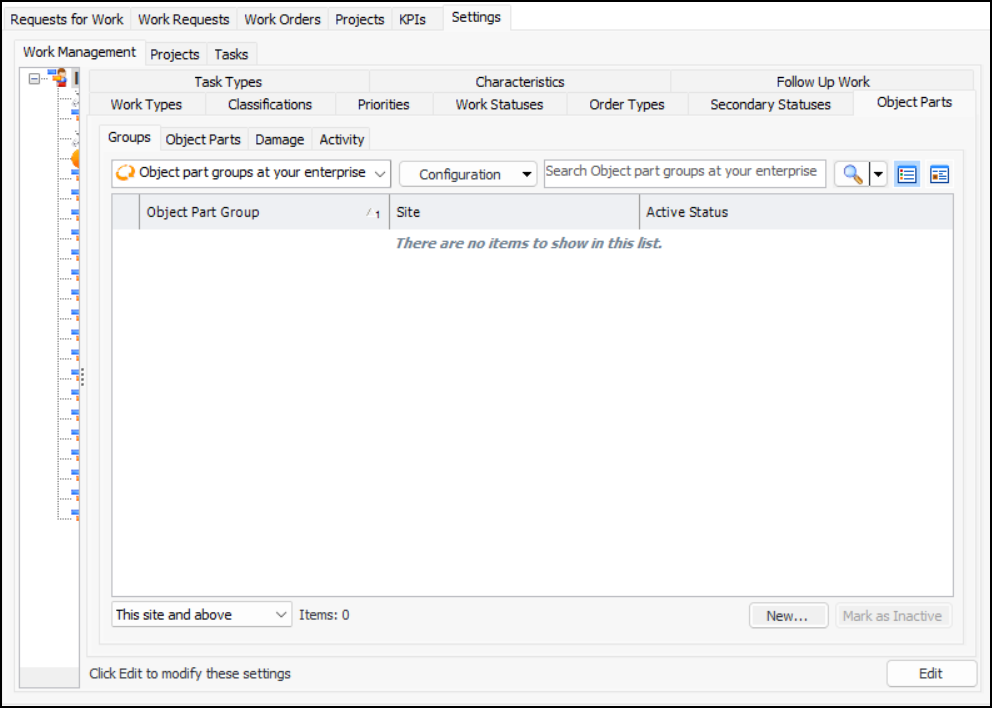
Select the Object Parts tab and the Groups tab. For example:
3.
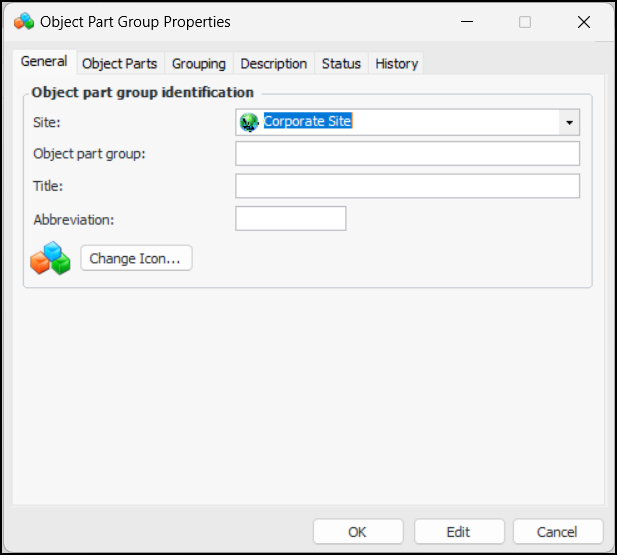
Click New. The Object Part Group dialog appears:
4.
5.
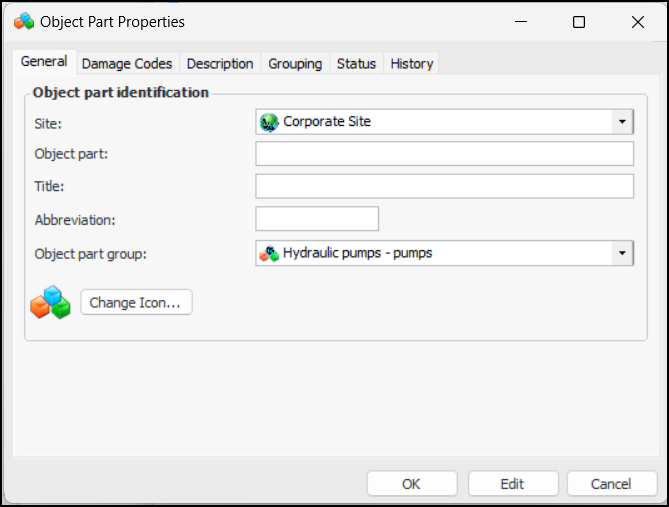
Select the Object Parts tab and click New. The Object Part Properties dialog appears:
6.
7.
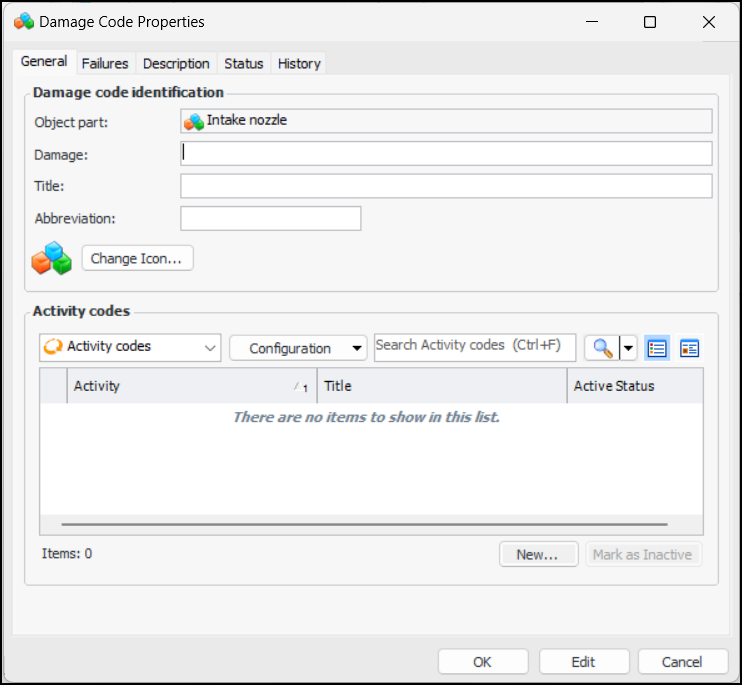
Select the Damage Code tab and click New. The Damage Code Properties dialog appears:
8.
9.
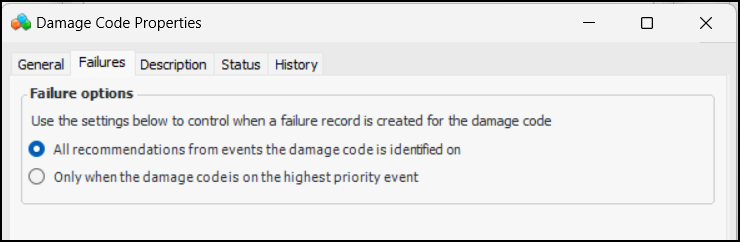
Select the Failures tab.
10.
11.
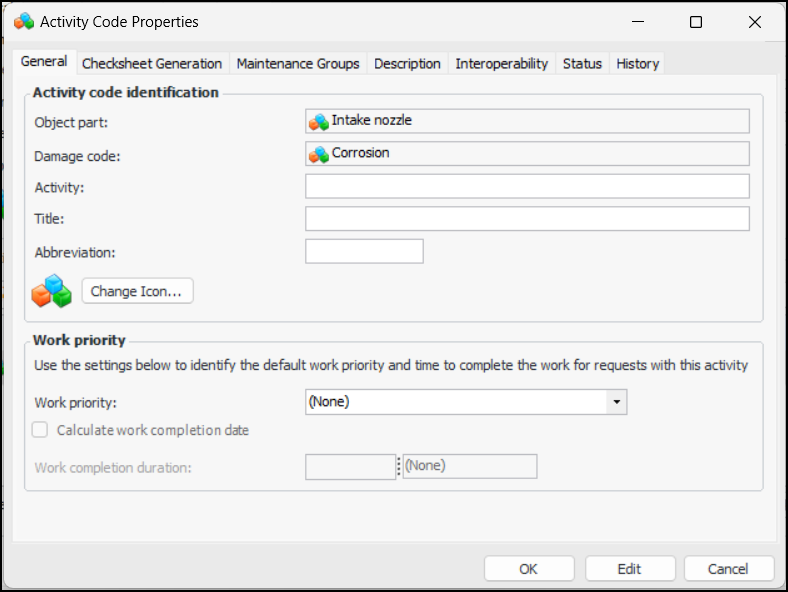
On the General tab, create as many activity codes as needed. Click New to open the Activity Code Properties dialog:
12.
13.
14.
Click Calculate work completion date to determine a request for work’s projected completion date based on the duration.
Note: This option and the duration are not available on the activity code if the selected priority does not require that the completion date be calculated.
15.
16.
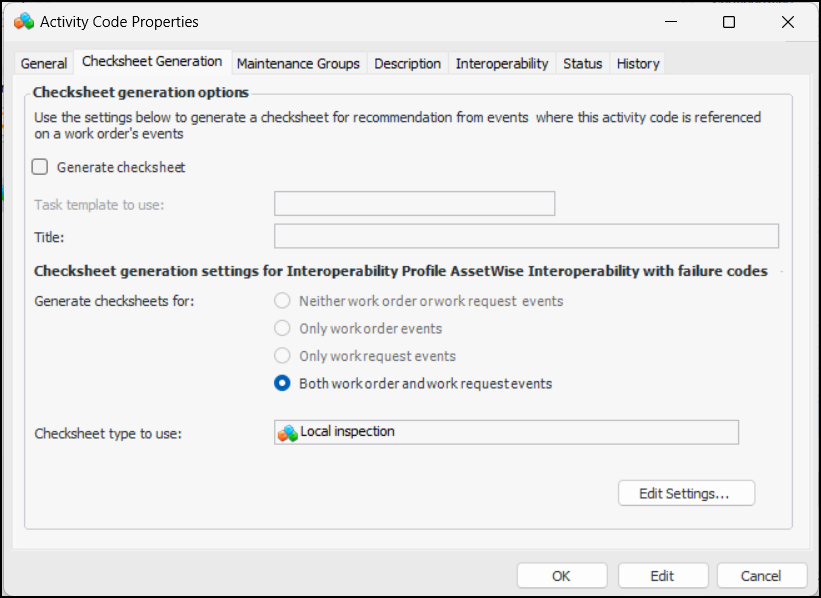
Select the Checksheet Generation tab:
17.
Click Generate checksheet to enable the functionality.
18.
19.
The Checksheet generation settings for the site interoperability profile area displays the settings from the profile. Click Edit Settings if you wish to change the profile. The Edit Checksheet Generation Settings dialog appears, where you can make changes.
20.
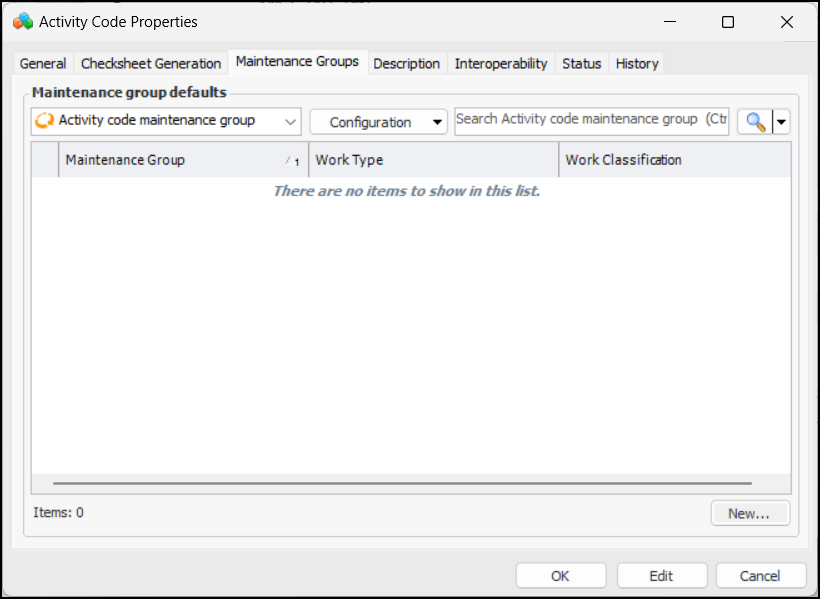
Select the Maintenance Groups tab:
21.
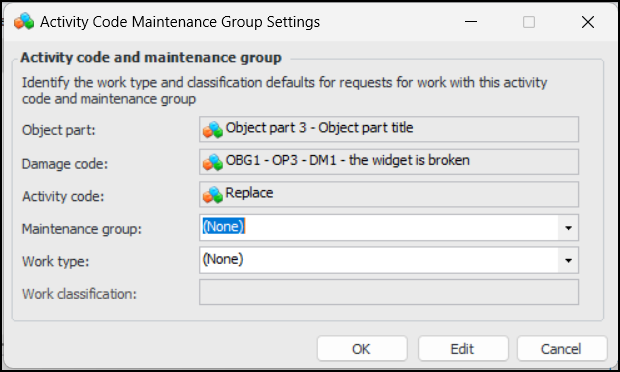
Click New to open the Activity Code Maintenance Group Settings dialog:
22.
23.
24.
25.
Select the Description tab to add more information.
26.
When you are finished defining the activity code, click OK. The code is added to the Damage Code Properties dialog.
27.
Click OK to close the Damage Code Properties dialog. The damage code is added to the Object Part Properties dialog.
28.
Click OK to close the Object Part Properties dialog.
29.
Click OK to close the Object Part Group Properties dialog.