
Setting the Inspection Photograph Maximum Size
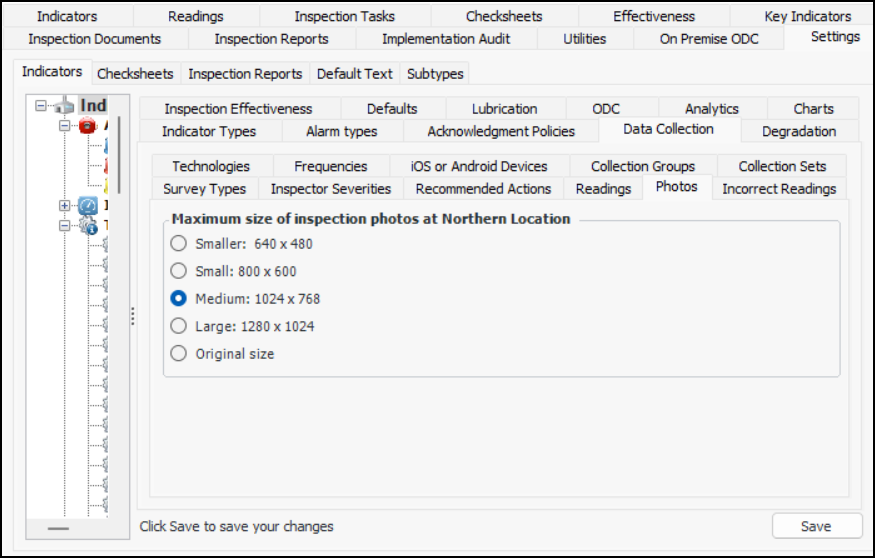
Photographs taken as part of an inspection report can be included with certain objects in APM, including assets, checksheets, indicator readings, failure records and root cause analyses. These picture files must be in one of the following formats: JPG, JPEG, BMP, GIF, or PNG.
All inspection photographs are embedded in the APM database. Because image files can be very large, you can set the default pixel dimensions for inspection photographs stored in APM.
Note: The maximum size settings also apply to photographs that are pasted or dropped into indicator instructions.
This topic describes how to set the maximum size.

To Set the Inspection Photograph Maximum Size

1.
From the Site window, select the Inspection Management view, the Settings tab, and then the Indicators tab. Select the Indicator Settings node in the tree.
Tip: You can also click the Administration menu, Inspection Management Settings, and then Indicator Management. The Indicator Settings window appears.
2.
Select the Data Collection tab and the Photos tab.
3.
Click Edit to modify the site settings. The Edit button is replaced by the Save button.
4.
5.
Click Save.