**Setting up Indicator Types

An indicator type is an APM object that defines basic settings for groups of indicators. When you create an individual indicator or indicator template, you must select its indicator type. The indicator’s value type and unit of measure categories always come from the indicator type.
Each indicator type has one of four value categories that describe how an indicator reading is obtained or represented:
Indicator types ensure that the correct value and unit of measure categories are used for individual indicators. For example, if you create a “mileage” indicator type and select “miles” as the unit of measure, users can only create mileage indicators with length measurements. APM prevents users from creating a “mileage” indicator that has readings in gallons. However, a user could create a “mileage” indicator that collects readings in kilometers. In addition, because mileage is a cumulative value type, users cannot change the value type in mileage indicators to descriptive.
More specific indicator information, such as the list of possible values for descriptive indicators, is defined on the indicator template or on the indicator itself. This is so that you can use the same indicator type for different kinds of equipment. Rules for rule-based indicators and calculations for calculated indicators are also defined on the indicator template or on the indicator itself. To create an indicator type for calculated or performance indicators, select the numeric value type.
APM comes with predefined indicator types. You can edit or delete any existing indicator types, and also add new ones for your organization.
This topic provides feature information and detailed instructions for setting up indicator types. It explains:
This topic explains how to define:

Measurement Points

On numeric and descriptive indicator types, an option allows measurement points to be defined for indicators of that type. Measuring the condition of certain assets such as piping requires taking two or more measurements to arrive at a reliable reading for the indicator. In the case of an indicator that measures the wall thickness of a pipe, four to eight measurements are commonly needed at different locations around the circumference of the pipe. This is necessary because corrosion and erosion can cause different sides of the pipe to thin or thicken at different rates.
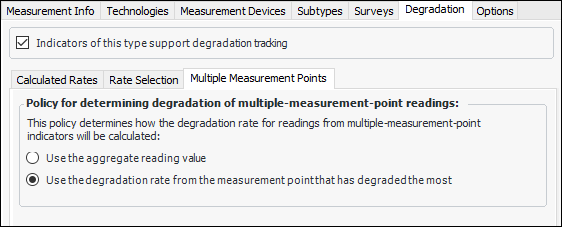
When measurement points are included in the numeric indicator, you can set the policy to determine how the degradation rate is calculated. Either the aggregate reading value is used, or the degradation rate from the measurement point that has degraded the most is used.
You can track and acknowledge alarms for each measurement point individually. When acknowledging alarms in this manner, the indicator’s current alarm value will be the highest ranking outstanding alarm of all of its measurement point readings. When all outstanding measurement point reading alarms have been acknowledged, the indicator alarm is removed.

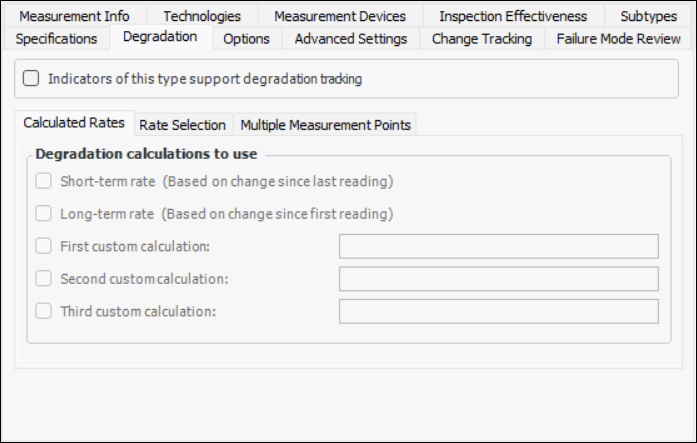
Degradation Tracking

When setting up indicator types for degradation tracking, you can specify the calculations to use for determining degradation rates (short-term, long-term, custom) and the selection policy for rates.
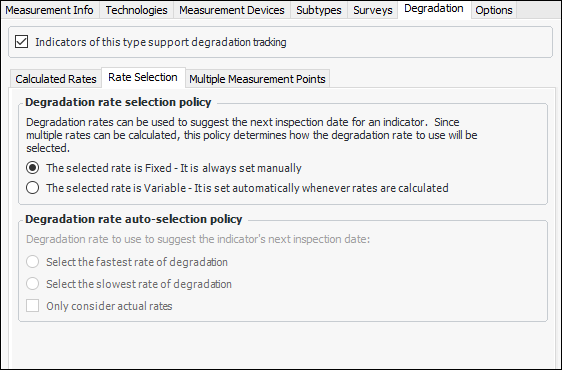
Because multiple rates can be calculated, the policy determines how the rate to use is selected. Either the rate is always set manually (fixed) or it is set automatically (variable) whenever rates are calculated. If the policy setting is “variable”, you can specify whether the fastest or slowest rate of degradation is selected.

Subtypes

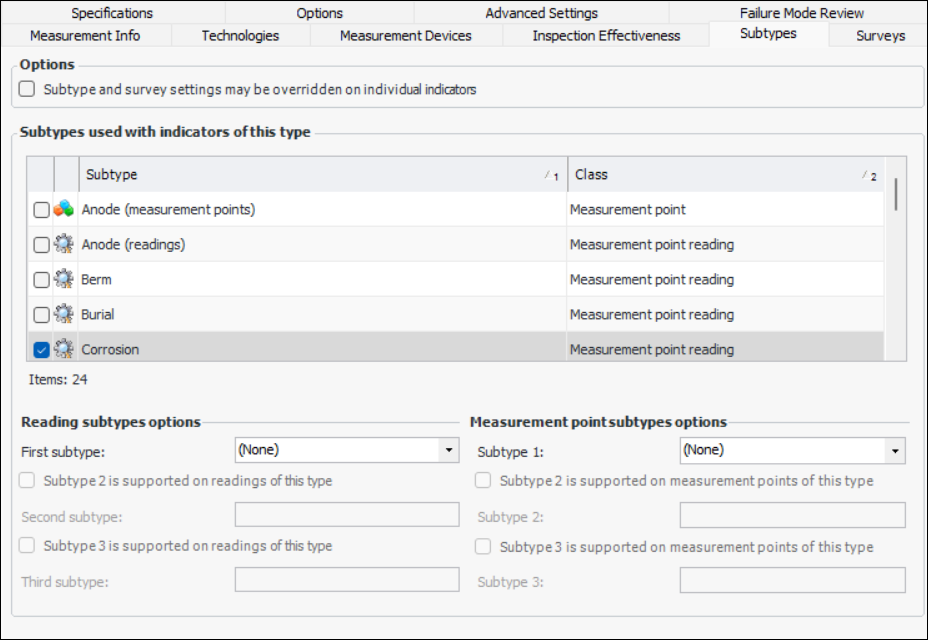
When setting up indicator types, you can specify the values that can be used with the measurement point and measurement point reading subtypes available to inspection surveys.

Surveys

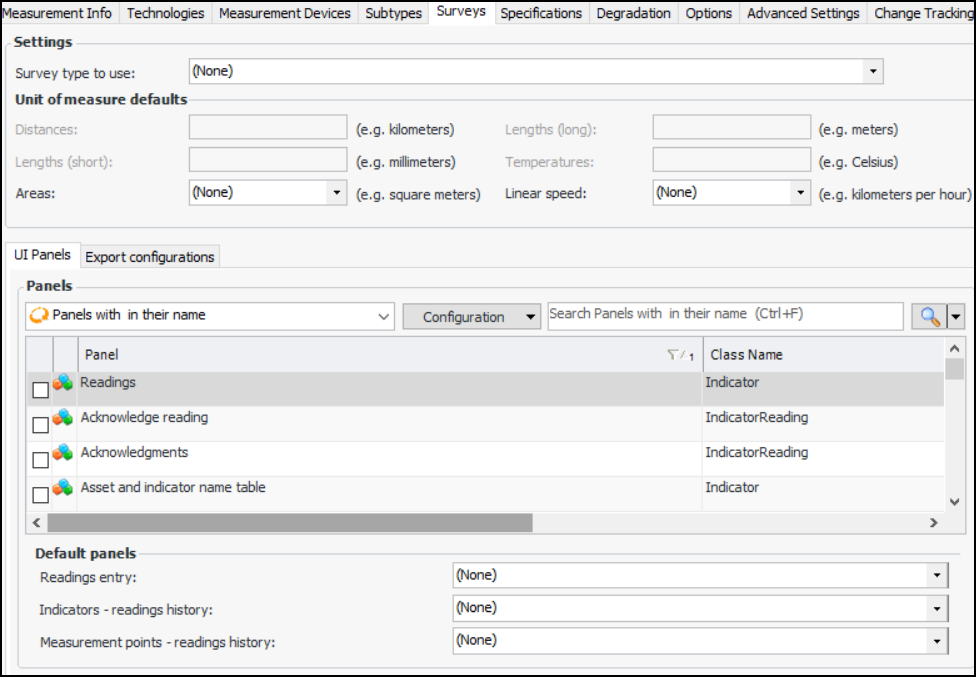
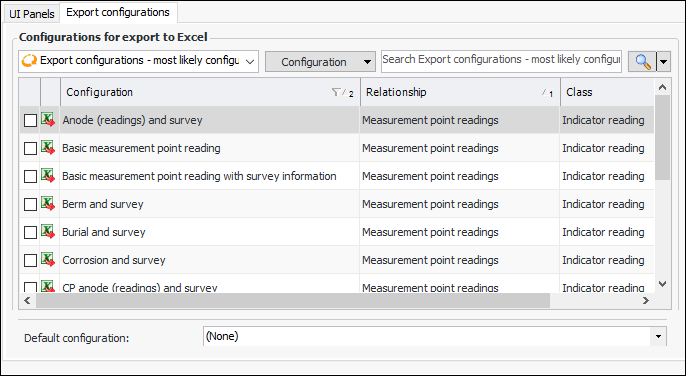
APM allows you to collect inspection survey data about where a reading was taken and conditions at the time of the reading, such as easting and northing coordinates, elevation, depth, and temperature, and others. Subsea, fabric, and platform survey properties are included with APM, however you may customize APM for other types of surveys, such as pipeline, railway, and roads, for example. Survey information is recorded on measurement points and measurement point readings. You can also export survey collection data to Excel for checksheet purposes. For measurement point readings, APM creates a separate worksheet for each subtype that was recorded on the survey.

Publishing Indicator Readings to an External System

APM supports publishing indicator readings to an external system. When selected readings are processed, APM generates an XML document that can then be consumed by Bentley Enterprise Connection Services, for example, and distributed to another system.
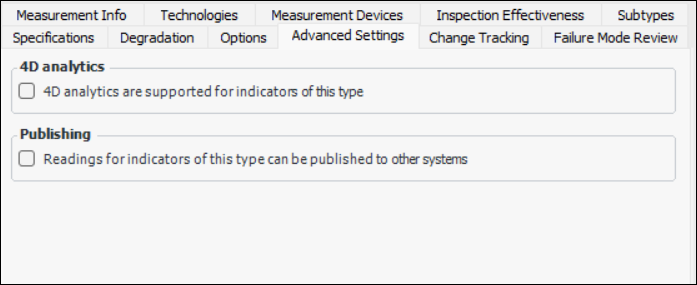
This functionality is supported for all types of indicators. The indicator and its type must have publishing enabled.
Note: The Publish Indicator Readings functionality is generally available. You must first enable feature 92 to use the functionality in APM. In the Enterprise window, select the Features view and the Enabled Features tab. Click Browse, select “Publish indicator readings to an external system” and click OK. If APM is running as a smart client, click Refresh Enabled Features on the server. Then restart the client to use the functionality.
For related information, see Publishing Readings to an External System.

Change Tracking

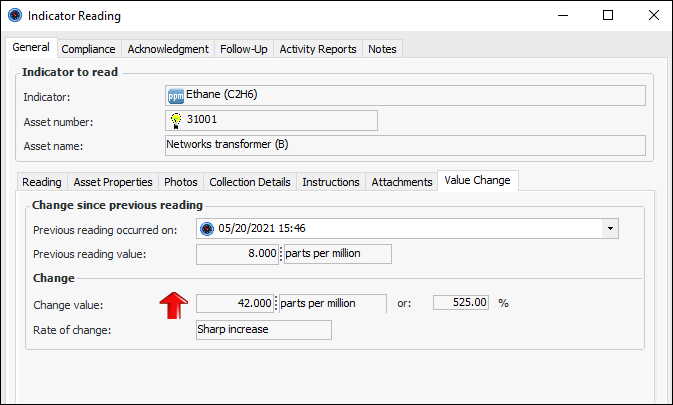
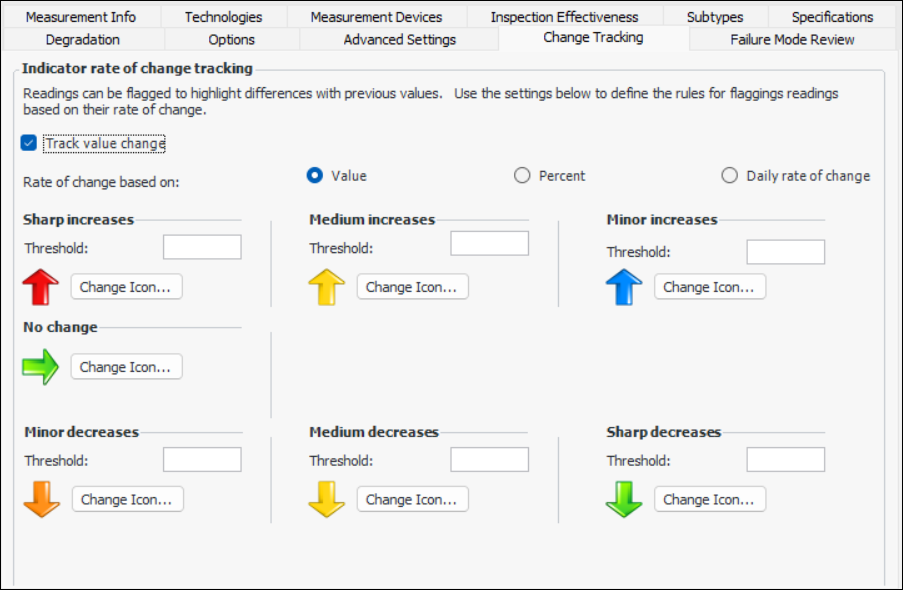
You can set up numeric indicator types to track the rate of change between a reading value and its previous reading. Rate of change can be based on values, percentages, or daily rate of change. You can set the thresholds and icons for sharp, medium, and minor increases and decreases.
In an indicator reading, the Value Change tab displays the change since last reading. For example:
Tip: After implementing the functionality on an indicator type, you can calculate change values for indicators with existing readings. In the Site window, select the Inspection Management view and Readings tabs. Select one or more readings, right-click, and click Calculate Change Value.

To Set up Indicator Types

1.
From the Site window, select the Inspection Management view, the Settings tab, and then the Indicators tab. Select the Indicator Settings node in the tree.
Tip: You can also click the Administration menu, Inspection Management Settings, and then Indicator Management. The Indicator Settings window appears.
2.
Select the Indicator Types tab. This tab shows a list of the current indicator types.
3.
Click New. The Indicator Type dialog appears.
4.
5.
To select a different icon for the indicator type, click Change Icon. Select the new icon, and then click OK.
Note: Changing the icon on the indicator type will only apply that icon to new indicators created using the type. To update existing indicators with the new icon, click Apply to Indicators.
6.
Select the Used with options for this type: asset indicators, KPIs, or both.
Tip: After the indicator type has been in use for a time, you can open this window again and click Where Used to see lists of the indicators, their assets, and related information.

To Define Measurement Information

1.
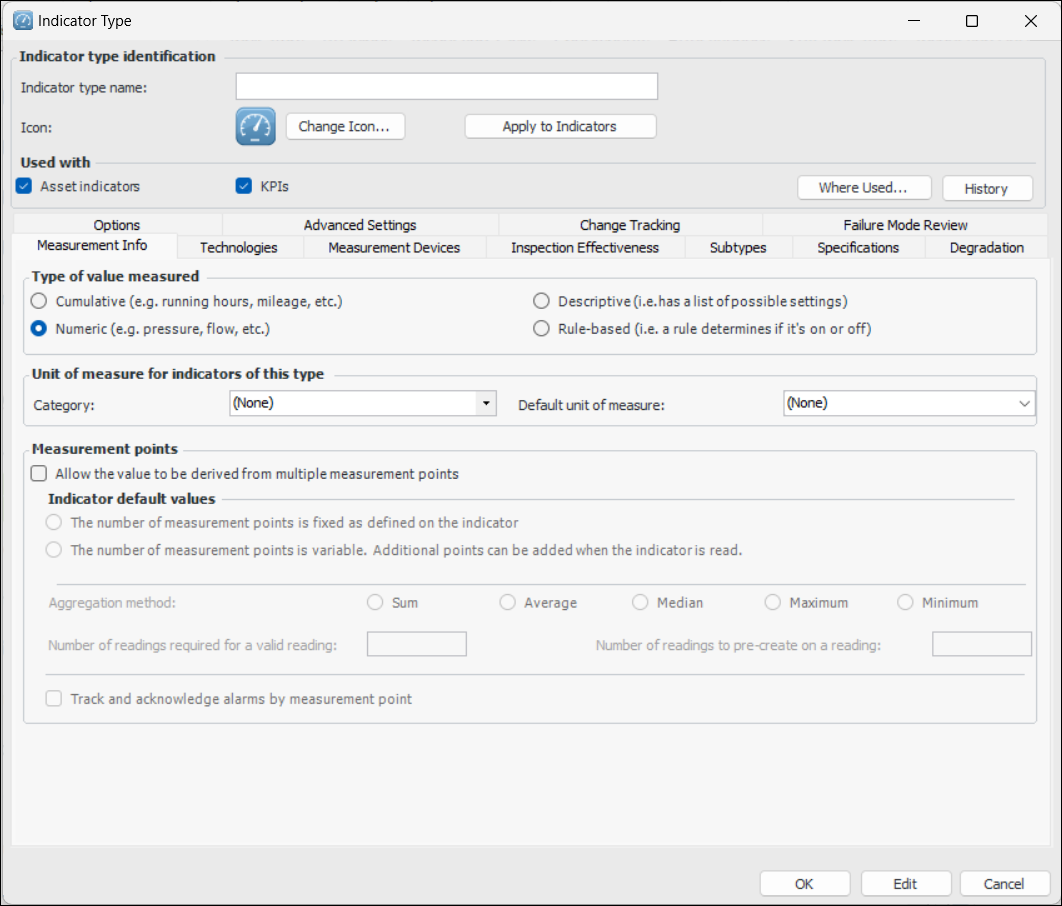
Select the Measurement Info tab, and then select the type of data that will be measured. Your choices are: Cumulative, Numeric, Descriptive, or Rule-based.
2.
If you select cumulative or numeric, select the default Category for the unit of measure, and a Default unit of measure.
Note: To create a calculated or performance indicator type, select the Numeric value type.
3.
4.
5.
For descriptive or numeric indicators, select Allow the value to be derived from multiple measurement points if indicators of this type record measurements from two or more points on the indicator and then complete the following information:
Note: For numeric indicators, the indicator’s total reading can be the aggregate of the measurements or the point that has degraded the most since the previous reading. If this indicator type supports Degradation, see To Set Degradation Information.

To Set Available Technologies

1.
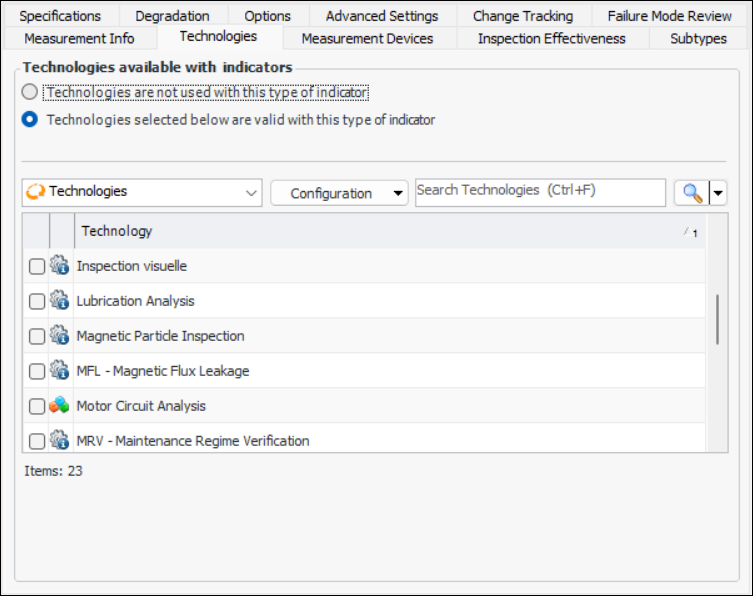
Select the Technologies tab.
2.
To assign technologies to this indicator type, select Technologies selected below are valid with this type of indicator, and then select all appropriate technologies.
Note: For more information about technologies, see Setting up Technologies.

To Set Measurement Devices

1.
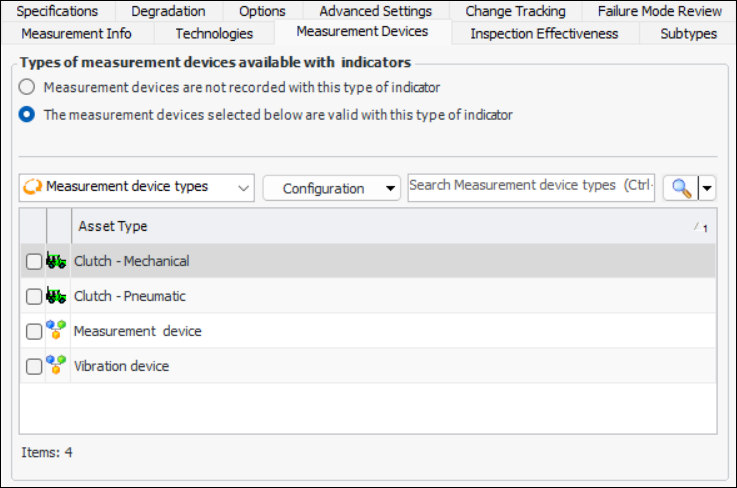
Select the Measurement Devices tab.
2.
Select The measurement devices selected below are valid with this type of indicator if readings are collected by a measurement device for this type of indicator, and then select all relevant measurement device assets from the list.
Note: For more information about defining measurement device asset types, see Creating a Measurement Device Asset.

To Set Inspection Effectiveness Options

1.
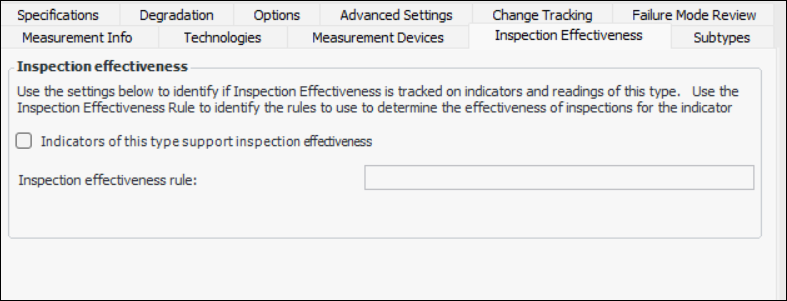
Select the Inspection Effectiveness tab.
2.
Select Indicators of this type support inspection effectiveness if you wish to record inspection effectiveness on indicator readings.
3.

To Set Subtype Options

1.
Select the Subytpes tab.
Note: This tab is available if the indicator type supports subtypes.
2.
To override the default subtype values, select Subtype and survey settings may be overridden on individual indicators.
3.
4.
In the First subtype box, select the first default subtype to be used for this indicator type.
5.
If two subtypes are supported on this indicator type, select Subtype 2 is supported on indicators of this type, and then select the second default subtype from the list.
6.
If three subtypes are supported on this indicator type, select Subtype 3 is supported on indicators of this type, and then select the third default subtype from the list.

To Set Survey Options

1.
Note: This tab is available if the indicator type supports surveys.
2.
3.
4.
Select the UI Panels tab, then select the panels that are most likely to be used for readings data entry, indicators readings history, and measurement points readings history.
Note: For basic (numeric or descriptive) indicator types with measurement points that do not have surveys or subtypes that will be used for exporting a checksheet for a subsea inspection, include the “Checksheet entry panel: Measurement point readings - Basic reading” panel.
Note: For basic (numeric or descriptive) indicator types with measurement points that do have surveys but do not have subtypes that will be used for exporting a checksheet for a subsea inspection, select the “Checksheet entry panel: Measurement point readings - Basic reading with survey” panel.
Note: For checksheets with subtypes and surveys, select the appropriate panel, for example, “Indicator reading entry panel: Measurement point readings - Berm and survey”.
5.
In the Default Panels area, select the default panel to display for readings data entry, indicators readings history, and measurement points readings history.
Note: For basic (numeric or descriptive) indicator types with measurement points that do not have survey or subtypes that will be used for exporting a checksheet for a subsea inspection, select the “Basic measurement point reading” export configuration.
Note: For basic (numeric or descriptive) indicator types with measurement points that do have survey but do not have subtypes that will be used for exporting a checksheet for a subsea inspection, select the “Basic measurement point reading with survey information” export configuration.
6.
Select the Export configurations tab. For example:
7.
8.
Select the Default configuration to display for exporting measurement point readings to Excel.

To Set Degradation Information

1.
If this indicator will be used to track asset degradation over time, select the Degradation tab and select Indicators of this type support degradation tracking. If the indicator type supports measurement points, the Multiple Measurement Points tab is available. For example:
Tip: You can work with degradation settings for multiple asset and indicator types, sites, and calculations. In a Site window, click the Administration menu, Asset Management Settings, and Degradation Settings to open the Degradation Settings window.
2.
On the Calculated Rates tab, select the calculation used to determine the degradation rate on the indicator. You can choose from two standard rates (short-term and long-term) and up to the three custom calculations. You can define a custom calculation in the Customization Center and then assign it to an indicator type.
Short-term rate – The calculation is based on the indicator’s change since the last reading.
Long-term rate – The calculation is based on the indicator’s change since the first reading.
Note: For information about creating custom calculations, see Customization Guide.
3.
Select the Rate Selection tab.
4.
The selected rate is fixed – the rate is always set manually. Indicator readings must be reviewed and the rate selected.
The selected rate is variable – the rate is set automatically whenever rates are calculated. Choose the auto-selection policy.
5.
6.
If the policy setting is “variable”, select Only consider actual values if only variable rates are to be used. This means that fixed rates are not considered.
7.
If measurement points are allowed, select the Degradation tab, Multiple Measurement Points tab.
8.
Use the aggregate reading value – The sum of the values is used

To Set Indicator Type Options

1.
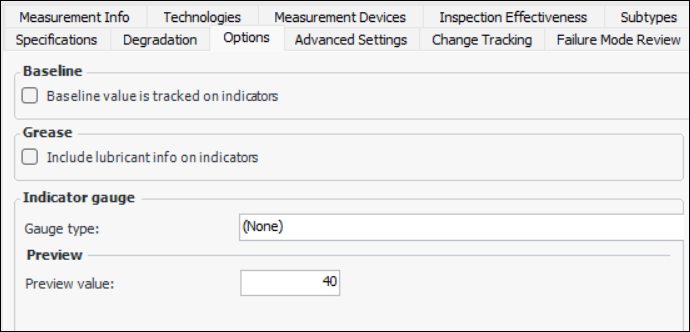
Select the Options tab.
2.
3.
Select Include lubricant info on indicators if information is available for indicators that inspect the available quantity of lubricants, such as grease and oil, on routes in a facility. Indicators of this type show the Lubricant tab on the Properties view, General tab.
4.
5.
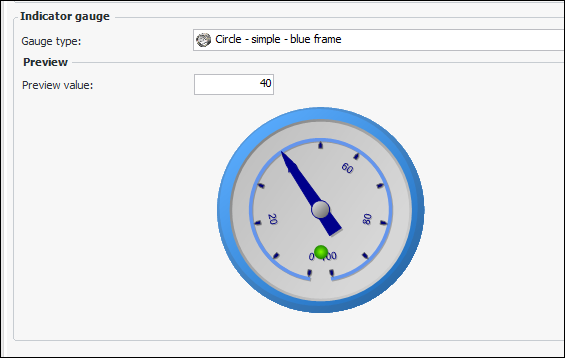
Note: You might need to close the Indicator Type window and reopen it to see the preview.
6.

To Enable Publishing Indicator Readings

1.
2.
Select Readings for indicators of this type can be published to other systems.

To Set up Change Tracking

1.
For a numeric indicator type, select the Change Tracking tab. Click Track value change.
2.
Value – For example, if the current reading’s value is 9 and the previous reading is 7, the value change is 2
Percent – For example, if the current reading’s value is 9 and the previous reading is 7, the percentage change is 28%
Daily rate of change – The change value is divided by the number of days between the current and previous reading. The result is rounded up to arrive at a whole number as the rate of change
3.

To Set Failure Mode Review Settings
1.
Select the Failure Mode Review tab.
2.