Enabling Next Due Date Information

You can have due date information shown consistently at the top of the Indicator and Standard Task windows. To display these bars, you must first select an option on the site.
In the Indicator window, a bar appears under the banner showing the last reading value and date and the next collection due date. For example:
In the Standard Task window, the bar displays the next due and last done dates. For example:

To Enable Next Due Date Information

1.
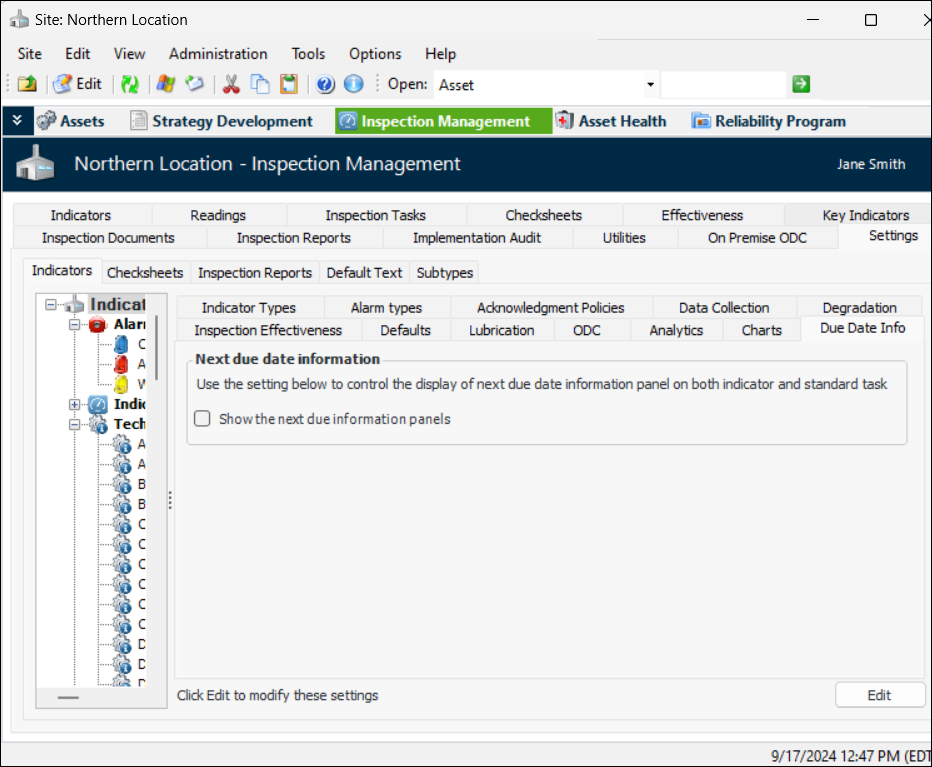
From the Site window, select the Inspection Management view, the Settings tab, and then the Indicators tab. Select the Indicator Settings node in the tree.
Tip: You can also click the Administration menu, Inspection Management Settings, and then Indicator Management. The Indicator Settings window appears.
2.
Select the Due Date Info tab. Click Edit at the bottom of the window to change the site setting.
3.
The Edit button changes to Save. Select Show the next due information panels and click Save to commit the change.