Setting up Chart Target Lines

Target lines in APM charts typically illustrate target values or thresholds for reference purposes. For example, a risk tolerance line (or plot line) indicates risk tolerance levels to provide context for failure mode analysis results in strategy development analyses. Other example uses of chart lines are to show heat exchange and pressure flow levels. You can also create chart lines to show marine growth boundaries and platform cathodic protection minimum and maximum readings for display in the Inspection Management view, Analytics tab.
Chart target lines can be defined in indicator, risk, and analytics settings. Whenever a chart target line is created, it is available to all sites in the enterprise.

To Set up a Chart Target Line

1.
From the Site window, select the Inspection Management view, the Settings tab, and then the Indicators tab. Select the Indicator Settings node in the tree.
Tip: You can also click the Administration menu, Inspection Management Settings, and then Indicator Management. The Indicator Settings window appears.
2.
Select the Charts tab. This tab shows all of the chart target lines defined for the enterprise.
3.
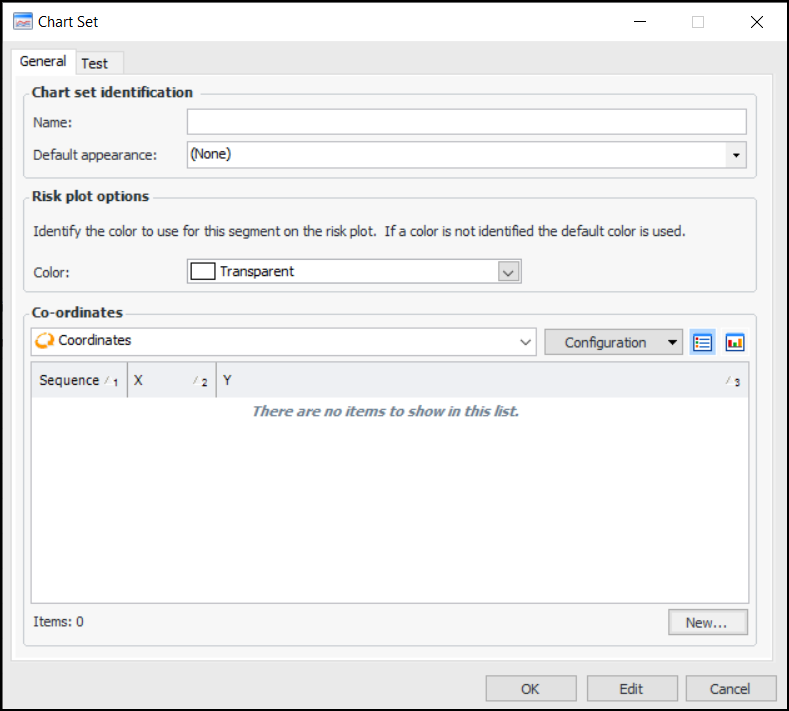
Click New. The Chart Set dialog appears:
4.
5.
In the Default appearance list, select a line style.
6.
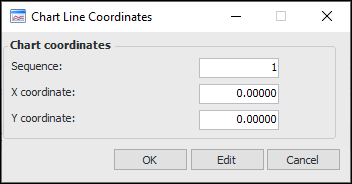
For each coordinate on the line, click New. The Chart Line Coordinates dialog appears.
7.
8.
In the X coordinate box, enter the number on the X axis (for example, probability) where the coordinate is positioned.
9.
In the Y coordinate box, enter the number on Y axis (for example, severity) where the coordinate is positioned.
10.
Click OK. The coordinate is added to the Chart Set dialog.
Tip: Select the Test tab to see an example of the line co-ordinates.
11.
When you have added all of the coordinates, click OK. The chart line is added to the table.