
|
Setting Policies for Indicator Readings
Note: After changing the compliance horizon, update configurations, charts, and so on by clicking the Tools menu, Indicators, and then Update Collection Window Status.Tip: If your organization maintains collection windows for indicators, set up the Update Indicator Collection Window Status scheduled action to refresh the system at regular intervals. See Creating a Scheduled Action.To Set Indicator Reading Policies
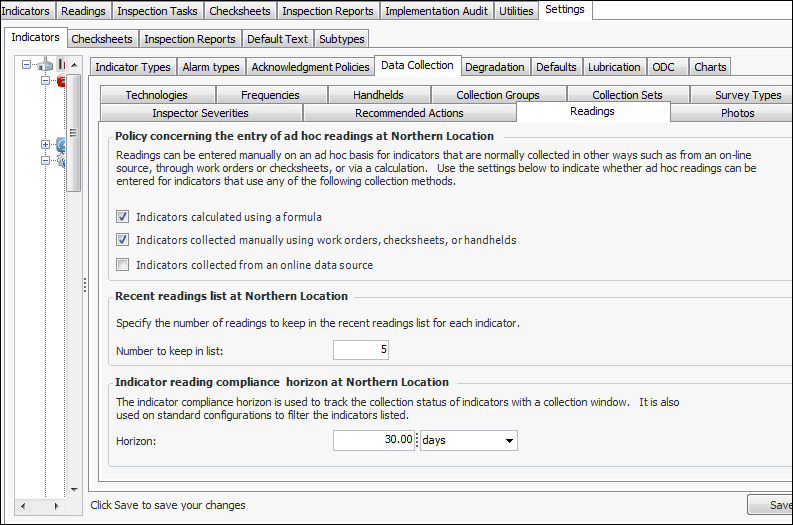
1. From the Site window, select the Inspection Management view, the Settings tab, and then the Indicators tab. Select the Indicator Settings node in the tree.Tip: You can also click the Administration menu, Inspection Management Settings, and then Indicator Management. The Indicator Settings window appears.
2.
3.
If this option is cleared, the Enter reading option (on the indicator’s Tools or right-click menu) will not be available for calculated indicators.
If this option is cleared, the Enter reading option (on the indicator’s Tools or right-click menu) will not be available for manually-collected indicators.
If this option is cleared, the Enter reading option (on the indicator’s Tools or right-click menu) will not be available for online indicators.
5. Click Save.