Setting up Inspector Severities

Recording inspector severities allows external inspectors to record the state of inspection findings. It is assumed that the inspector is not the person who makes the final determination regarding the state, but that these assessments will be used to assist the in-house authority, such as an engineer, in making the final determination. Severities normally include values such as “Moderate”, “High”, and “Excessive or severe”, for example. These values are recorded on measurement point and measurement point reading surveys.
APM comes with several inspector severities, which you can modify as required. You can also create severities for your organization. This topic describes how to create an inspector severity.

To Create an Inspector Severity

1.
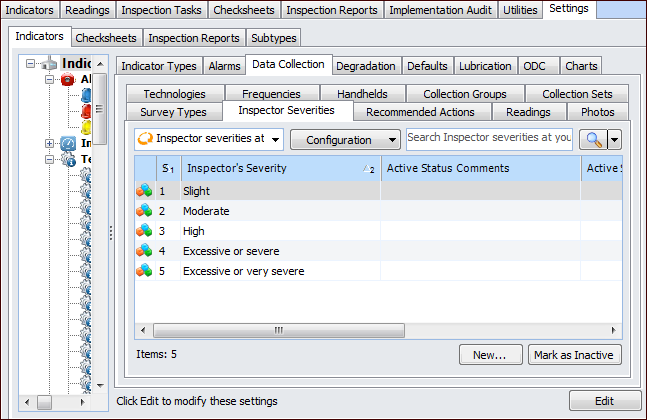
From the Site window, select the Inspection Management view, the Settings tab, and then the Indicators tab. Select the Indicator Settings node in the tree.
Tip: You can also click the Administration menu, Inspection Management Settings, and then Indicator Management. The Indicator Settings window appears.
2.
Select the Data Collection tab and the Inspector Severities tab.
Tip: You can mark a severity as “inactive” while it is in development. Inactive objects are not available for selection on sites. To deactivate or reactivate a severity, select it and click Mark as Inactive or Mark as Active. The Mark as Inactive/Active dialog appears, where you can enter a comment and click OK. Click OK in the confirmation message that appears.
3.
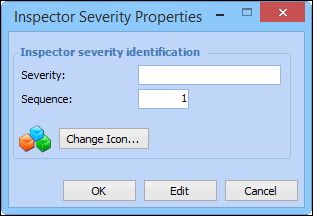
Click New. The Inspector Severity Properties dialog appears.
4.
Note: The sequence number indicates the order in which the severities were created.
5.
To change the graphic used to identify the severity, click Change Icon, select a graphic, and click OK.
6.
Click OK to close the dialog. The inspector severity is added to the table.