
Setting the Default Action when Browsing for Indicators
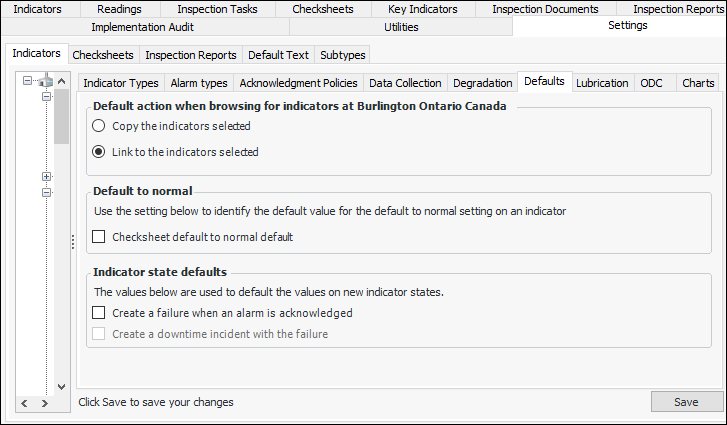
When users browse for indicators to add to failure modes, they can choose to copy or link the selected indicators. When the copy option is selected, a new indicator is created and assigned to the asset referenced on the action plan. If the failure mode is deleted in the future, the indicator is also removed from the system. If the link option is chosen, the indicator is assigned to the asset but exists independently in the system.
In indicator settings, you can set the default selection for the Browse Indicators dialog.

To Set Default Action when Browsing for Indicators

1.
From the Site window, select the Inspection Management view, the Settings tab, and then the Indicators tab. Select the Indicator Settings node in the tree.
Tip: You can also click the Administration menu, Inspection Management Settings, and then Indicator Management. The Indicator Settings window appears.
2.
Select the Defaults tab.
3.
Click Edit to modify the site settings. The Edit button is replaced by the Save button.
4.
Copy the selected indicators – New indicators are created and assigned to the asset.
Link to the selected indicators – Indicators are assigned to the asset but exist independently.
5.
Click Save.