
Setting up Reasons for Incorrect Gas Transactions

When users mark the most recent transaction for a gas container as incorrect, they can select a predefined description of the error in the Mark Gas Transaction as Incorrect dialog. This topic explains how to set up the predefined descriptions.

To Set up a Reason for Incorrect Gas Transaction
1.
In the Site window, select the Regulated Gas Management view and the Settings tab. Select the Regulated Gas Management Settings node in the tree.
Tip: You can also select the Administration menu and then Regulated Gas Management Settings. The Regulated Gas Management Settings dialog appears.
2.
Select the Incorrect Transaction Reasons tab.
3.
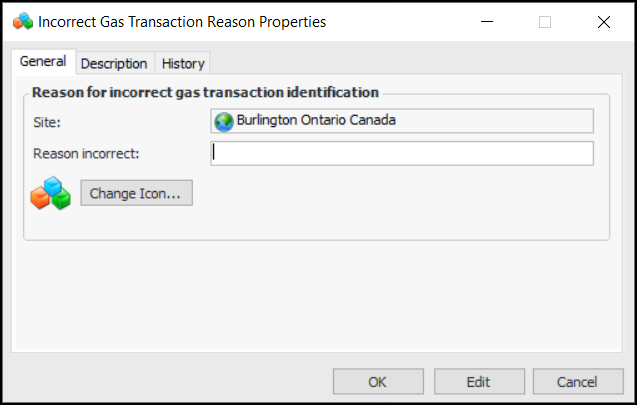
Click New. The Incorrect Gas Transaction Reason Properties dialog appears:
4.
5.
To represent the reason with a different icon in tables, click Change Icon, select another image, and click OK.
6.
Select the Description tab to add more information.
7.
Click OK. The dialog closes and the reason is added to the tab.