|
Setting Options for Incorrect Indicator Readings
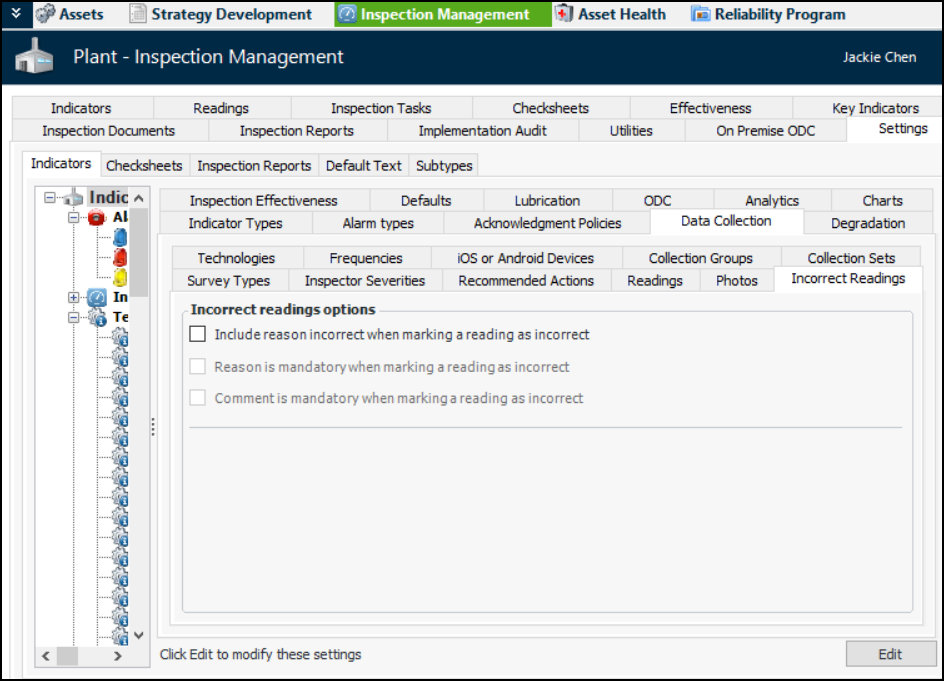
To Set Options for Incorrect Indicator Readings
1. From the Site window, select the Inspection Management view, the Settings tab, and then the Indicators tab. Select the Indicator Settings node in the tree.Tip: You can also click the Administration menu, Inspection Management Settings, and then Indicator Management. The Indicator Settings window appears.
2. Select the Data Collection tab and the Incorrect Readings tab. This tab displays options and any existing reasons for incorrect readings.
3. Click Edit at the bottom of the window to open the site settings to editing. The Edit button is replaced by Save.
5. Click Save to make the settings available on the site
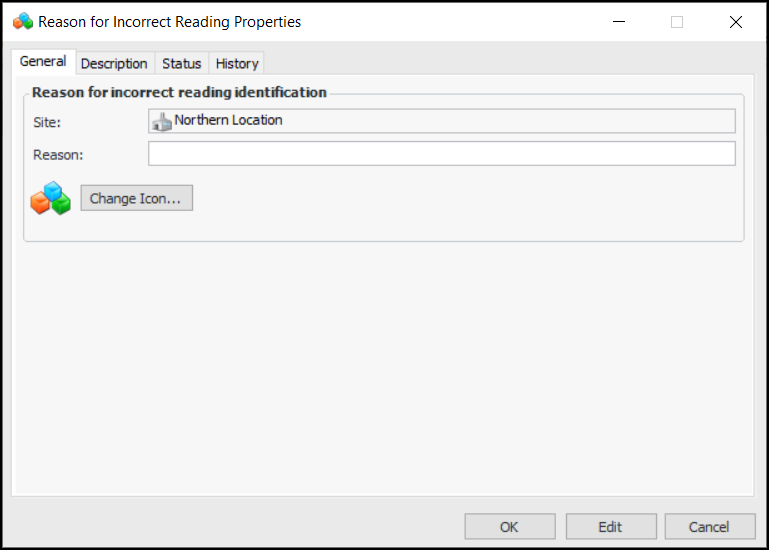
6. For each reason you wish to add, click New at the bottom of the Reasons for incorrect reading table. The Reason for Incorrect Reading Properties dialog appears:
7. Enter the reason and click OK. The reason is added to the table. You can also mark a reason as inactive to remove it from selection lists.