Setting up Gas Vendors

Gas vendors identify the suppliers of regulated gases used by your organization. Vendors are associated with gas containers and scales. This topic explains how to add gas vendors in APM.
If your organization uses the APM purchasing functionality (EAM product module), you can link vendors to purchasing suppliers that are recorded in APM.

To Set up a Gas Vendor

1.
In the Site window, select the Regulated Gas Management view and the Settings tab. Select the Regulated Gas Management Settings node in the tree.
Tip: You can also select the Administration menu and then Regulated Gas Management Settings. The Regulated Gas Management Settings dialog appears.
2.
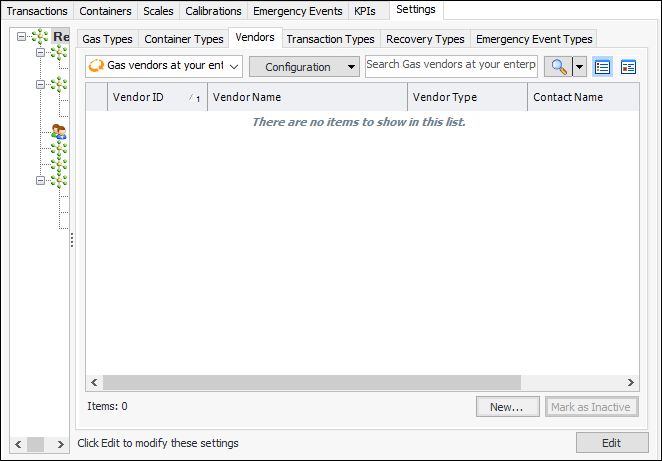
Select the Vendors tab. This tab shows the vendors defined for the enterprise.
3.
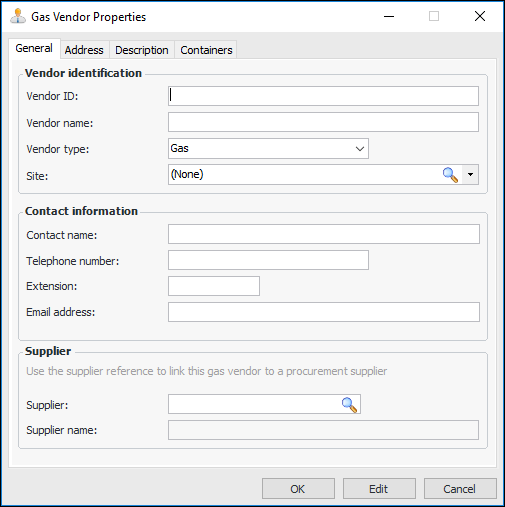
Click New. The Gas Vendor Properties dialog appears:
4.
5.
Select the Address tab to enter the vendor’s location.
6.
Select the Description tab to add more information.
7.
Click OK. The dialog closes and the vendor is added to the Vendors tab.
Tip: You can return to the Gas Vendor Properties dialog in the future to view lists of containers and/or scales that the vendor supplied. Select the Containers and Scales tabs.