|
Setting up Gas Transaction Types
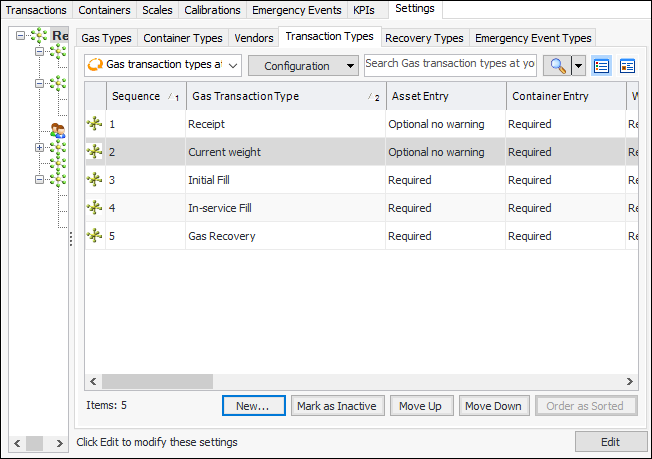
• Receipt – Records new or refilled containers sent from vendors or transferred from other locations.
Note: APM calculates the transaction and container gas weights for all transaction types that require it.
• Initial fill – Records the amount of gas used the first time that the equipment (for example, a circuit breaker) is filled.
• Current weight – Records the weight of the container and its gas.
• In-service fill – Records the amount of gas applied to the asset (for example, a circuit breaker) while the asset is in service, after the initial fill.
• Gas recovery – Records instances where gas is removed from the equipment and returned to the container.
APM calculates the gas weight loss value by subtracting the transaction gas weight from the equipment capacity. The gas loss transaction (leak to atmosphere) shows the gas loss value in the Adjustment value box.Alternatively, gas loss transactions can take their values from the original transaction’s container gas weight, adjustment value, or equipment capacity. Settings in the original transaction type must be appropriate. For example, if the gas loss value comes from the adjustment value, then Adjustment value and Equipment capacity should be set to “Required” on the Gas recovery type.
• Adjustment – Records an adjustment to the container or asset, typically to correct data-entry errors.
•
• Return – Records when the container is returned to the vendor.
• Leak to atmosphere – Records instances where gas has leaked from the equipment into the atmosphere.
• Missing from inventory – Records a container for which a receipt transaction has not been created. For example, an inspector weighs a container but then finds that a current weight transaction cannot be created because the container’s return to inventory has not been recorded. The missing-from-inventory transaction resolves this problem.
• Transfer – Records when a container is moved from one location to another.
To Set up a Gas Transaction Type
1. In the Site window, select the Regulated Gas Management view and the Settings tab. Select the Regulated Gas Management Settings node in the tree.Tip: You can also select the Administration menu and then Regulated Gas Management Settings. The Regulated Gas Management Settings dialog appears.
2. Select the Transaction Types tab. This tab shows the transaction types defined for the enterprise.Tip: You can change the sequence of transaction types by selecting a type’s row and clicking either Move Up or Move Down. The types’ sequence numbers change accordingly.Tip: You can also reorganize the list, for example, using a column sort or filter, and then change the sequence numbers accordingly. Click Order as Sorted.
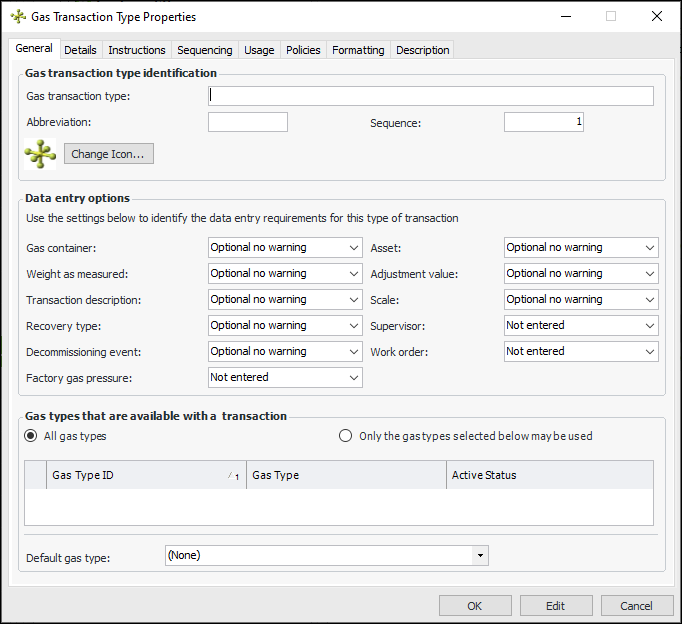
3. Click New. The Gas Transaction Type Properties dialog appears:General information
5. To represent the transaction type with a different icon in tables, click Change Icon, select another image, and click OK.Data entry options
Gas types
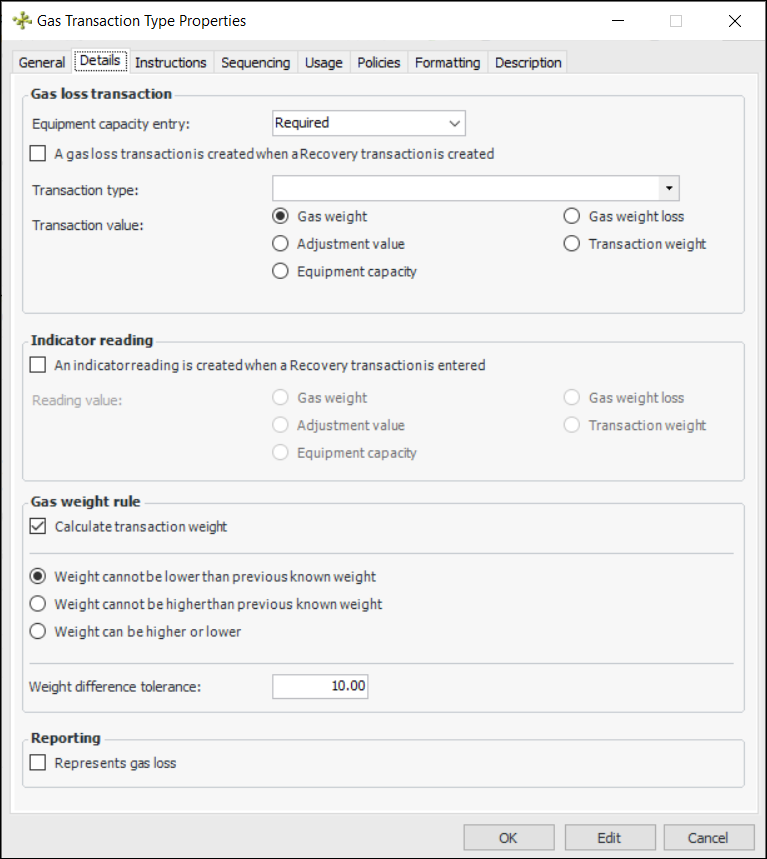
Details – Gas loss transaction
9. Select the Details tab. Here is an example of a Gas Recovery type:
Value to be added to the gas loss transaction (for example, leak to atmosphere). The value appears in the transaction’s Adjustment value box.
• Gas weight – The original transaction’s container gas weight
• Gas weight loss – The original transaction’s equipment capacity minus the transaction gas weight
• Adjustment value – The original transaction’s adjustment value
• Transaction weight – APM calculates the transaction weight, for example, by subtracting the weight of the empty container (tare weight) from the weight as measured
• Equipment capacity – The original transaction’s equipment capacity valueDetails – Indicator reading
• Gas weight – The original transaction’s container gas weight
• Gas weight loss – The original transaction’s equipment capacity minus the transaction gas weight
• Adjustment value – The original transaction’s adjustment value
• Transaction weight – APM calculates the transaction weight, for example, by subtracting the weight of the empty container (tare weight) from the weight as measured
• Equipment capacity – The original transaction’s equipment capacity valueDetails – Gas weight rule
12. Calculate transaction weight is selected by default. Clear this option if appropriate, for example, for a Receipt transaction.
15. Select Represents gas loss, if applicable, for reporting purposes.Instructions
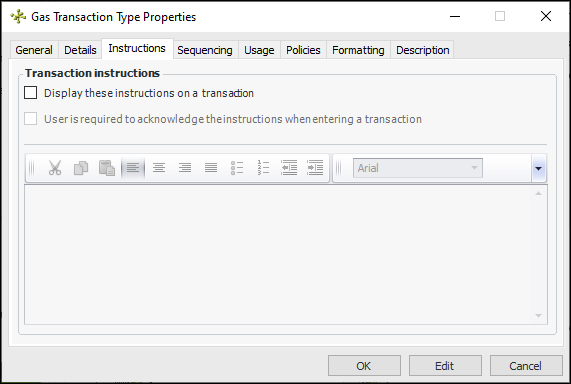
16. Select the Instructions tab.
When the user selects the transaction type in the Gas Transaction window, the Instructions box is displayed. The user must click Acknowledge Instructions to continue with the transaction.Sequencing
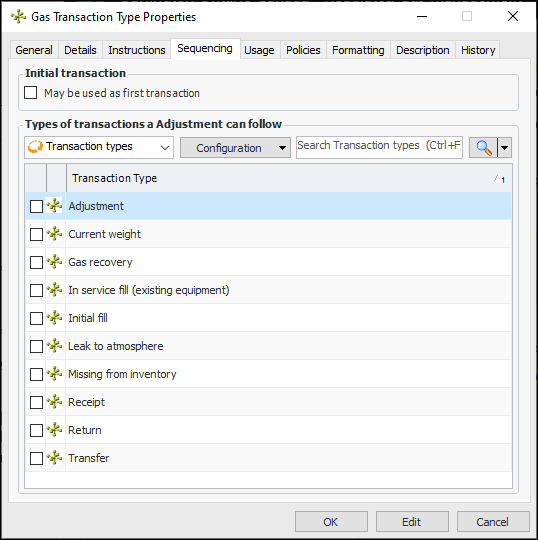
18. Select the Sequencing tab to specify the order in which transactions must be completed. This tab lists the transaction types that have been defined for the enterprise. For example:Usage
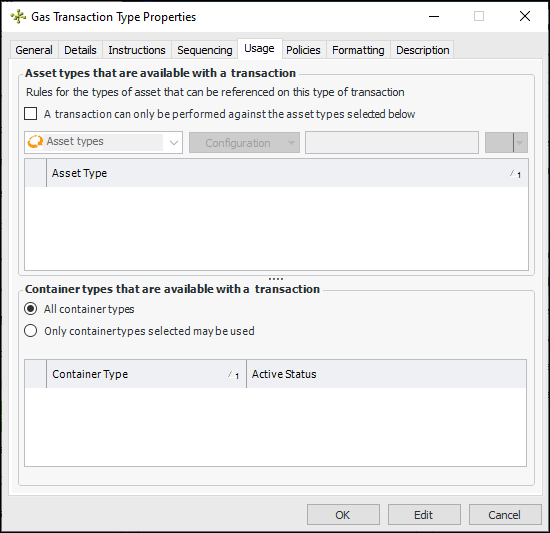
21. Select the Usage tab to specify the asset types and container types that are available to transactions for this type.
22. To limit the transaction type to specific asset types, click A transaction can only be performed against the asset types selected below. Asset types that support gas management are shown in the table. Select the appropriate asset types.
23. To limit the transaction type to specific container types, click Only container types selected may be used. Select the container types in the table.Policies
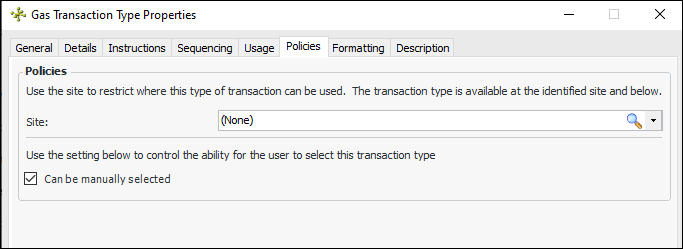
24. Select the Policies tab.
26. Can be manually set is selected by default, meaning that users are allowed to select this transaction type when creating a transaction.Formatting
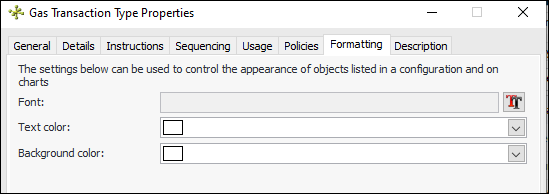
27. Select the Formatting tab to set the font, text color, and background color for transactions of this type. The formatting options determine the appearance of transactions in tables and charts.Description
28. Select the Description tab to add more information.
29. Click OK. The dialog closes and the transaction type is added to the tab.Tip: The History tab shows the general information about the transaction type. It also lists actions performed on the type by element and data element.