|
Setting up Gas Container Types
To Set up a Gas Container Type
1. In the Site window, select the Regulated Gas Management view and the Settings tab. Select the Regulated Gas Management Settings node in the tree.Tip: You can also select the Administration menu and then Regulated Gas Management Settings. The Regulated Gas Management Settings dialog appears.
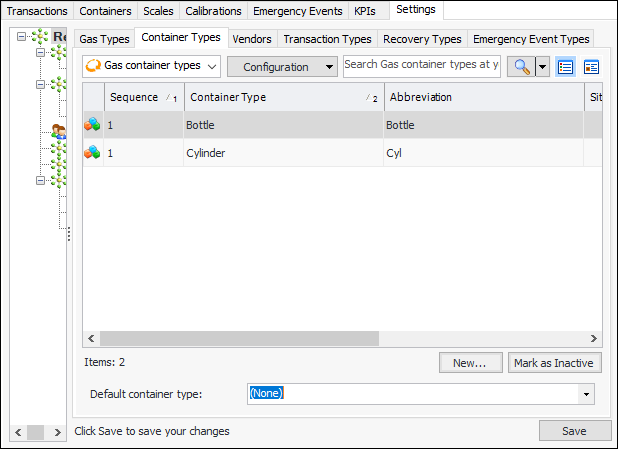
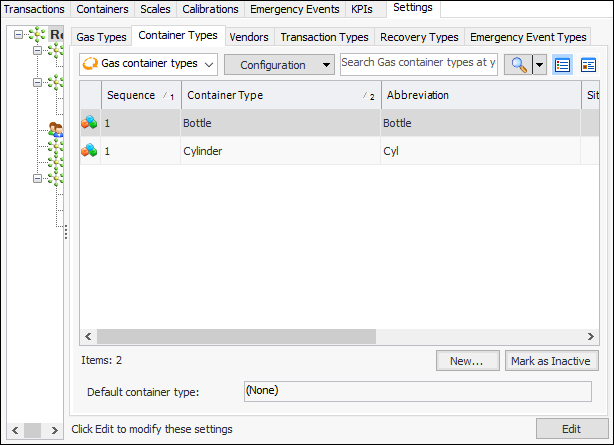
2. Select the Container Types tab. This tab shows the container types defined for the enterprise.
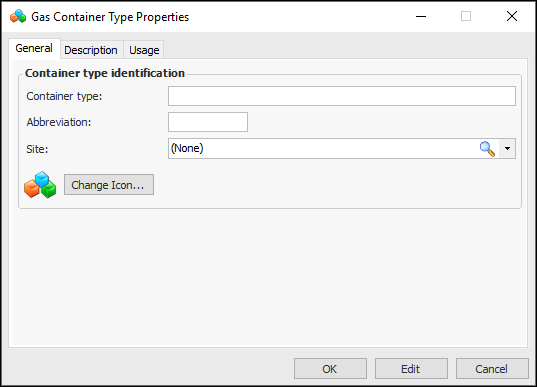
3. Click New. The Gas Container Type Properties dialog appears:
7. To represent the type with a different icon in tables, click Change Icon, select another image, and click OK.
8. Select the Description tab to add information about the type.
9. Tip: You can return to the Gas Container Type Properties dialog in the future to view a list of containers of this type. Select the Usage tab.To Set the Default Container Type for the Site
1. In the Site window, select the Regulated Gas Management view and the Settings tab. Select the Regulated Gas Management Settings node in the tree.Tip: You can also select the Administration menu and then Regulated Gas Management Settings. The Regulated Gas Management Settings dialog appears.
2. Select the Container Types tab. This tab shows the container types defined for the enterprise.
3.
4. Select a value from the Default container type list.
5. Click Save.To Create Value List Controls for Containers
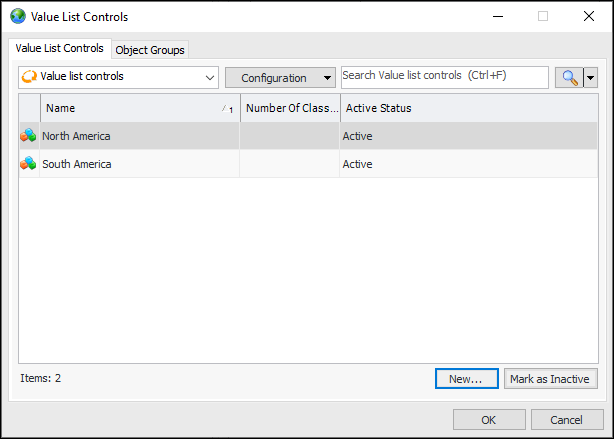
1. In the Enterprise window, click the Administration menu and then Value List Controls. The Value List Controls dialog appears:
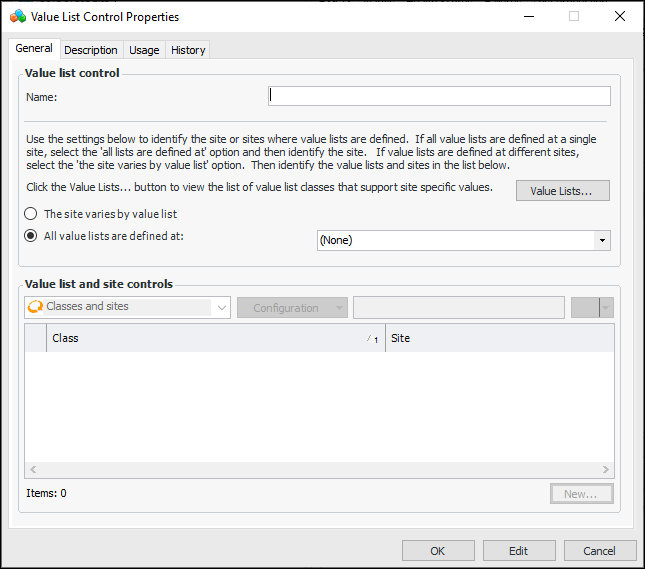
2. Click New to open the Value List Control Properties dialog:
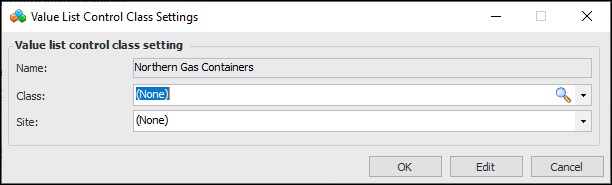
4. Select The site varies by value list. Click New to open the Value List Control Class Settings dialog:
5. Select “Gas container” from the Class list.
6. In the Site list, select the site that will own containers.
7. Click OK.
9.
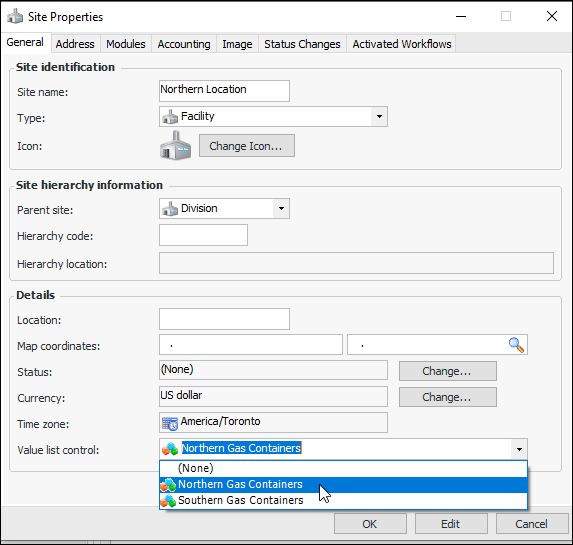
10. In the Value list control list, select the control that you just created. For example:
11. Click OK to save the option and close the dialog.