|
Setting up Frequencies
You can set up a frequency for tasks that are performed on an “as needed” basis. For example, condition-monitoring tasks can require that corrective action be taken when a problem is imminent. For an “as needed” frequency, select the option Numeric equivalent can be overridden where supported. This allows the numeric equivalent to be changed according to the context.If you change a frequency’s recurrence pattern, you can update the collection windows of indicators that use the frequency. In the Indicator window, select the Tools menu and click Refresh Collection Pattern. The indicator’s next reading due date and time are updated to use the new pattern. To update two or more indicators, select them in one of the tables in the site’s Inspection Management view. Right-click and click Refresh Collection Pattern.Tip: You can create frequencies in reliability program settings or indicator data collection settings.To Set up Frequencies
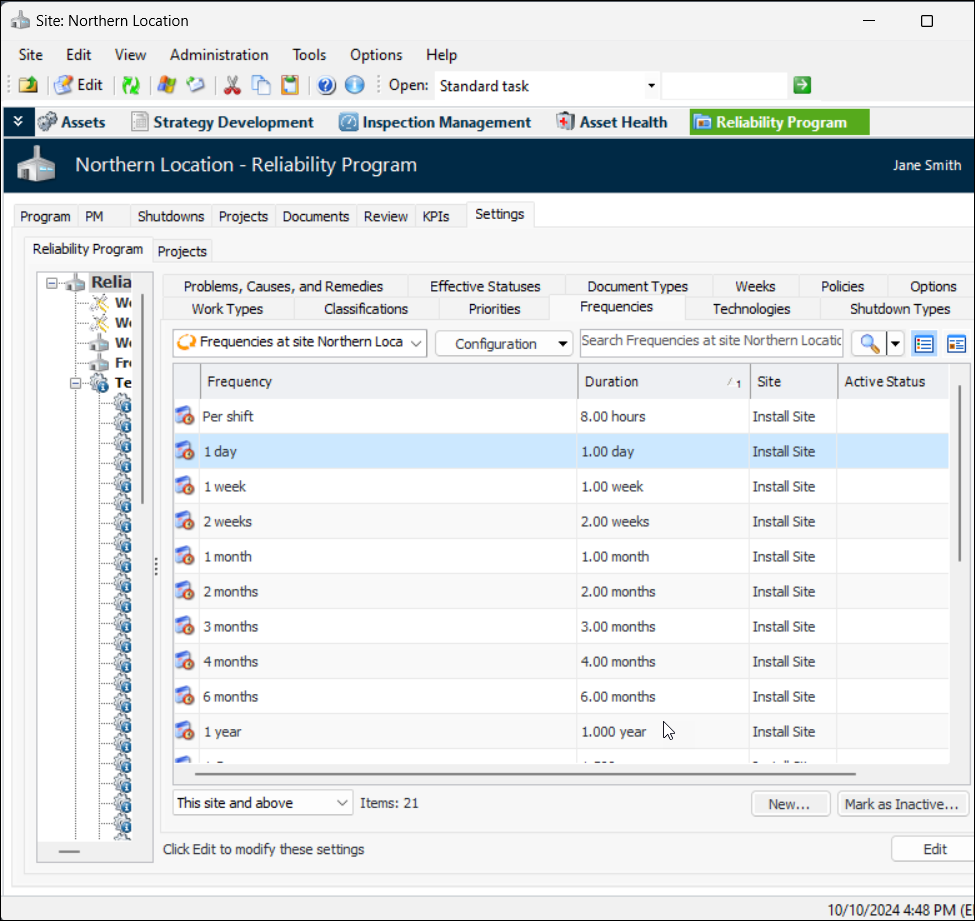
1. From the Site window, select the Reliability Program view and the Settings tab. Select the Reliability Program tab and the Reliability program settings node in the tree.Tip: You can also select the Administration menu and Reliability Program Settings. The Reliability Program Settings dialog appears.
2. Select the Frequencies tab. This tab shows a list of the current frequencies.
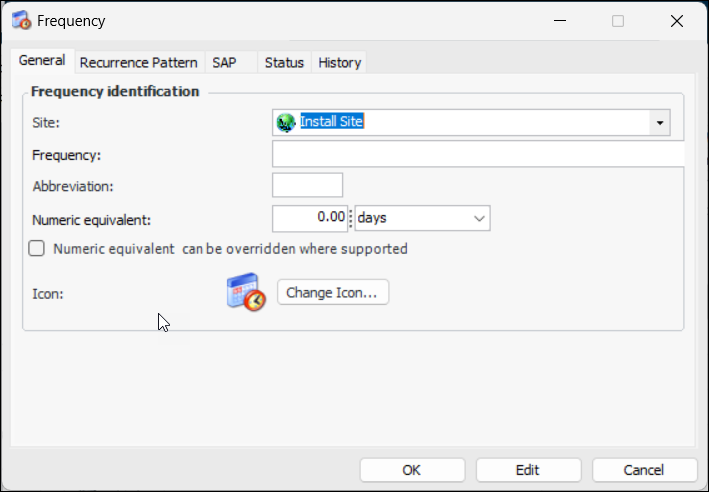
3. Click New. The Frequency dialog appears.
6. Enter a short form in the Abbreviation box. The abbreviation is used in reports.
8. When Numeric equivalent can be overridden where supported is selected, the numeric equivalent value can be changed according to the context. For example, an “as needed” frequency could require an estimate of how often equipment needs to be replaced or restored.
9. To change the graphic that represents the frequency in tables, click Change Icon, select and icon, and click OK.
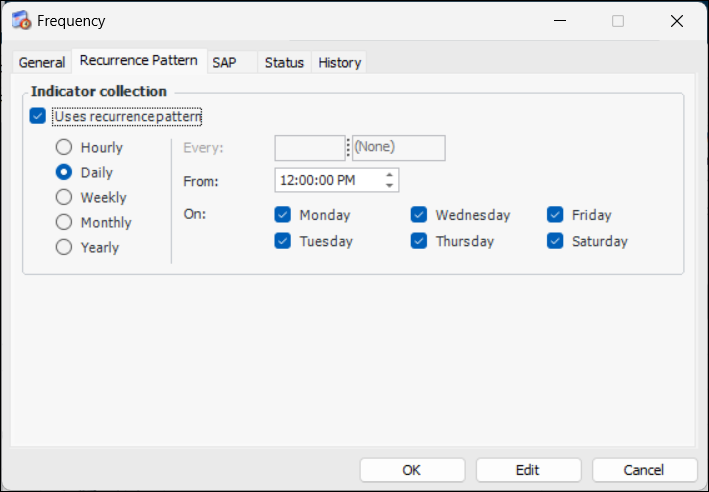
10. To base the frequency on regular time intervals for indicator collection, select the Recurrence Pattern tab. Click Uses recurrence pattern. Options are added to the tab.
11.
12. Click OK to save the frequency.
13.