|
Setting up Fluid Types
Note: Support for fluid sample tracking is generally available in the product. However, you must first enable features 53 and 54 to use the functionality in APM. In the Enterprise window, select the Features view and the Enabled Features tab. Click Browse, select “Fluid condition tracking and results” and “Fluid sample support” and click OK. If APM is running as a smart client, click Refresh Enabled Features on the server. Then restart the client to use the functionality.This topic explains how to add fluid types from Fluid Condition settings. They can also be defined in Asset settings in the Specifications tabs. For more information, see Adding Values for Asset Subtypes and Specifications.To Create a Fluid Type
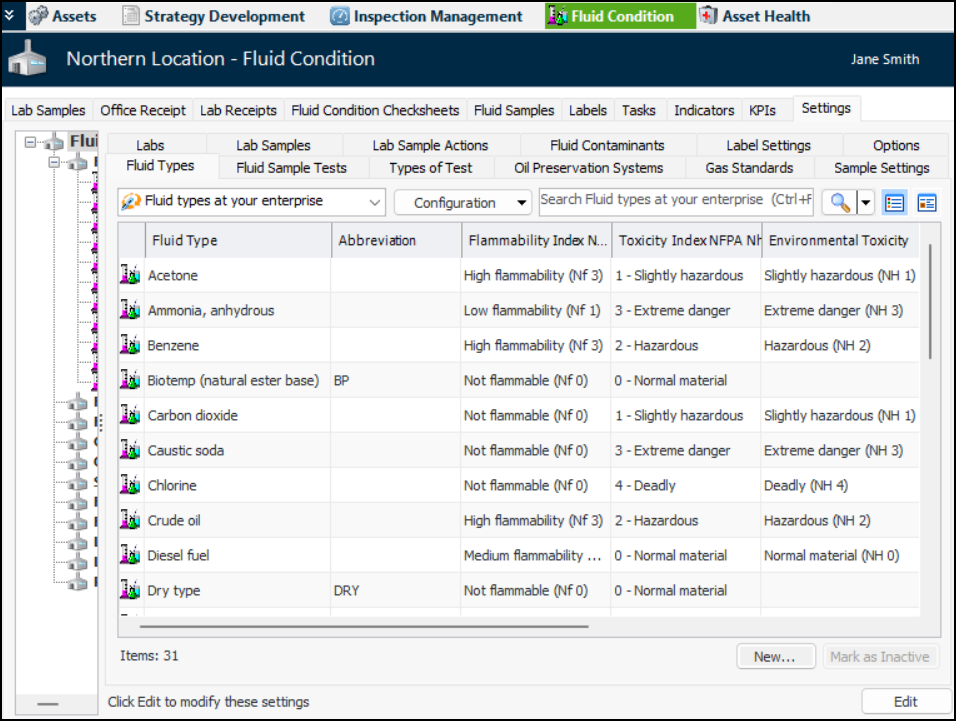
1. From the Site window, select the Fluid Condition view, Settings tab. Select the Fluid Condition Settings node in the tree.Tip: You can also click the Administration menu and Fluid Condition Settings. The Fluid Condition Settings dialog appears.
2. Click the Fluid Types tab. This tab displays the fluid types that have been defined for the enterprise. For example:Tip: To edit existing fluid types, click Edit. Select a row in the table and click F2 to edit its fields. Press Tab to move to the next field and Enter to move to the next row. When you are finished, click Save to update the database.You can mark a fluid type as inactive until it is ready to be used. Select the type in the table and click Mark as Inactive. The Mark as Inactive/Active dialog appears, where you can enter a comment. When you click OK, a confirmation message appears. Click OK. When you are ready, click Mark as Active to make the type available for use.
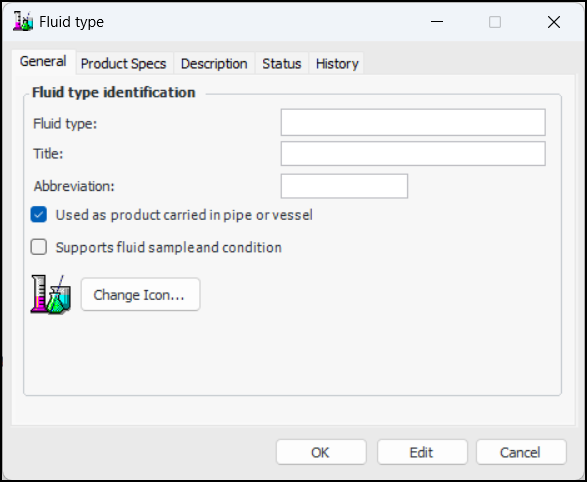
3. Click New. The Fluid Type window appears:
8. To change the icon that represents the type, click Change Icon, select a different graphic, and click OK.
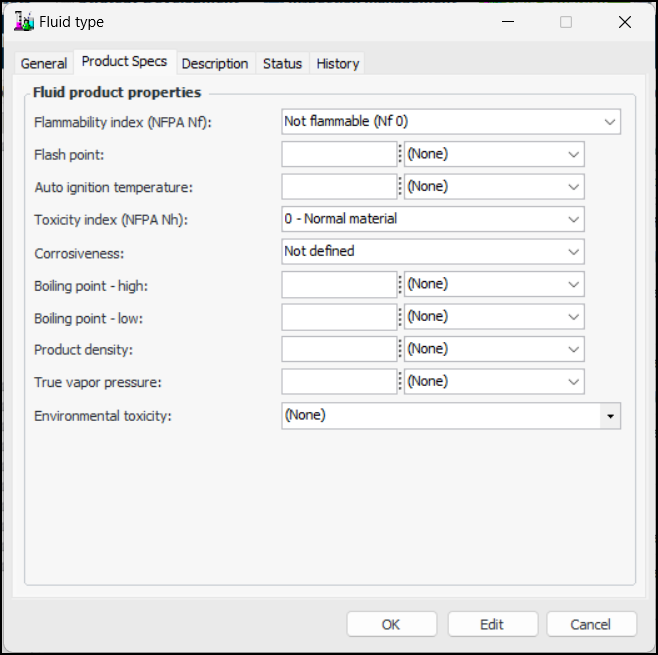
9. If the type identifies a product, the Product Specs tab is available:
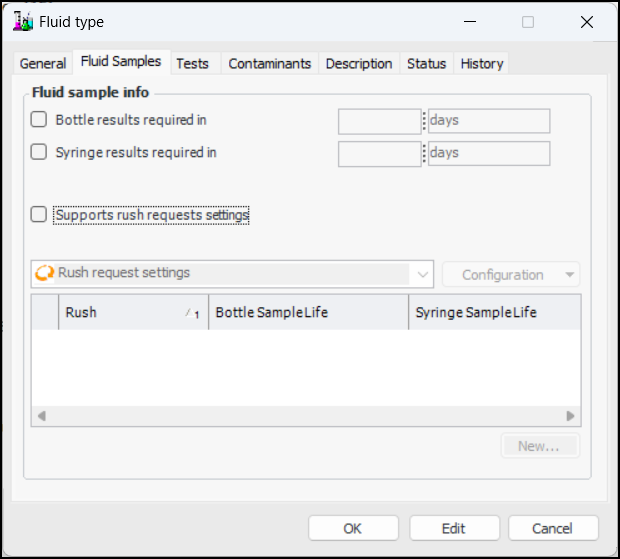
10. If the type supports fluid samples, the Fluid Samples tab is available:
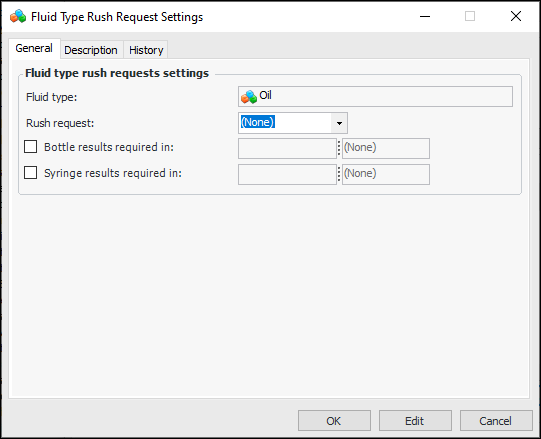
12. To add rush request settings, click Supports rush requests settings. Click New at the bottom of the Rush request settings table. The Fluid Type Rush Request Settings dialog appears:
13. In the Rush request list, select a value, for example “Yes”.
15. You can provide more information in the Description tab.
16.
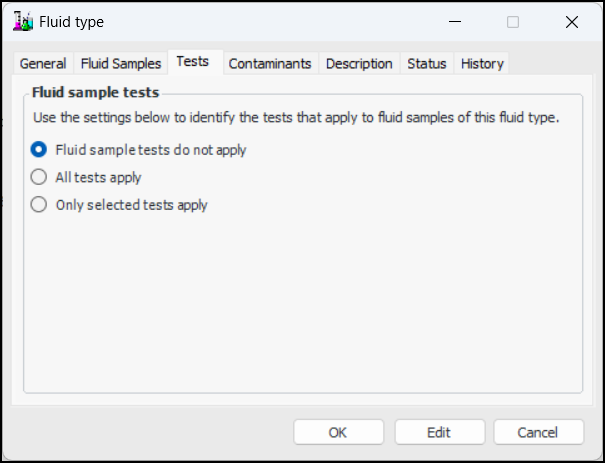
17. In the Fluid Type window, select the Tests tab.
18. To allow the inspector recording a fluid sample to select tests, click either All test apply or Only the selected tests apply (and select the tests that apply).
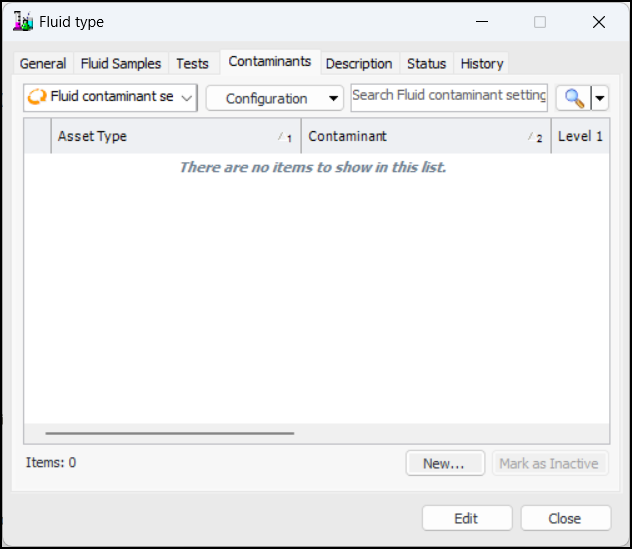
19. Select the Contaminants tab to identify the contaminants that can appear in a fluid of this type.
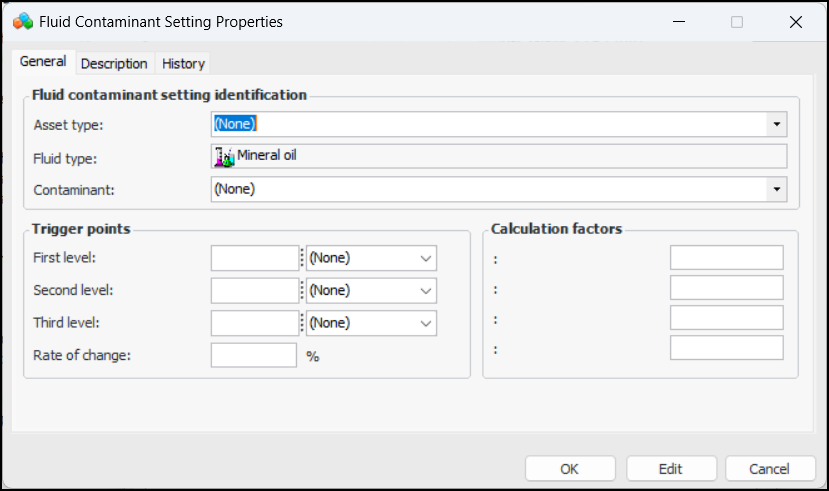
20. Click New to add a contaminant. The Fluid Contaminant Setting dialog appears:
22. Select a value in the Contaminant list.
23. For each of First level, Second level, and Third level, enter a value and select the unit of measure. These settings identify the trigger points used in calculated indicators for fluid condition tracking.
26. Select the Description tab to add more information.
27. Click OK to close the Fluid Contaminant Setting dialog. The contaminant is added to the Fluid Type window.
28. Select the Description tab to add information about the fluid type.Tip: The History tab displays information about the type’s creation and last update.
29. Click OK to save the fluid type and close the window.