|
Setting up Construction Form Templates
Template Asset Types
Properties of Template Asset Types
To Define General Properties for a Construction Form Template
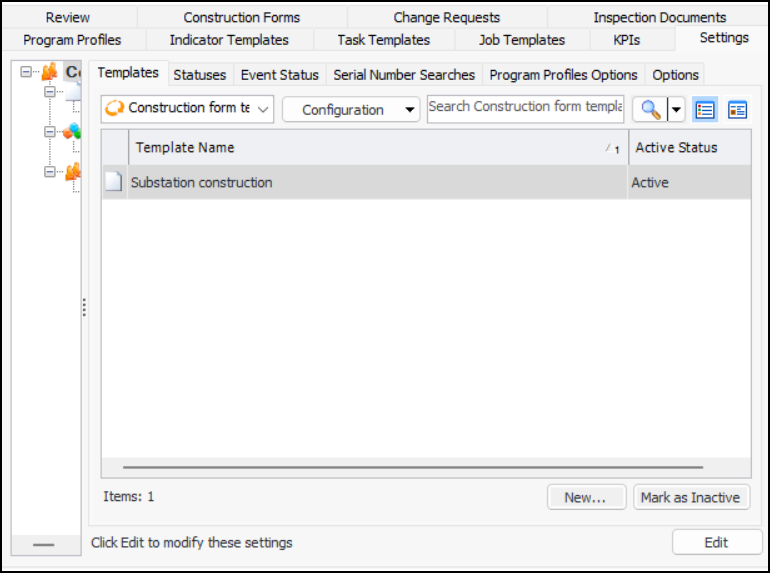
1. In the Site window, select the Construction Management view and the Settings tab. Select the Construction Management Settings node in the tree.Tip: You can also select the Administration menu and then Construction Management Settings. The Construction Management Settings dialog appears.
2. Select the Templates tab. This tab shows the templates defined for the enterprise.
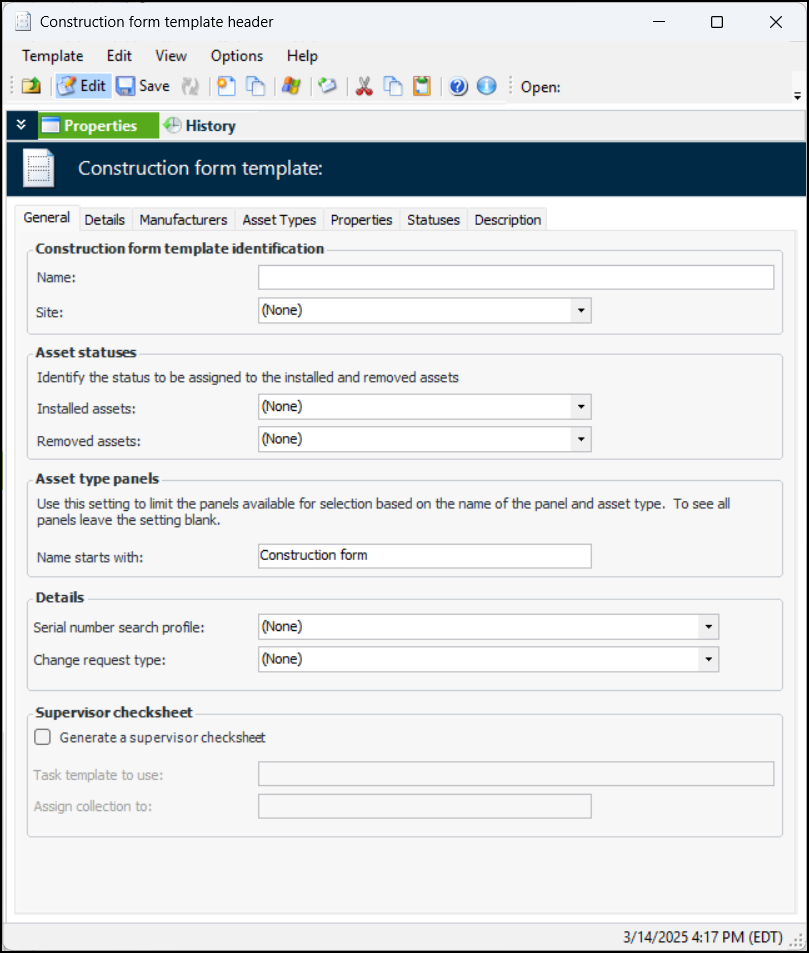
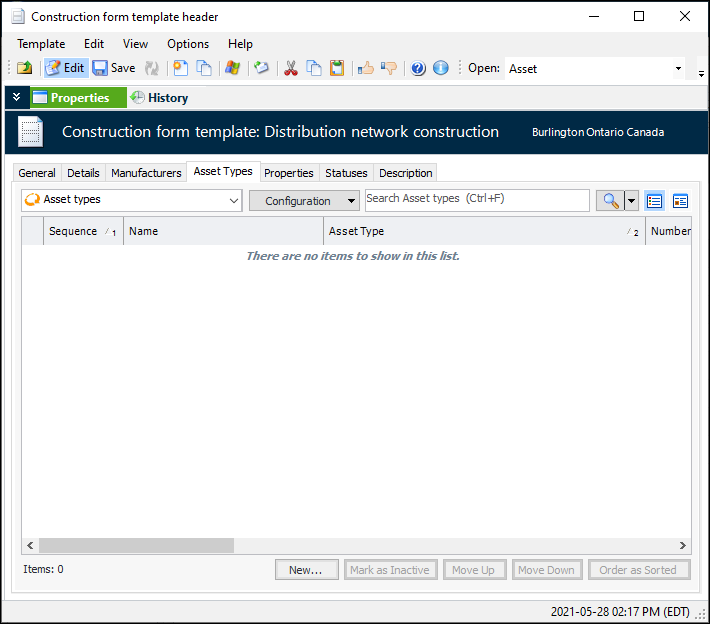
3. Click New. The Construction Form Template Header window appears:
4. On the General tab, provide the following information:
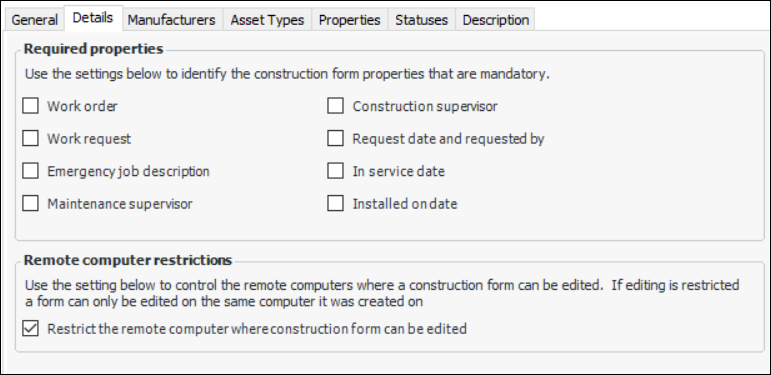
5. Select the Details tab.
7.
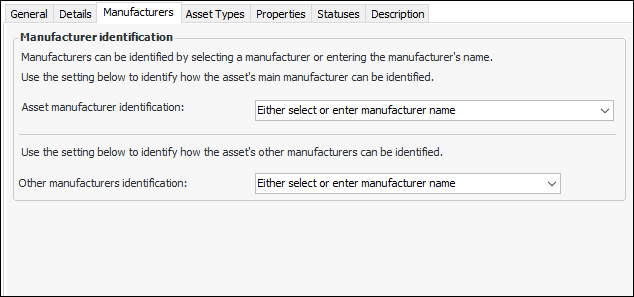
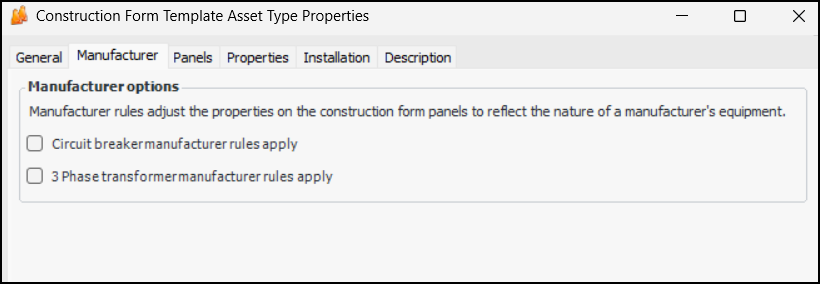
8. Select the Manufacturers tab to set options for identifying manufacturers for assets.
11. Select the Asset Types tab to add asset types. For instructions, see To Set up Template Asset Types.
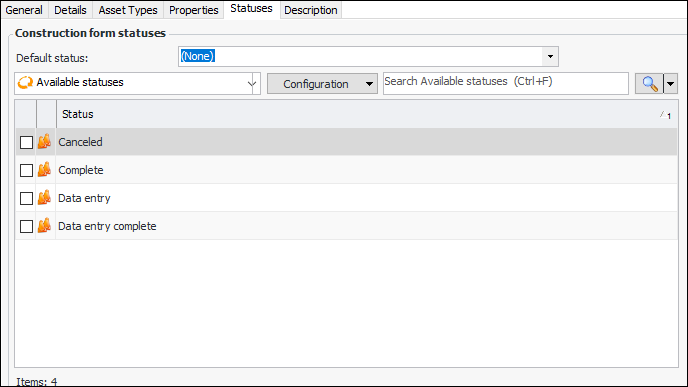
12. Select the Statuses tab. This tab lists the available construction form statuses. For example:
14. In the Default status list, select the status to be assigned to construction forms of this type when they are created.
15. Select the Description tab to add more information.To Set up Template Asset Types
1. You can mark asset types as inactive until you are ready to include them in the template. You can change the order of asset types in the construction form using the Move Up and Move Down buttons. You can also update the sequence numbers by clicking Order as Sorted.
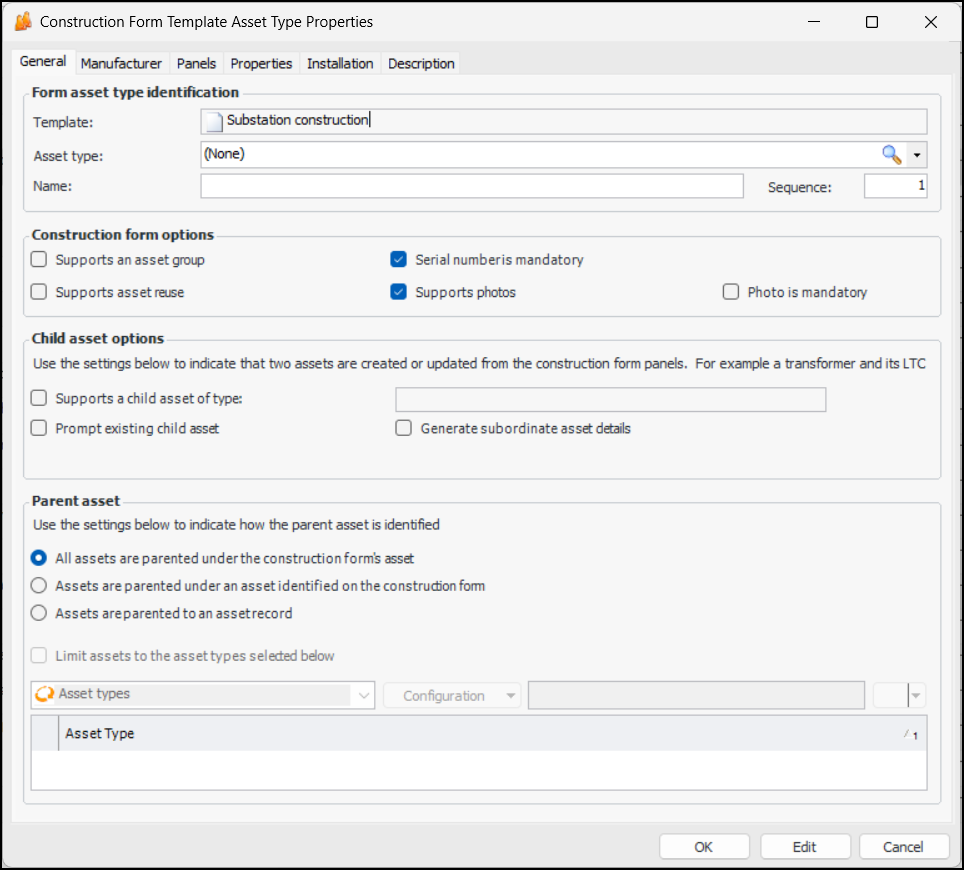
2. For each asset type that you wish to add, click New. The Construction Form Template Asset Type Properties dialog appears:
Note: Serial number is mandatory is enabled only when a serial number search profile has been selected for the construction form template.
6. Select child asset options. When Supports a child asset of type is selected, additional settings appear:
• All assets parented under the construction form’s asset – The default option places all assets created from the form under the construction form’s asset
• Assets are parented under an asset identified on the construction form – When creating a form, you can select from the other form details. When assets are created or updated from the form, the child asset is associated with the selected parent
• Assets are parented to an asset record – When creating a form, you can select an asset from the site hierarchyYou can limit the parent assets to selected types. Click Limit assets and select the types in the list.
8.
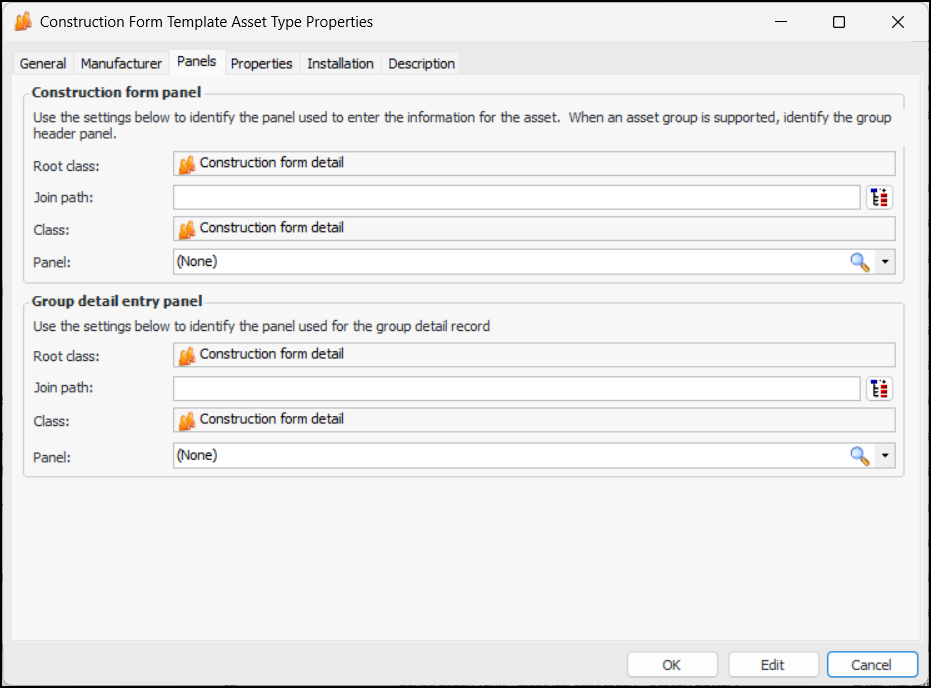
10. Select the Panels tab. This example is for an asset group, so it requires panels for the header and detail levels:
11.
12.
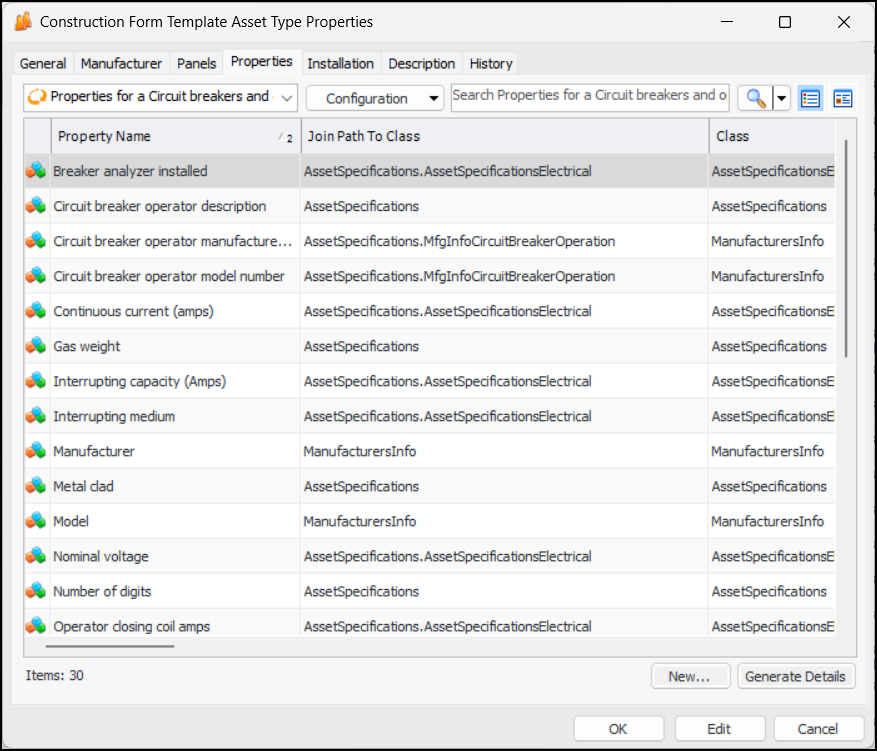
13. Select the Properties tab. Click Generate Details. APM populates the table with the properties from the asset type’s panel(s). Here is an example for the circuit breaker and operator asset type:The Properties tab provides several table configurations:
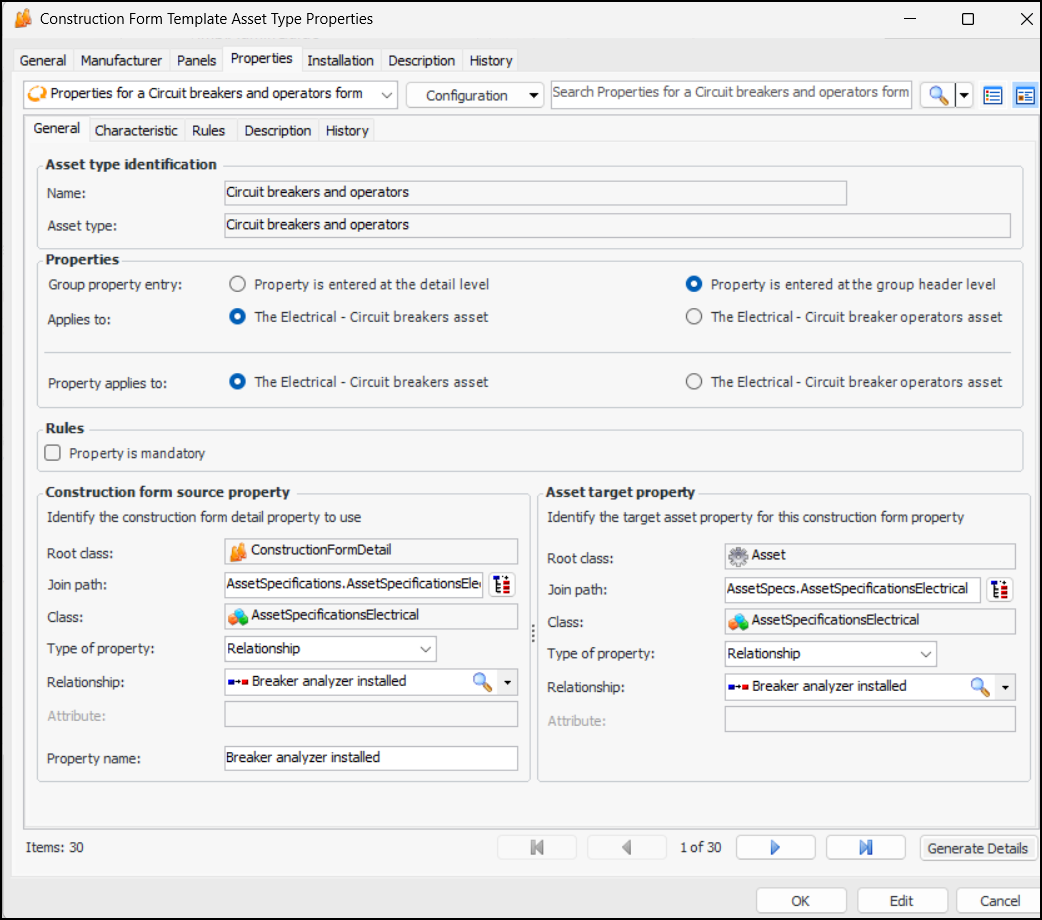
• In the Properties tab, double-click a property to open its window. When you have finished editing the property, click OK.
•
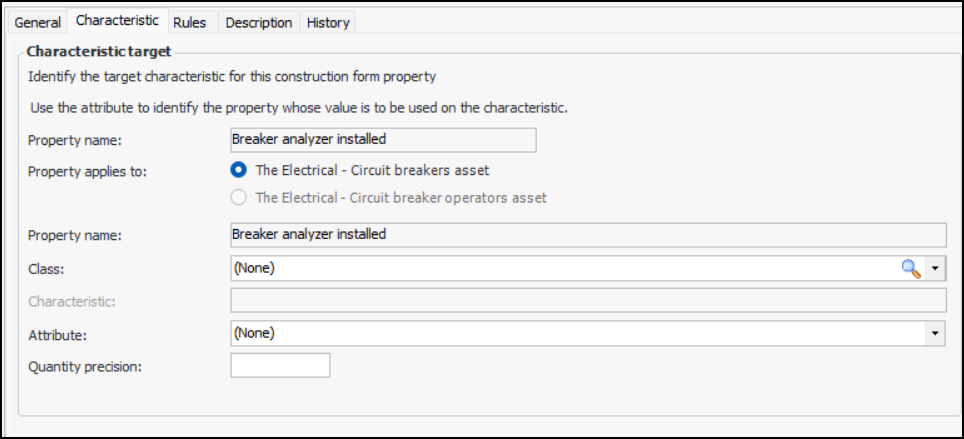
16. Select the Characteristic tab to set the asset characteristic for each property. For example:
17. In the Characteristic target area, make any changes required for the target characteristic in the CMMS. You can select a characteristic class, characteristic, and attribute. For numeric data types, you can specify the number of decimal places allowed in the Quantity precision box.
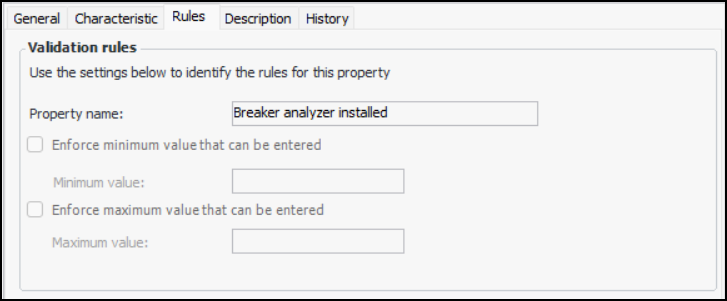
18. Select the Rules tab to set the validation rules for the property.
20. Select the Description tab to add more information to the template.Tip: If you need to add a property, first update the UI panel(s) to include it. Then open the Construction Form Template Asset Type Properties window, select the Properties tab and click New. In the Construction Form Template Property window, provide the source and target mapping for the property.
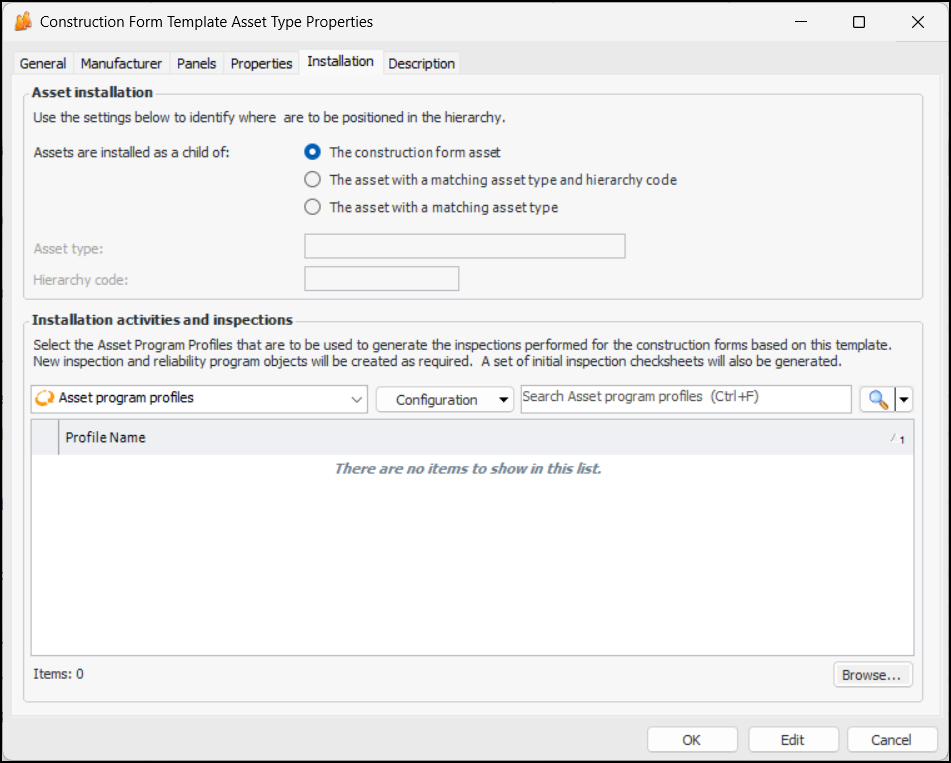
21. In the Construction Form Template Asset Type Properties window, select the Installation tab. For example:
• The construction form asset – The asset that you select when creating a construction form will be the parent of assets of this type
• The asset with a matching asset type and hierarchy code – Select the asset type and hierarchy code. APM finds the first descendant of the construction form asset with the matching hierarchy code and asset type. This will be the parent of assets
• The asset with a matching asset type – Select the asset type. APM finds the first descendant of the construction form asset with the matching asset type. This will be the parent of assets
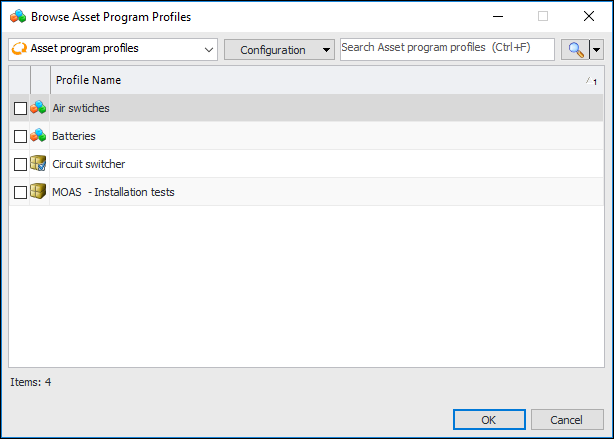
23. Click Browse in the Installation activities and inspections area. The Browse Asset Program Profiles dialog appears. For example:
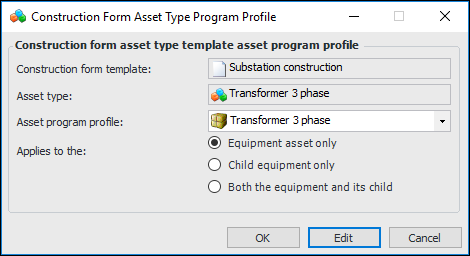
24. Select one or more profiles and click OK. You might, for example, add profiles for the parent and child assets. The profiles are added to the table.
• Click OK to close the dialog.
26. Select the Description tab to add more information.
27. Tip: You can return to the Construction Form Template Asset Type Properties dialog in the future to view an audit history of the type. Select the History tab, which lists actions performed by event and data element.