Setting up Statuses for Construction Forms

You can use statuses to control the work flow and processes for construction forms. For example:
Actions – You can have APM perform one or more actions when the status is assigned to an object. In a typical implementation, when a form’s status changes to “Validation completed”, APM starts the process that generates and updates assets. You can also have the form’s process step changed when the status is applied
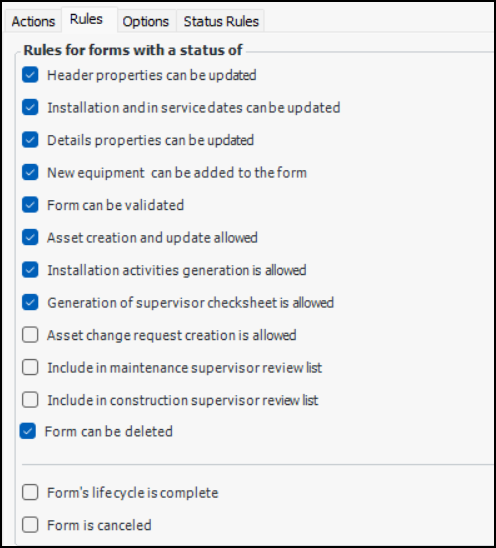
Rules – The status rules define the actions that users can perform on the form. For example, the status “Data entry” might allow you to add equipment to the form but not generate activities
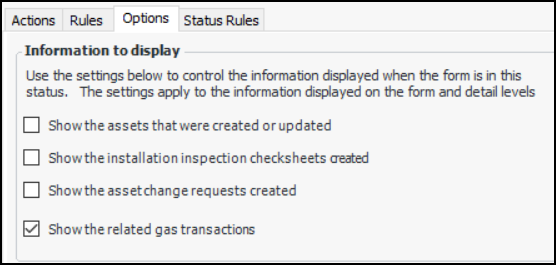
Options – You can also select the information to be shown on forms with the current status: assets created or updated, installation inspection check sheets created, and asset change requests created. When any of these options are selected, APM adds the Activities view to the Construction Form window and the Activities tab to the Construction Form Detail Properties window
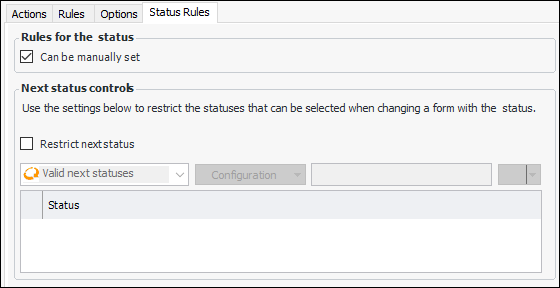
Status rules – You can restrict the statuses that can be assigned to forms with the current status. For example, you could prevent any other status from being applied to forms that have been vetted by an administrator.
You can allow users to manually apply a status to a form. Alternatively, the status will only be assigned in response to system events.
Events – You can also select the statuses to be assigned to forms when events occur on the site. For example, when a form is created, it could automatically be assigned the status “Data entry”. For more information, see Setting up Automatic Status Assignments for Construction Forms.
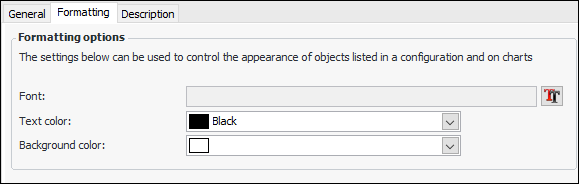
Status properties include formatting choices such as font, text color, and background color for display in tables and graphs.

Example Statuses and Properties

The following table shows the properties of an example set of simple statuses, including actions, rules, options, and events. These statuses assume that users add equipment to the form and then start the validation process manually. You can create statuses to meet your organization’s needs.

To Set up a Construction Form Status
1.
In the Site window, select the Construction Management view and the Settings tab. Select the Construction Management Settings node in the tree.
Tip: You can also select the Administration menu and then Construction Management Settings. The Construction Management Settings dialog appears.
2.
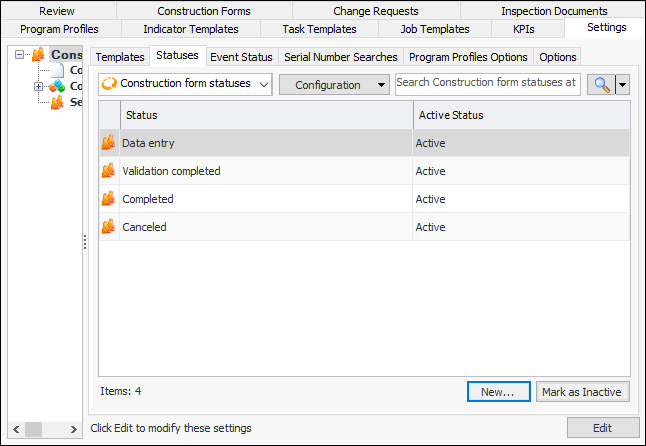
Select the Statuses tab. This tab shows the statuses defined for the enterprise.
3.
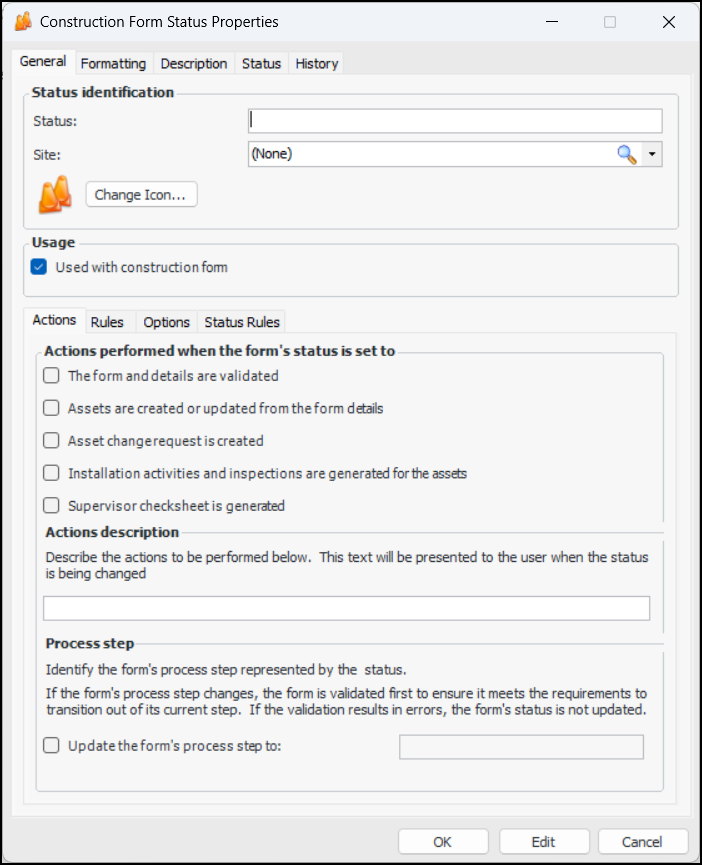
Click New. The Construction Form Status Properties dialog appears:
4.
5.
On the Actions tab, select the actions that APM will perform when the status is assigned to a form:
6.
Select the Rules tab.
7.
Note: Details properties can be updated must also be selected.
8.
Select the Options tab.
9.
10.
Select the Status Rules tab.
11.
Can be manually set is selected by default, which means that users can assign this status to construction forms. To prevent this, clear the option. The status will only be assigned in response to system events.
12.
To identify one or more statuses that can be assigned to forms with the current status, click Restrict next status. The statuses are displayed in the “Valid next statuses” table. Select the ones that can follow the current status.
13.
Select the Formatting tab.
14.
15.
Select the Description tab to add more information.
16.
Click OK. The dialog closes and the status is added to the Statuses tab.