|
Setting up Conditional Indicator Lists
This topic explains how to create conditional indicator lists. Once created, you can add the lists to indicator states. See Adding States and Alarms to an Indicator or Template and Setting up Indicator States to Create Requests for Work.To Set up Conditional Indicators
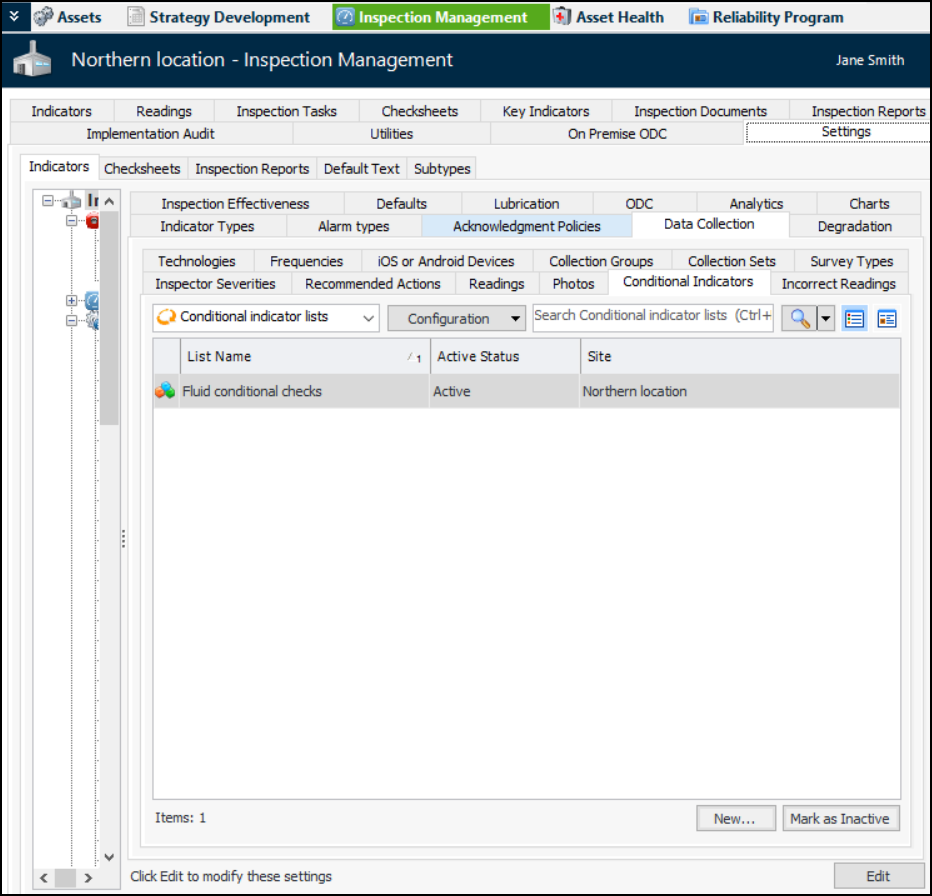
1. From the Site window, select the Inspection Management view, the Settings tab, and then the Indicators tab. Select the Indicator Settings node in the tree.Tip: You can also click the Administration menu, Inspection Management Settings, and then Indicator Management. The Indicator Settings window appears.
2. Select the Data Collection tab and the Condition Indicators tab. This tab displays existing lists, if any. You can also mark a list as inactive to remove it from selection lists.
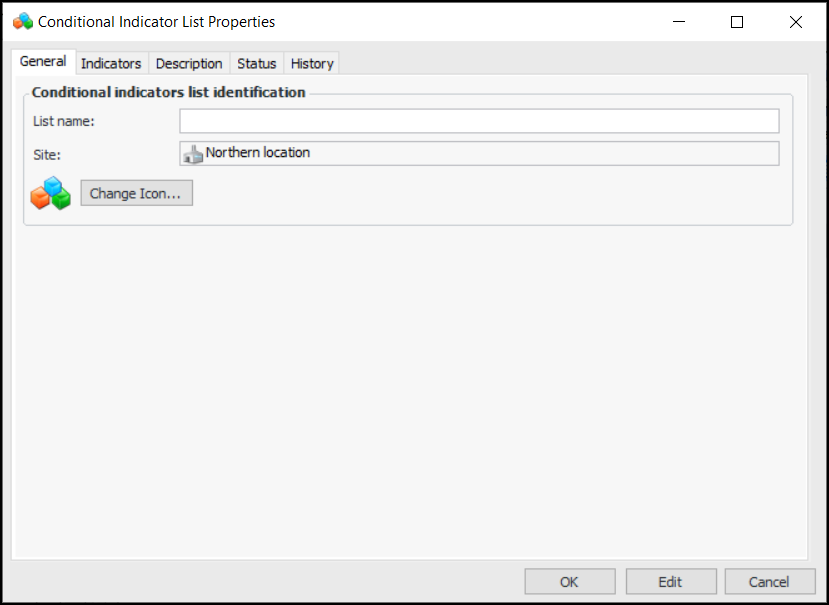
3. Click New to open the Conditional Indicator List Properties dialog:
4. On the General tab, provide a name for the list.
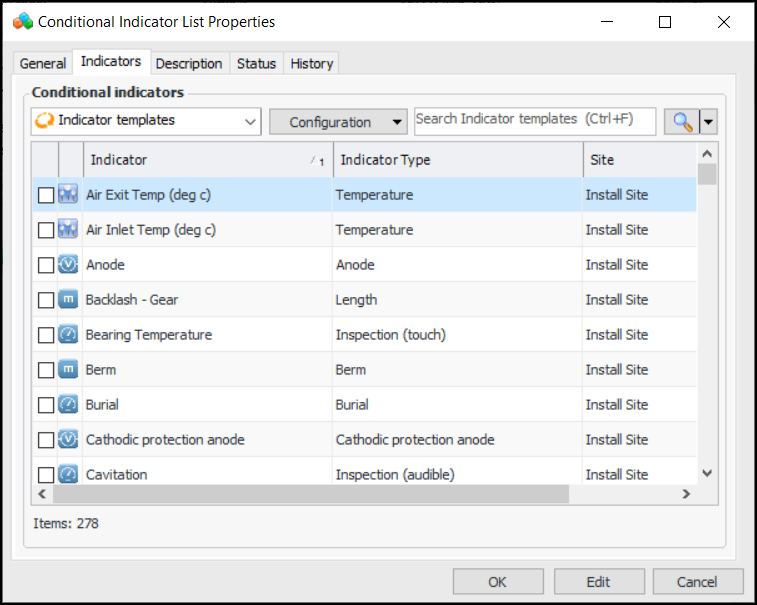
5. Select the Indicators tab. This tab lists the indicator templates for the enterprise.
7. Select the Description tab to add more information about the list.
8.