|
Setting up Checksheet Types
Inspection activity types must already be defined before you can add them to a checksheet type. For more information, see Setting up Inspection Activity Types.You can use checksheet type and checksheet statuses to control collection methods and to automatically mark checksheets as ready to be downloaded to APM Remote or APM Mobile Inspections and/or as ready to be exported to Excel®. For example, an organization might require that an inspection plan be reviewed and validated before the checksheets can be downloaded to mobile devices for readings to be taken. In this case, you would enable the Can be collected on mobile PC or remote tablet option on the checksheet type. Then control when the download is permitted to occur using checksheet statuses.To Set up a Checksheet Type
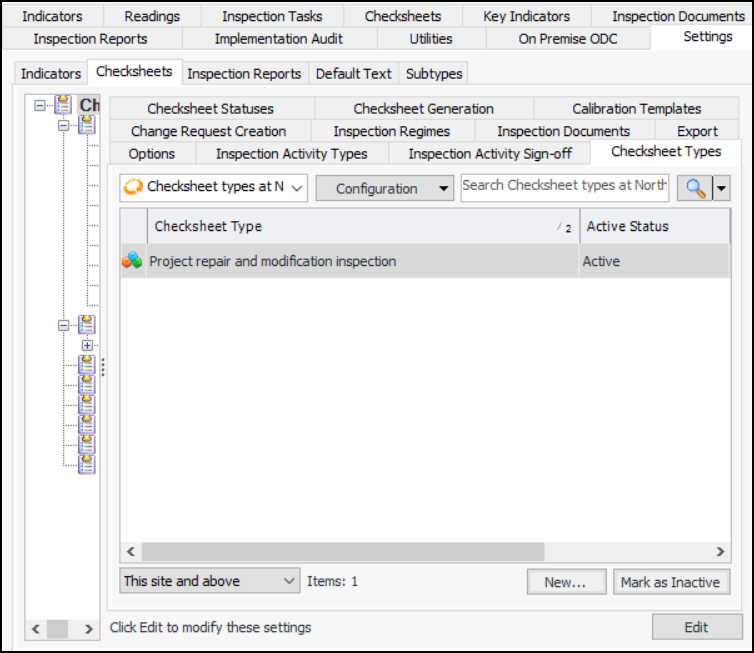
1. From the Site window, select the Inspection Management view, the Settings tab, and then the Checksheets tab. Select the Checksheet Settings node in the tree.Tip: You can also click the Administration menu, Inspection Management Settings, and then Checksheet Settings. The Checksheet Settings window appears.
2. Select the Checksheet Types tab.
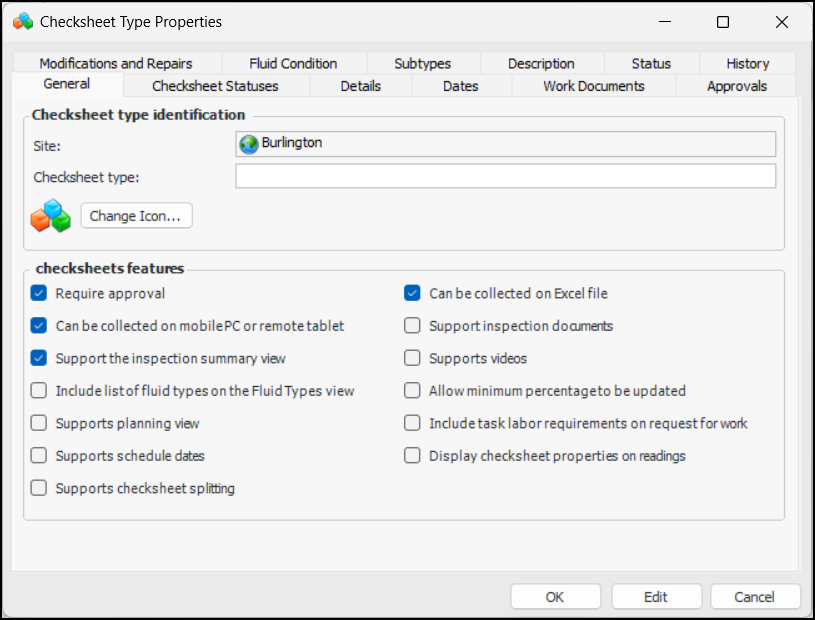
3. Click New. The Checksheet Type Properties dialog appears:
5. To change the image that represents the type in tables and lists, click Change Icon, select a different icon, and click OK.
6. In the Checksheet Features area, set these options as needed.
When selected, checksheets of this type display the Inspection Summary view.
When this option is selected, the Fluid Types view is available in the Checksheet window. It lists the fluid types associated with the indicators.
When this option is selected, the Planning view is available in the Checksheet window for checksheets generated from a standard task.
When this option is selected, the Inspection Documents view appears in the Checksheet windows for checksheets of this type.
When this option is selected, the Videos tab is available in the Checksheet window. Checksheet readings support video details.
This option controls whether the Readings required checksheet property is editable.
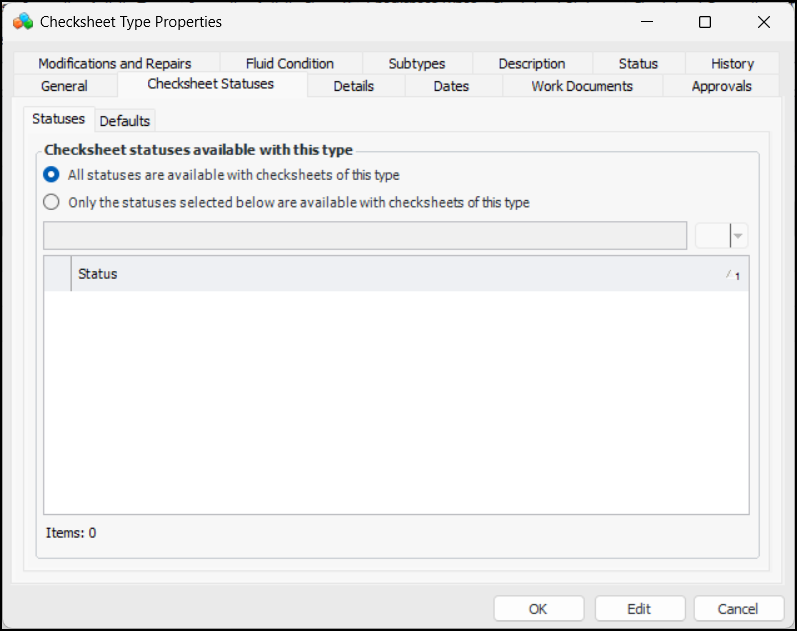
7. Select the Checksheet Statuses tab:
8. By default, all checksheet statuses are available for checksheets of the current type. You can restrict statuses by selecting Only the statuses selected below. The checksheet statuses for the site are listed, and you can select the appropriate ones for this checksheet type.
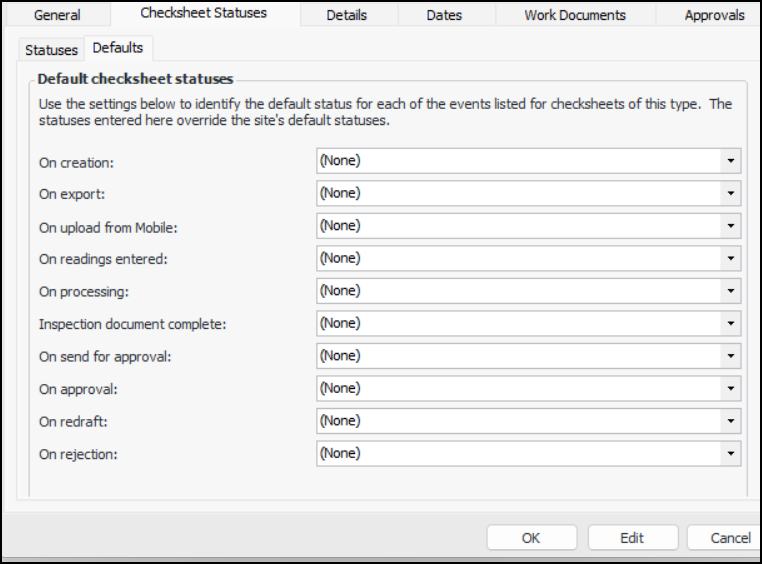
9. Select the Defaults tab:
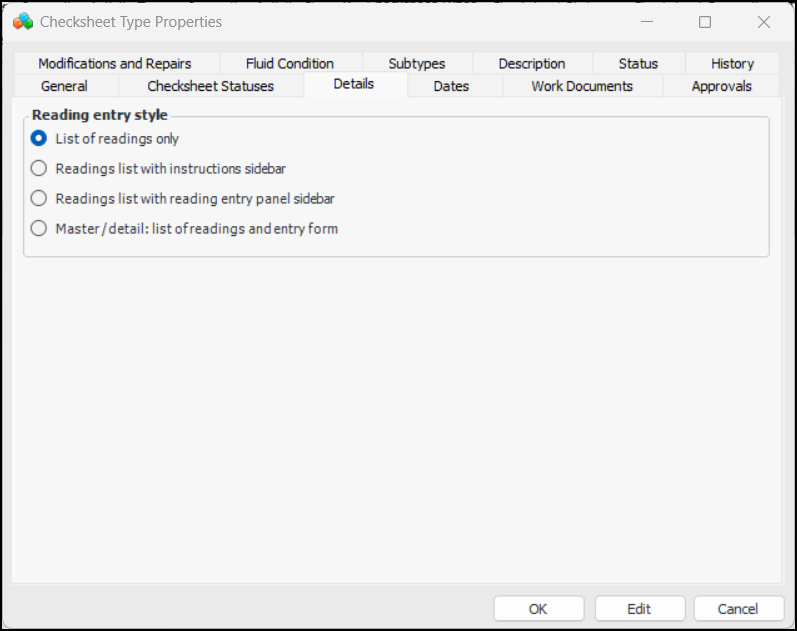
11. Select the Details tab:
• List of readings only (default) – Readings are listed in a table. You can use in-line editing to add values or double-click a reading to open the Indicator Reading dialog. You can view the table as a form to navigate between individual readings.
• List of readings with instructions sidebar – Readings are listed in a table on the left. Instructions for the selected indicator are shown in the sidebar on the right.
• Readings list with reading entry panel sidebar – Readings are listed in a table on the left. You can enter readings in the right-hand panel and use the navigation buttons to move from one indicator’s reading to the next.
• Master/detail: list of readings and entry form – Readings are listed in a table on the left. You can select a reading in the table to view and enter information in the panel on the right.
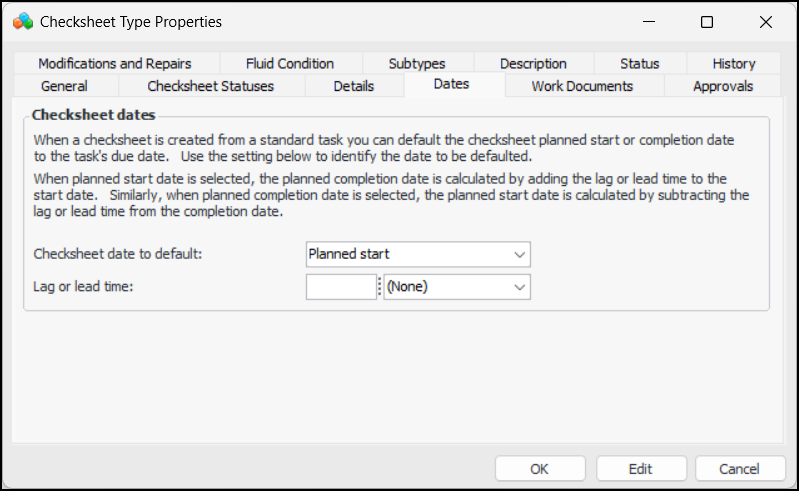
13. Select the Dates tab:
15. In the Lag or lead time boxes, you can specify how the checksheet’s other planned date is calculated. For example, if “Planned start” is selected and the lag time is 30 days, the planned completion date is set to 30 days after the planned start.
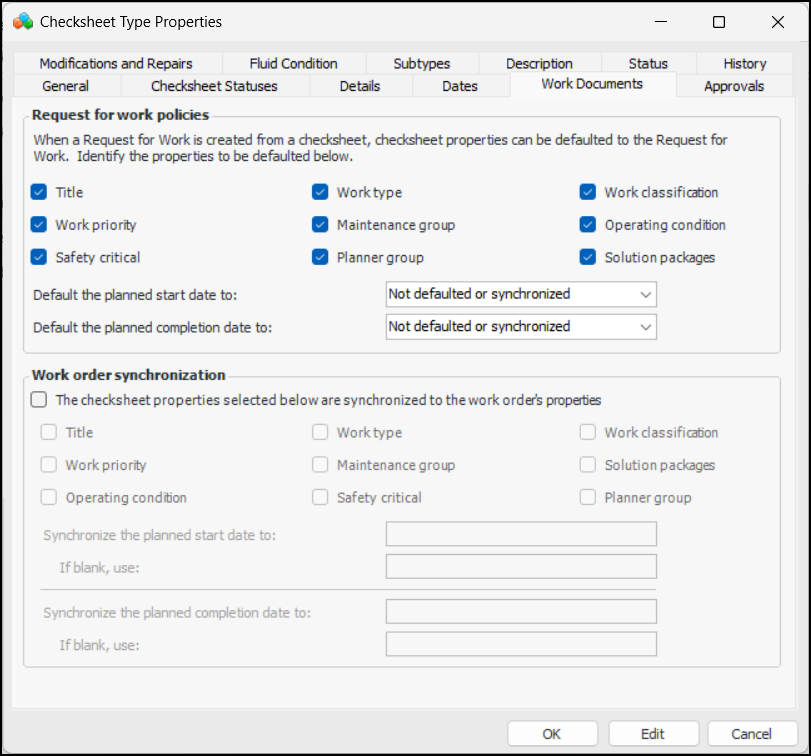
16. If AWEIS is active on the site, the Work Documents tab is available:
17. In the Request for work policies area, all of the properties are selected by default, which means that the checksheet properties are copied to the new request for work. You can deselect properties as needed and select the planned dates for the defaults.
18. In the Work order synchronization area, you can enable synchronization between interop work orders and their checksheets.
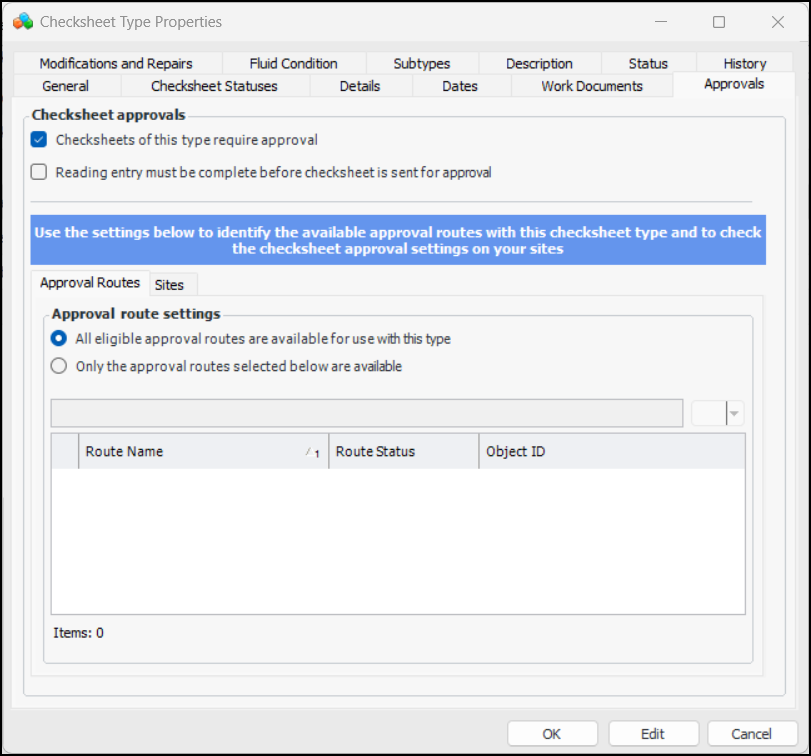
21. Select the Approvals tab:
22. If you will be using the formal approvals process for checksheets, select Checksheets of this type require approval.
23. To prevent incomplete checksheets from being sent for approval, select Reading entry must be complete before checksheet is sent for approval. When a checksheet is sent for approval, APM checks that the percentage of readings meets the minimum requirement and that all mandatory readings have been entered. If not, a message is issued and the Send for Approval action is stopped.
24. You can define the available approval routes by checksheet type. This allows separate routes to be defined for maintenance and construction inspections, for example. To restrict checksheets of this type to specific approval routes, select Only the approval routes selected below are available. Then select the routes in the list of available routes that appears.
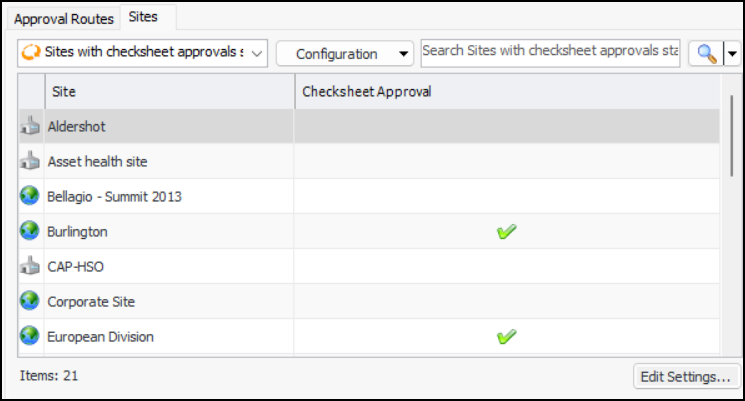
25.
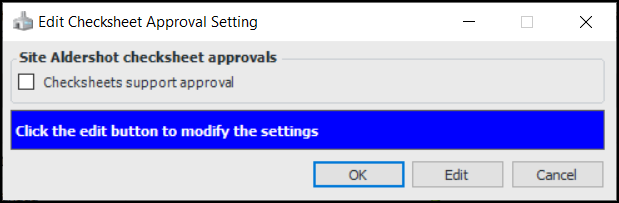
26. If you wish to turn on checksheet approval for a site, select it in the table and click Edit Settings. The Edit Checksheet Approval Setting dialog appears:
27.
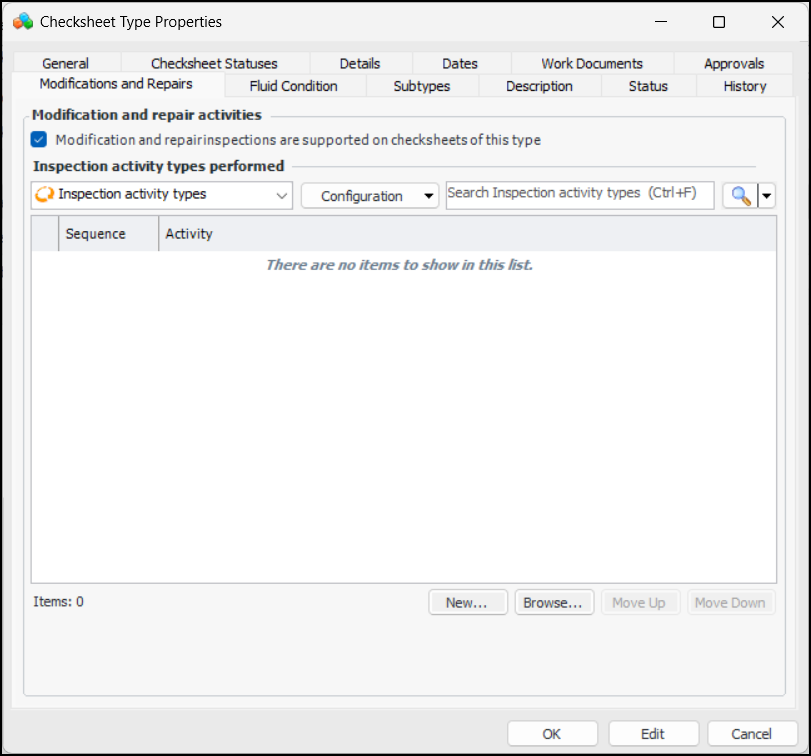
28. Select the Modifications and Repairs tab:
29. Modification and repair inspection is supported on checksheets of this type is selected by default, allowing you to add inspection activity types. Clear this option if the checksheet type is to be used for a different purpose.
• Click Browse to open the selector dialog. Only activity types that are not currently assigned to the checksheet type are available. Select one or more activity types and click OK. The types are added to the table.
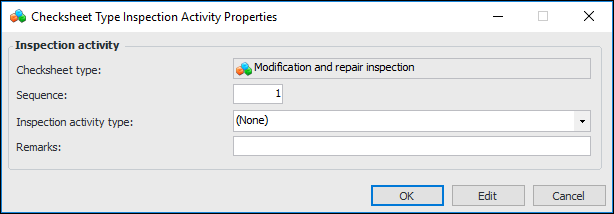
• Click New to add individual activity types. The Checksheet Type Inspection Activity Properties dialog appears. For example:Using this dialog, you can set the sequence number, select an activity type, and add remarks. Click OK to close the dialog and add the activity type to the table.
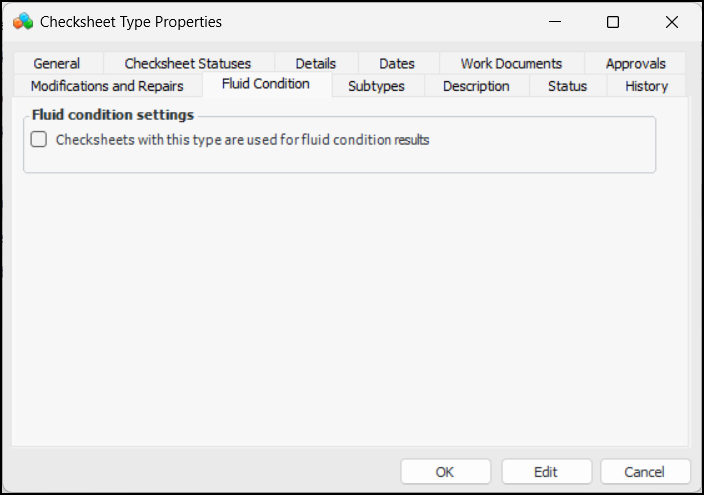
31. Select the Fluid Condition tab:
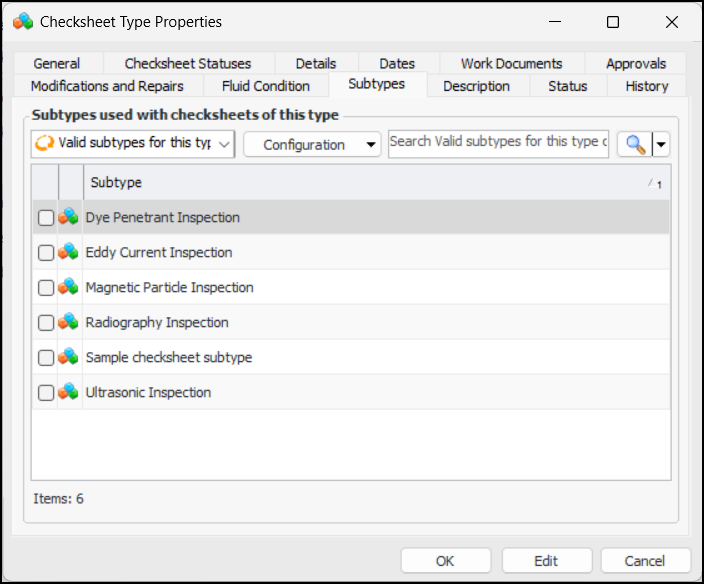
32. Select the Subtypes tab to select valid subtypes for this type of checksheet:Note: APM provides a sample checksheet subtype that you can use as a model for your custom subtypes. The sample subtype is listed in the Site window, Inspection Management view, Settings tab, Subtypes tab.
33. Select the Description tab to add more information.
34. Click OK. The dialog closes and the checksheet type is listed in the tab.