|
Setting up Inspection Activity Sign-off Statuses
To Set up an Inspection Activity Sign-off Status
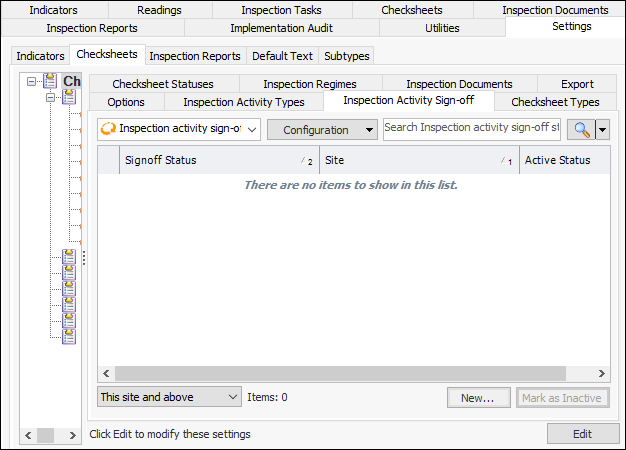
1. From the Site window, select the Inspection Management view, the Settings tab, and then the Checksheets tab. Select the Checksheet Settings node in the tree.Tip: You can also click the Administration menu, Inspection Management Settings, and then Checksheet Settings. The Checksheet Settings window appears.
2. Select the Inspection Activity Sign-off tab.Tip: You can deactivate a sign-off status, for example, while it is being developed. Select the status in the list and click Mark as Inactive. In the dialog that appears, you can enter an explanation for the change and click OK. Click OK to close the confirmation message that appears. The status is displayed as struck-through in the list and it will not appear in MRI checksheets. To reactive a status, select it and click Mark as Active.
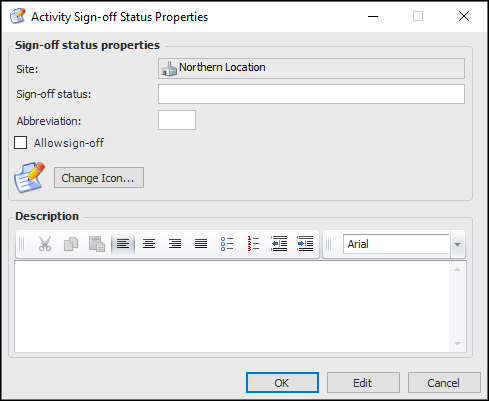
3. Click New. The Activity Sign-off Status Properties dialog appears:
6. Select Allow sign-off to indicate that the inspector can select the sign-off date and name in the MRI checksheet.
7. To change the image that represents the status in tables and lists, click Change Icon, select a different icon, and click OK.
8. Enter more information in the Description box.
9. Click OK. The dialog closes and the sign-off status is listed in the tab.