Setting Checksheet Options

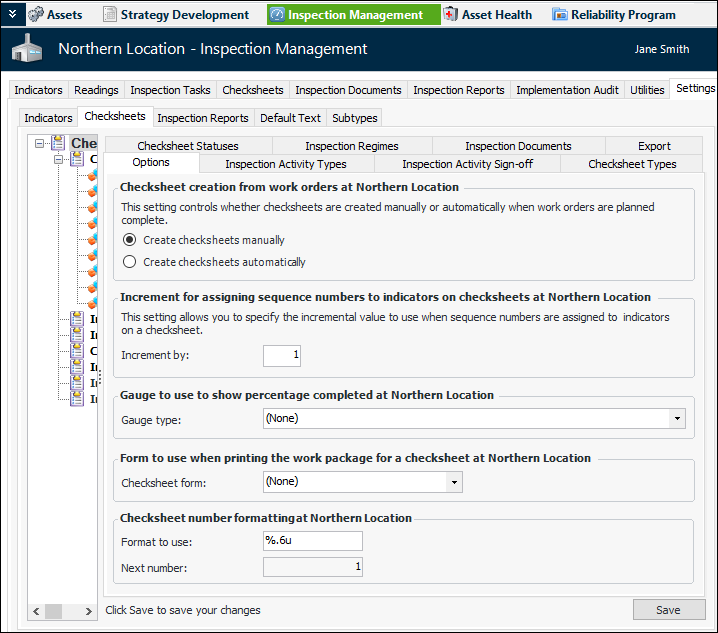
Using the Options tab in checksheet settings, you can set the following properties:
Note: This option does not apply to checksheets created by mobile activities (Mobile or Remote).
This topic explains how to set these checksheet options.

To Set Checksheet Options

1.
From the Site window, select the Inspection Management view, the Settings tab, and then the Checksheets tab. Select the Checksheet Settings node in the tree.
Tip: You can also click the Administration menu, Inspection Management Settings, and then Checksheet Settings. The Checksheet Settings window appears.
2.
Select the Options tab.
3.
Click Edit to modify the site settings. The Edit button is replaced by the Save button.
4.
For example, a format that says “%.6u” would generate six-digit numbers padded with zeros: 001234.
% indicates the start of the number definition.
.6 indicates that the numbers should have six digits. Numbers with less than six digits will be padded with zeros.
u indicates that the number is an unsigned integer (that is, it cannot be a negative number).
Note: The Next number box shows the number that will be assigned to the next checksheet to be created.
5.
Click Save.