Setting Checksheet Export Options

You can specify the table configurations that are available and suggested (default selections) when users export indicator readings to a Microsoft Excel® workbook. The configurations vary according to the type of checksheet: surveys and subtypes, measurement points, fixed measurement points, or indicator readings without measurement points.
You can set the export options at a higher level site so that the settings apply to all sites that are lower in the hierarchy. Then you need only define options at lower level sites that have specific requirements, for example, sites that require surveys with separate worksheets for each indicator.
These standard configurations are available for checksheet exports:
Readings – For indicators without measurement points. The workbook contains a checksheet header worksheet and one readings worksheet that includes one row per indicator reading
Readings (Multiple MPs) – For numeric indicators with 2-8 fixed measurement points. The workbook contains a checksheet header worksheet and one readings worksheet that includes one row per indicator reading. The readings worksheet contains up to eight columns for measurement point values
Measurement point readings – For numeric and/or descriptive indicators with two or more fixed or variable measurement points. The workbook contains a checksheet header worksheet and one readings worksheet that includes one row per measurement point reading. Columns are provided to record values, indicator state, technology, measurement device (if appropriate), date collected, and notes
Measurement point readings with subtype info – For indicators that support measurement point readings with survey or subtype requirements. The workbook contains one checksheet header worksheet and a separate readings worksheet for each indicator. Each readings worksheet lists the measurement points for the indicator and includes columns for survey and subtype properties
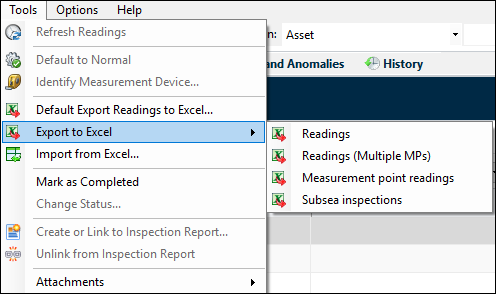
When exporting a checksheet to Excel, the user can select the default export option or one of the standard configurations using the Tools menu. For example:
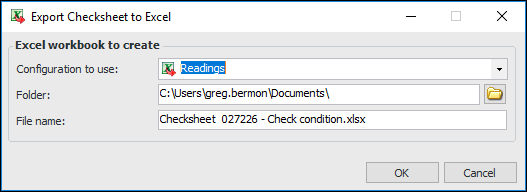
If the user selects Default Export Readings to Excel, APM analyzes the checksheet and suggests the default configuration according to its characteristics. The selection is shown in the Export Checksheet to Excel dialog:
The user can change the configuration to use if other configurations are available for that type of checksheet.
This topic explains how to enable export settings for the site, select the configurations that are available for the default option, and select the default configuration for each type of checksheet.

To Set Checksheet Export Options

1.
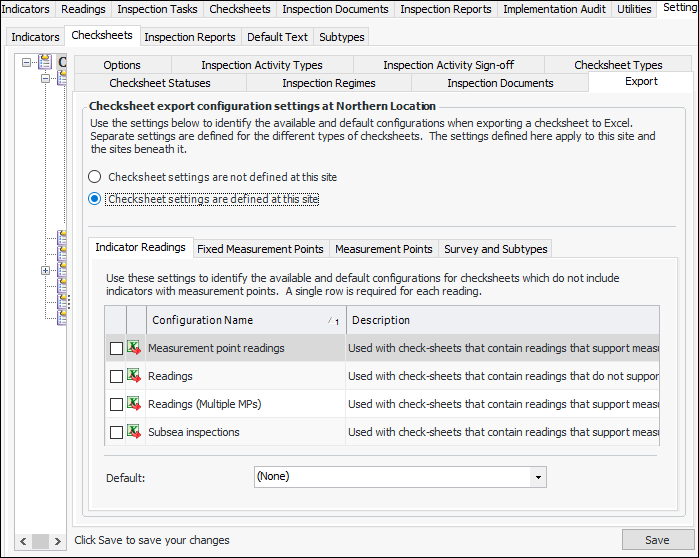
From the Site window, select the Inspection Management view, the Settings tab, and then the Checksheets tab. Select the Checksheet Settings node in the tree.
Tip: You can also click the Administration menu, Inspection Management Settings, and then Checksheet Settings. The Checksheet Settings window appears.
2.
Select the Export tab.
3.
Click Edit to modify the site settings. The Edit button is replaced by the Save button.
4.
Click Checksheet settings are defined at this site. Options selected here will be applied to all sites below it in the hierarchy unless a lower site has explicit settings.
5.
6.
In the Default list, select the available configuration that will be the default selection.
7.