|
|


Setting up Calibration Templates
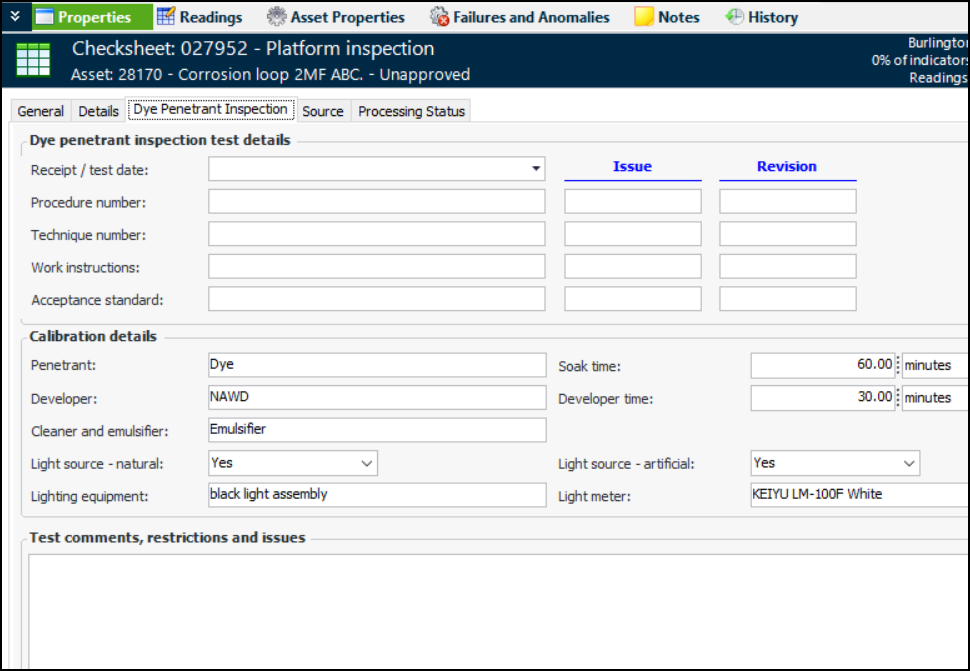
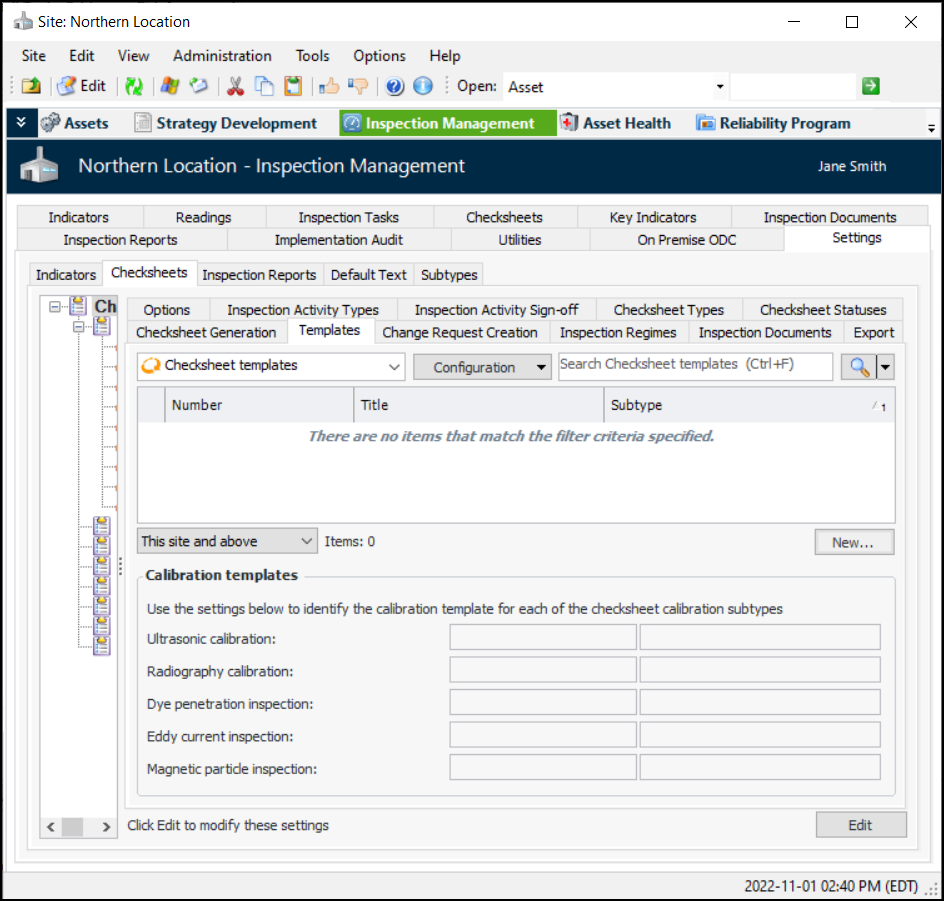
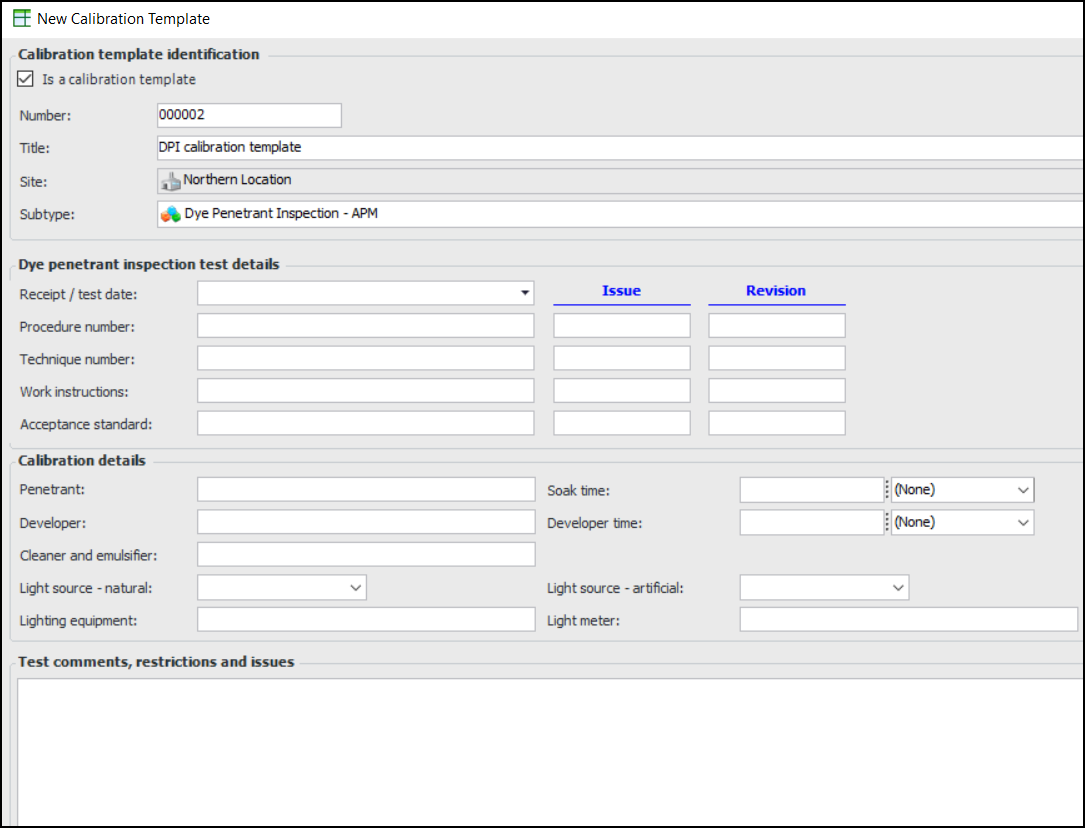
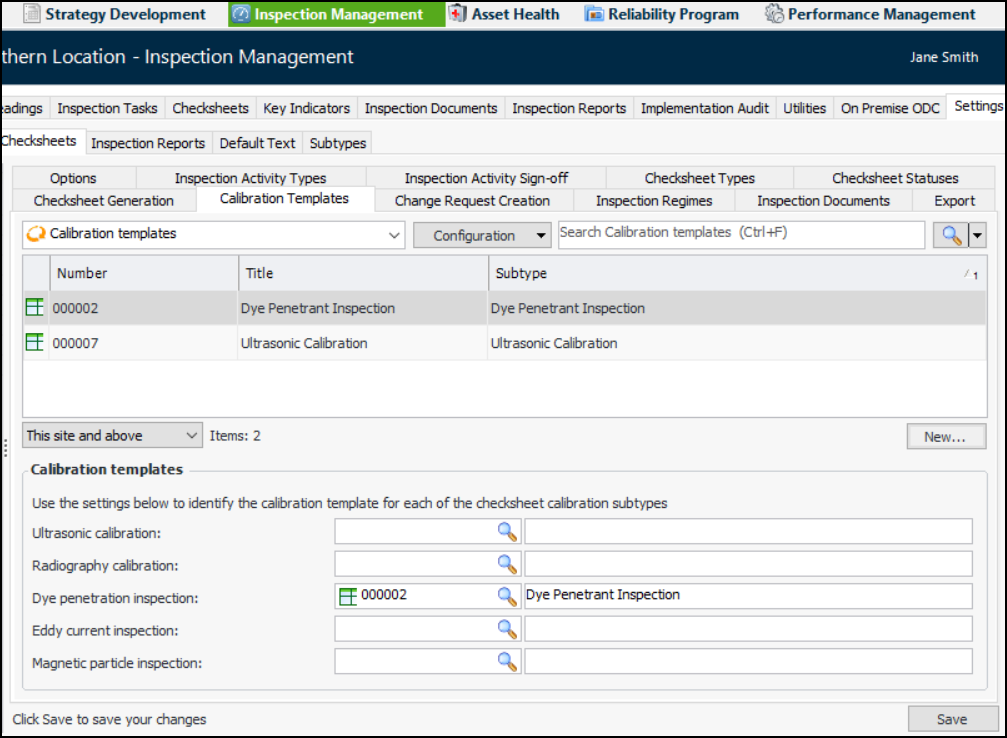
The default values that you add to the template are copied to the appropriate tab in the Checksheet window, Properties view. For example, this checksheet is assigned the Dye Penetrant Inspection subtype. Its Dye Penetrant Inspection tab provides both blank fields to be filled in by the inspector and fields with default values, which the inspector can review and edited as needed.Note: Calibration templates are available for preview. You must first enable feature 107 to use the functionality in APM. In the Enterprise window, select the Features view and the Enabled Features tab. Click Browse, select “Calibration template support” and click OK. If APM is running as a smart client, click Refresh Enabled Features on the server. Then restart the client to use the functionality.To Set up a Calibration Template