|
Setting up Inspection Activity Types
To Set up an Inspection Activity Type
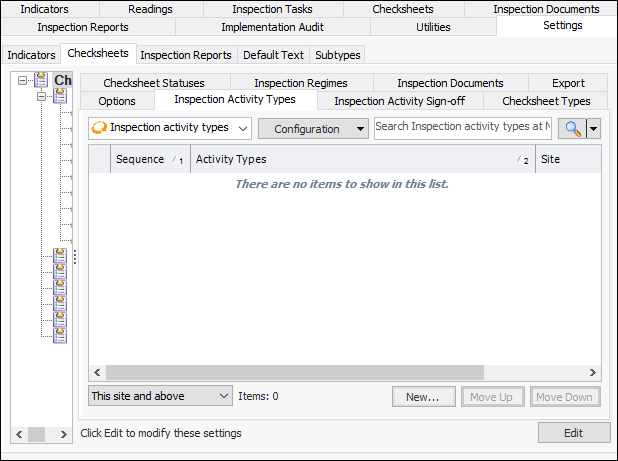
1. From the Site window, select the Inspection Management view, the Settings tab, and then the Checksheets tab. Select the Checksheet Settings node in the tree.Tip: You can also click the Administration menu, Inspection Management Settings, and then Checksheet Settings. The Checksheet Settings window appears.
2. Select the Inspection Activity Types tab.
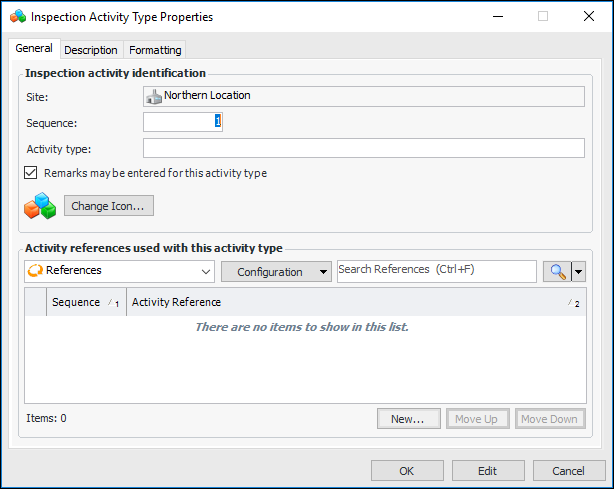
3. Click New. The Inspection Activity Type Properties dialog appears:
4. APM assigns a consecutive sequence number to each new type. You can change the sequence number here to reflect the order in which activities are completed. Use the Move Up and Move Down buttons on the Inspection Activity Types tab to arrange the objects. Their sequence numbers change automatically to match their positions in the list.
6. Remarks may be entered for this activity type is selected by default, indicating that the inspector can enter additional text for the activity. You can clear this option to make the Remarks box read-only in the Inspection Activity dialog.
7. To change the image that represents the type in tables and lists, click Change Icon, select a different icon, and click OK.
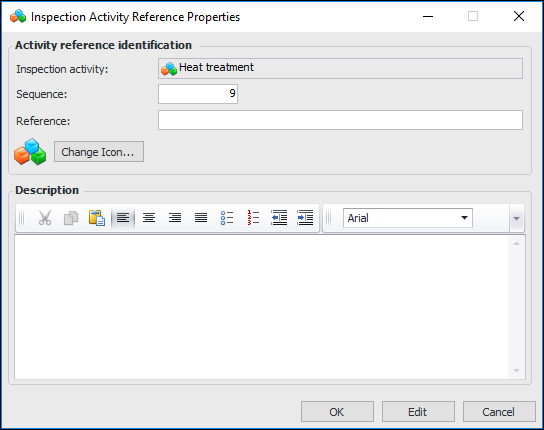
8. Identify references that will be available for selection in activities. Click New. The Inspection Activity Reference Properties dialog appears. For example:
9. In the Reference box, provide a descriptive name for the reference document or standard, for example, “EN ISO 15609-1 for Welding Procedure Specification”.
10. Provide a description and click OK. The dialog closes and the reference is added to the table.
11. Select the Description tab to provide more information about the activity type.
12. Select the Formatting tab to select the font, text color, and background color. These values are used in the tables that list the types.
13. Click OK. The dialog closes and the inspection activity type is listed in the tab.