|
Setting up Characteristic Mapping for Asset Change Requests
•
• Be sure to set up the “Map Characteristics to Asset Properties” scheduled action to execute regularly to keep the values current. For more information, see Scheduling Actions.To Create a Characteristic Class and Add Characteristics
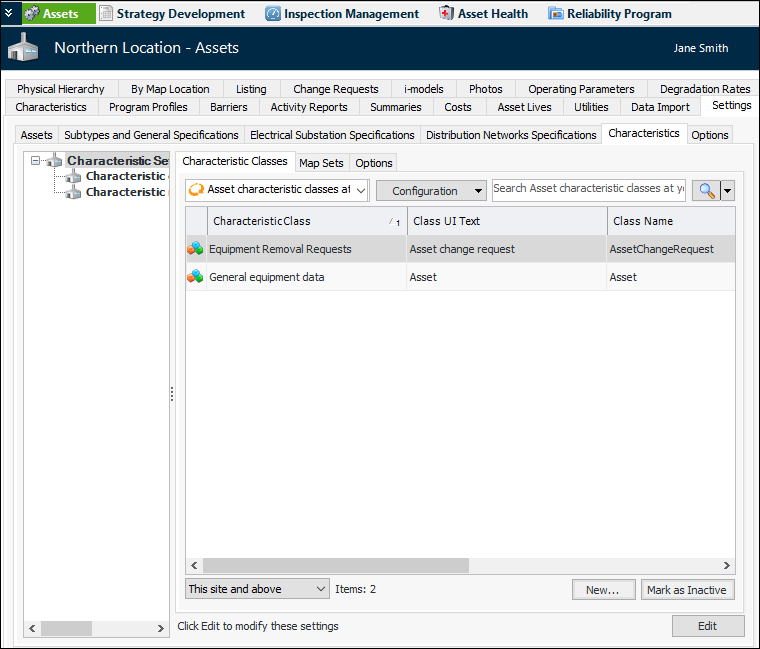
1. In the Site window, select the Assets view, the Settings tab and then the Characteristics tab. For example:By default, the Characteristic Classes tab shows characteristic classes for the enterprise based on the Asset and AssetChangeRequest classes.Tip: You can also create characteristic classes, characteristics, and map sets at the enterprise level. In the Administration menu, click Application Settings. In the Application Settings window, select the Characteristics tab.
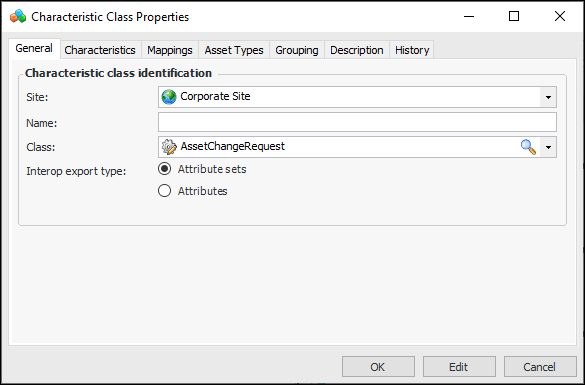
2. Click New. The Characteristic Class Properties dialog appears:
6. Set the interop export type. The default selection, Attribute sets, is appropriate for most implementations of characteristic export. The Attributes option exports characteristics as unrelated attribute elements. This mechanism is typically used to extend the Mimosa schema beyond the predefined fields.
7. Select the Characteristics tab.
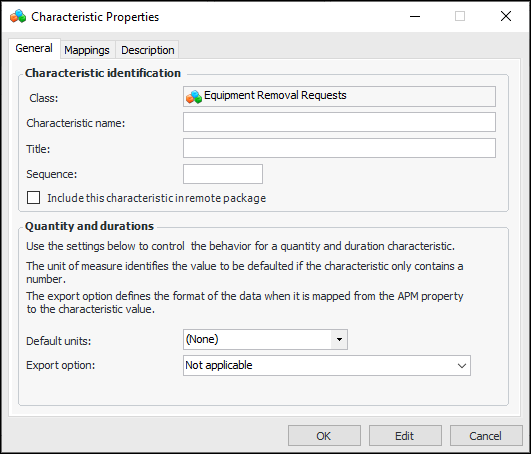
8. For each characteristic that you wish to add, click New. The Characteristic Properties dialog appears. For example:
12. In the Quantity and durations area, you can set options that determine how exported information is presented in the CMMS characteristic:
• Default units – If the characteristic value uses a number format, select the unit of measure to be used for this characteristic’s values
• Export option – You can specify whether only the number is exported or the number and its unit of measure are exported
13. Select the Description tab to add more information about the characteristic.
14. Click OK to save the characteristic and close the dialog. The characteristic is added to the table.
15. When you have added all of the characteristics, click OK to save the class and close the dialog.To Create a Map Set
1.
2.
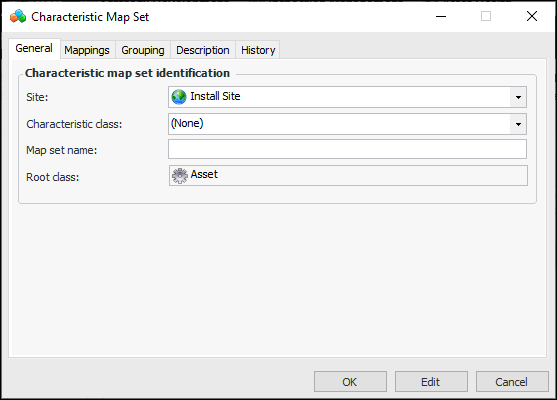
3. On the General tab, the top site is selected so that the map set is available for all child sites. You can select another site, if required.
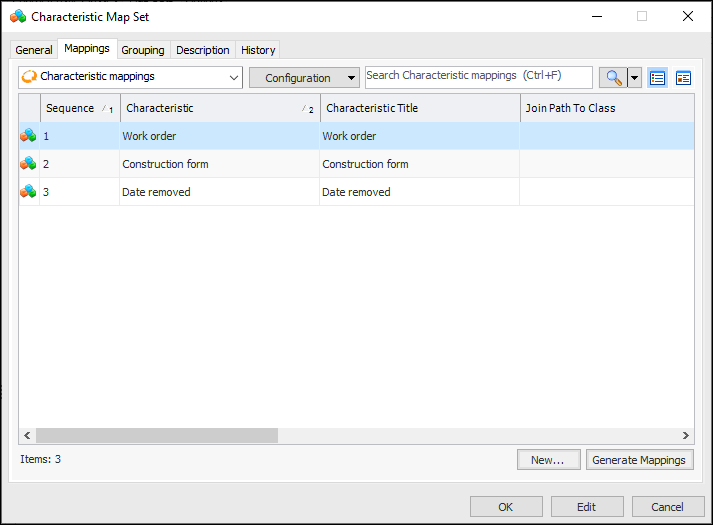
6. Select the Mappings tab and click Generate Mapping. APM creates mappings for the characteristics identified in the characteristic class. For example:
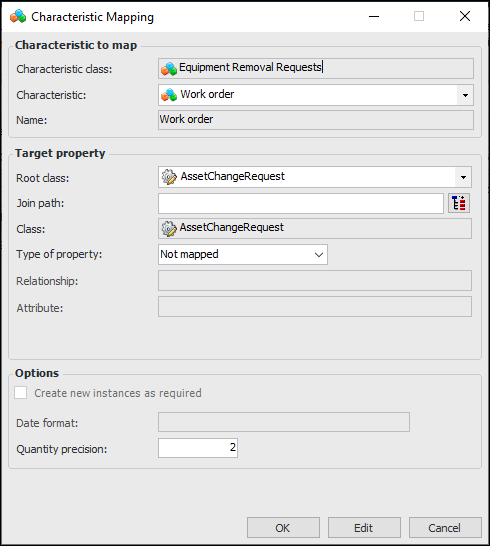
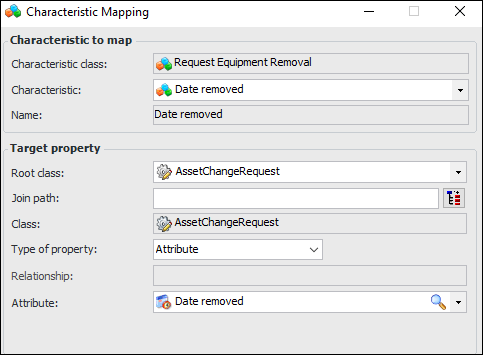
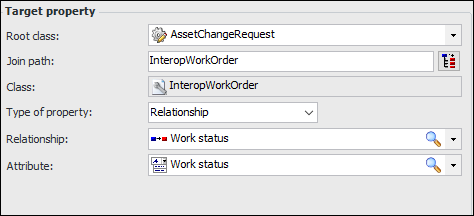
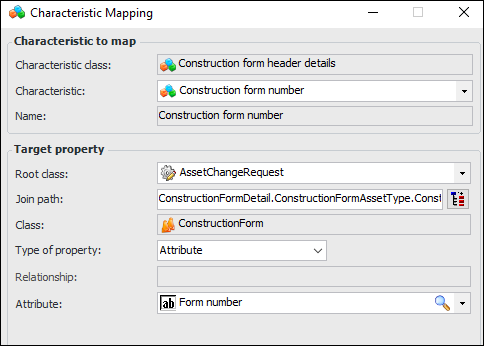
7. Open each Characteristic Mapping dialog and click Edit. For example:Date removed (Remove equipment change request)
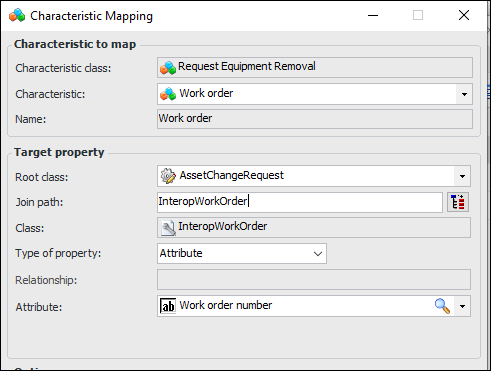
Work order (Remove equipment change request)
Construction form (Asset property change request)
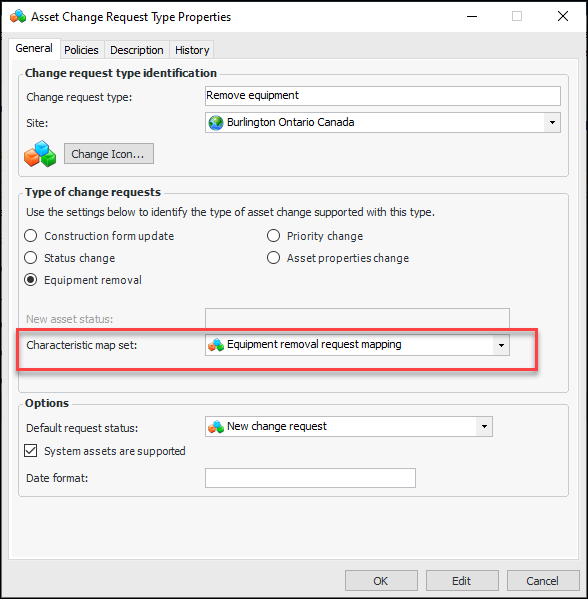
9. In the Options area, select settings as appropriate to the mapping:
• Create new instances as required is available for a relationship to a class that is owned or scoped by Enterprise or Site, for example, Material type or Work center.
• Date format is available when the target property is an attribute that uses the DateTime data type. You can enter any format that complies with standard or custom .NET formatting rules. For example:See the Microsoft topics for Standard date and time format strings and Custom date and time format strings.Note: The default values for these options are set for the enterprise in Application settings. In the Enterprise window, click the Administration menu and then Application Settings. In the Application Settings window, select the Characteristics tab and then the Options tab.
• Quantity precision is available for Quantity and Duration attributes. You can specify the number of decimal places supported:
10. Click OK to close the mapping dialog.
11. In the Characteristic Map Set dialog, select the Description tab to add more information.Tip: The History tab displays information about the map set’s creation and modifications.
12. Click OK to close the map set.