Working with User Asset Specifications

APM includes a shell class that administrators can use to add custom properties to an asset. The User Asset Specification Settings class provides an alternative to using Asset Specifications, creating asset subtypes, and in some cases, customizing the Asset class.
User Asset Specification Settings is an owned-by-1 class, owned by Asset. It includes support for the following properties:
Using the settings of class User Asset Specification Settings, you can identify which of the 20 properties are used. You can provide a label for each property.
Settings on asset type allow you to specify if user asset specifications are used with assets of the type. You can select the settings to use, which means different properties can be used with different types of assets. You can also select the panel to display.
If AWEIS is active in the environment, you can map characteristic values for user specifications to APM assets. For more information, see Setting up Characteristic Mapping for Assets.
Note: This functionality is generally available in APM. To use it, you must first enable feature 75. In the Enterprise window, select the Features view and the Enabled Features tab. Click Browse, select “Support for user asset specifications”, and click OK. If APM is running as a smart client, click Refresh Enabled Features on the server. Then restart the client to use the functionality.
This topic explains how:

To Add User Asset Specification Settings

1.
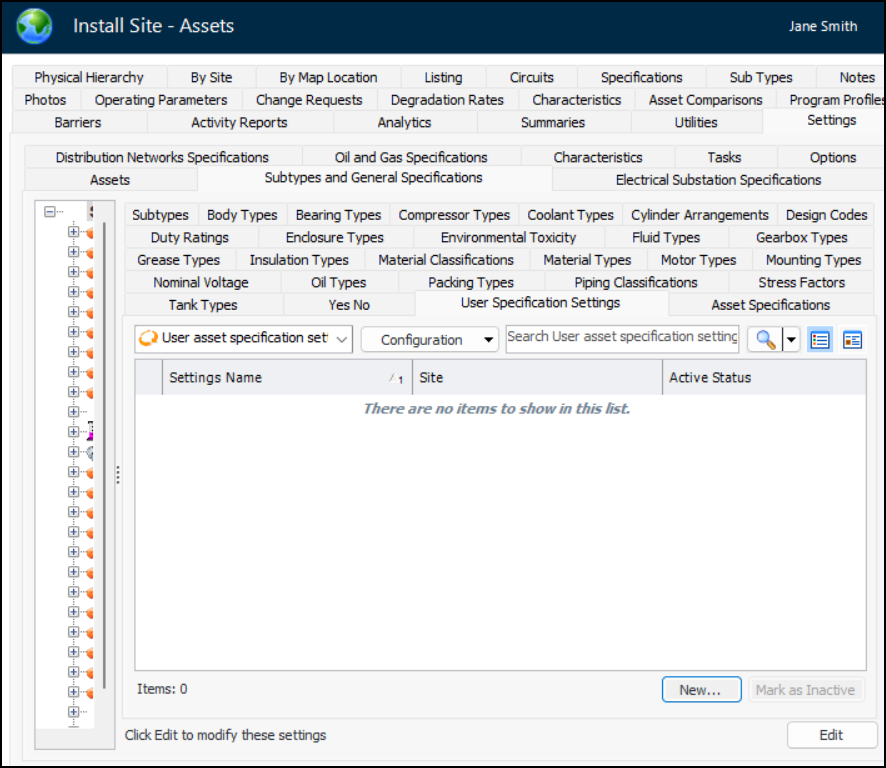
From the Site window, select the Assets view, Settings tab, Subtypes and General Specifications tab, and then and the User Specification Settings tab:
2.
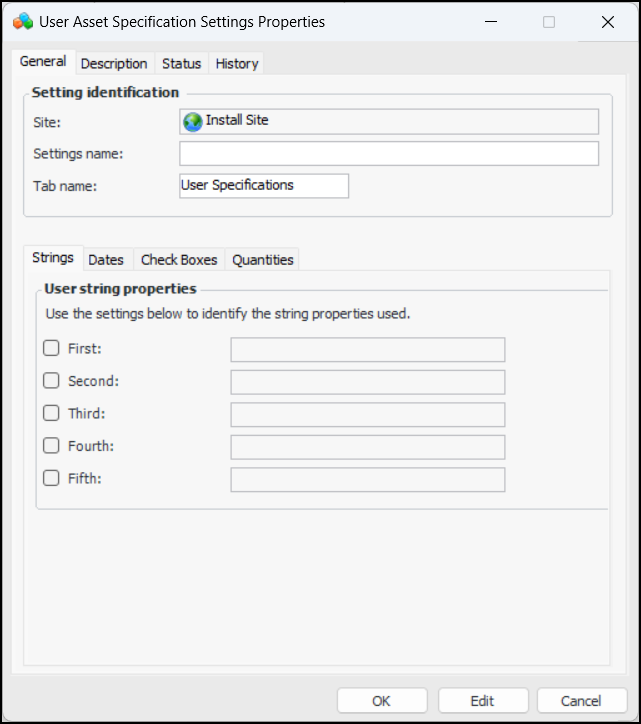
Click New. The User Asset Specification Settings Properties dialog appears:
Note: Be sure to create the specification at the same site, or above, as your asset types so that the specification is available for selection in asset types.
3.
4.
5.
On each of the Strings, Dates, Check Boxes, and Quantities tabs, select and add a label for each of the values you wish to use.
6.
Select the Description tab to add more information.
7.

To Add a Specification to an Asset Type

1.
Select the Assets view, Settings tab, Assets tab, and Asset Types tab.
2.
3.
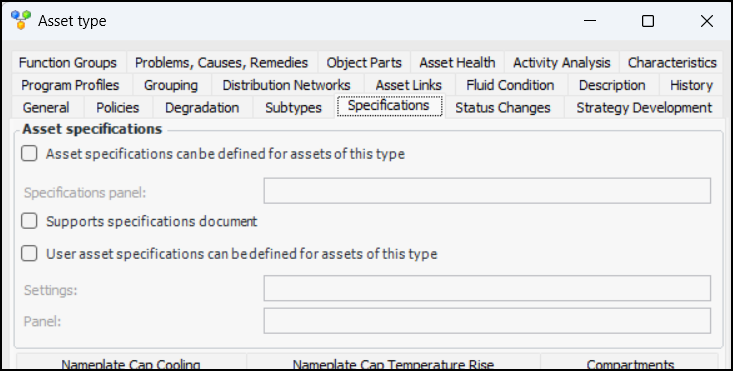
Select the Specifications tab:
4.
Select User asset specifications can be defined for assets of this type.
5.
6.

To Select Specifications on an Asset
1.
2.
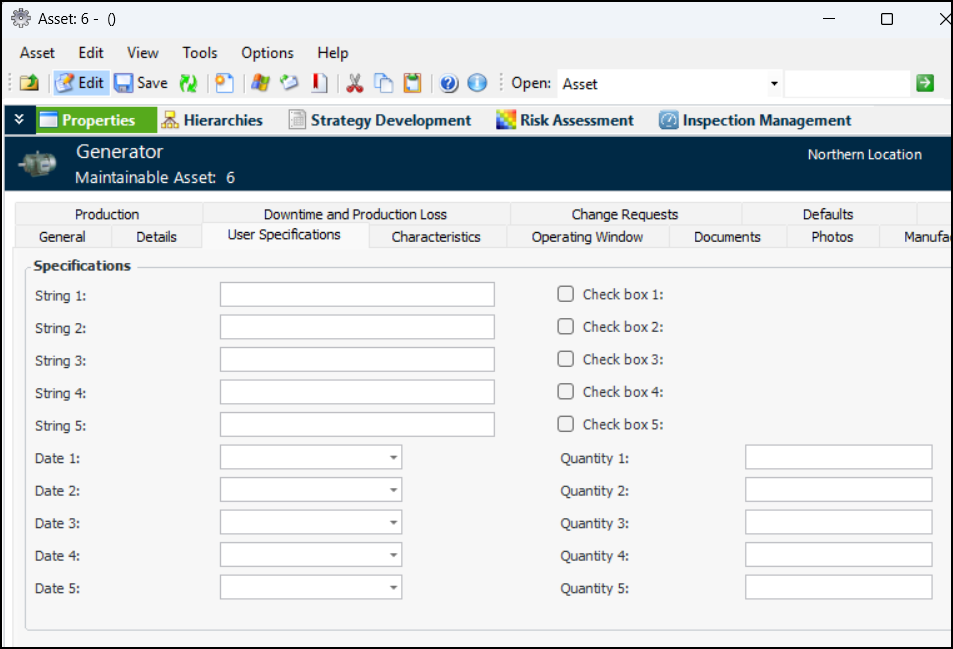
In the Properties view, select the User Specifications tab. The tab might be labeled differently from the default in the user specifications settings.
3.